 I love this camera. As with their X100S (read my review), the X-E1 is another example of how Fujifilm can make a camera with almost everything just right. Frederick Van Johnson and I discussed the X-E1 on episode #8 of All About the Gear.
General
Workflow: The NDOC “Tree Tunnel” Image
This image I made of a very popular location here in Marin County, California, generated a lot of online feedback. Because I used such a variety of post-processing tools and techniques, I thought it would be an interesting exercise to explain the workflow here. This presentation is an experiment and I look forward to hearing what you think of this format, particularly compared to screencasts and videos.
The slideshow below contains an image for each step in my process. If you hover over it you can pause it or move it forward or back. Below the slideshow is a scrolling area with the corresponding explanations. Click on any image to see it 2x larger. It should work on your mobile devices, too.
[slideshow_deploy id=’3305′]
Gigapan EPIC Pro
I don’t shoot a lot of panoramas, but I’ve always been curious about the GigaPan robotic camera mounts that automate capturing complex panoramas that include hundreds or even thousands of individual images. Thanks to BorrowLenses.com, I was able to get hold of one to test for episode #6 of All About the Gear.
MVFF: I Catch a Terrible Cat (C+)
Not every movie at a film festival is a winner. My wife and I go out of our way to find films that are unusual, quirky, foreign and very likely not to be widely distributed. We take our chances, and if, at the end of the festival, we can say that half of the films we saw were “good”, then we’re satisfied. Unfortunately, the North American premiere of I Catch a Terrible Cat fell well into the bottom half of this year’s Mill Valley Film Festival.
MVFF: The Best Offer (A-)
Let me begin by saying that my wife did not like this film at all. Unfortunately, the woman who introduced The Best Offer said a bit too much about it, which caused my wife to be uneasy throughout the entire film. Don’t worry. There’s no need to be uneasy. Just enjoy this one. [Trailer video spoiler deleted from this post. It gives away too much about the plot.]
Fujifilm X100S
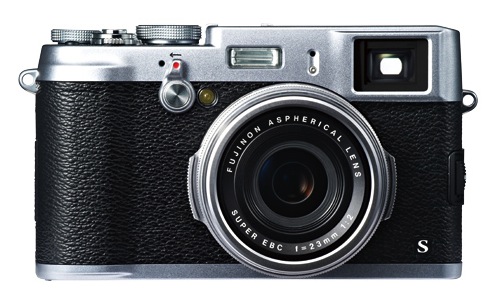
Fuji’s X100S is, so far, the hottest new camera of 2013, and Frederick Van Johnson and I reviewed it for episode #3 of All About the Gear. There’s a lot to like about this camera, but I believe the primary reason it’s so good is that Fuji listened to the users of the original X100. Because the company incorporated and exceeded many of the suggested improvements, they’ve released an updated version that is nearly flawless for the mission for which it’s intended.
MVFF: The Book Thief (A)
Opening night at the Mill Valley Film Festival featured a pre-release — actually, the first-ever public screening — of The Book Thief, based on the novel by Markus Zusak. I referred to it as a romantic treatment of a story we’ve seen before: WWII Germany, Nazis, Jews and (atypically) regular German citizens. It’s not romantic in the sense of romantic love, but rather “a quality or feeling of mystery, excitement, and remoteness from everyday life.” In this case it’s everyday people in very difficult circumstances.
Wow, what a way to start the festival. A superb film in just about every way. Terrific screenplay by Michael Petroni. Likewise the direction by Brian Percival, who previously directed a half-dozen episodes of Downton Abbey. This is his first feature. Geoffrey Rush is great, as usual, but the knockout performance is by a young French-Canadian actress, Sophie Nélisse. The cut we saw tonight isn’t the final mix, and I hope they tone down a few of the big-swell John Williams music moments, but that’s about the only flaw. For the most part, Williams’ score is great. It was filmed in Berlin and other than the leads, the rest of the cast are German. Everyone — seriously, everyone — is spot on. Terrific cinematography and editing, too. So we started the 36th #MillValleyFilmFestival with an A. The Book Thief will have a few premieres on November 8, then open in New York and Los Angeles on November 15. Look for it elsewhere at the end of the year or in early 2014. Highly recommended. #MVFF
The Leica Mystique – The M9 and M240

In episode #2 of All About the Gear, Frederick Van Johnson and I discuss the Leica Mystique. I spent more than a week shooting with an M9 and an M (typ 240) plus a collection of lenses.
Most of what I learned is in the video, but here are my notes in case they’re helpful.
Sony RX1R
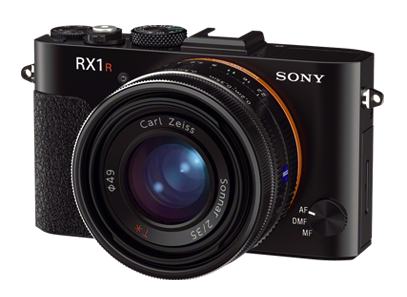
In episode #5 of All About the Gear, Frederick Van Johnson and I discuss the Sony RX1R.
The RX1R is an awesome little camera, which I very quickly learned to love. After the Leica M-series, it’s the second full-frame mirrorless digital camera on the market. Should you rush out and buy one? No, because I think Sony is about to release even better options. Let’s start with the basics.
(Un)Stiffed by Adobe
[Update: This issue has been resolved in my favor. It was a case of one hand not knowing what the other was doing. Although people on the Adobe Forum (including at least one forum staffer) insisted I didn’t qualify for the Photoshop Photography Program, they were in fact wrong. Not only that, but Adobe had already automatically switched my account from single-app Photoshop CC to the PPP bundle that included Lightroom 5. I accept some of the blame for not going to the My Account page on Adobe.com to check. But since I couldn’t find any info about his in the FAQs or other online Help pages, I thought I’d ask in the Forum.
Special thanks to Larry Nienkark who pointed out that he successfully received this upgrade. It caused me to check to see if I’d received it automatically as well…and I had!]
 Blogarithms