RAW File Processing: Photomatix Pro vs. ACR/Lightroom

[Update 1/15/12: Added tests for Unified Color’s HDR Expose 2]

This is the third in a series of articles abut passing images between Lightroom, Photoshop and various plugins. The other posts include:

In this post I’ll examine the best way to get RAW files into Photomatix Pro. We’ll look at three methods: (1) using the default Lightroom method of exporting an image to Photomatix Pro; (2) opening RAW files directly in Photomatix Pro (and using Photomatix Pro’s RAW file converter); and (3) exporting bracketed TIFF files from Lightroom and then opening these files in Photomatix Pro (ie, using Lightroom’s RAW file converter, essentially that of Adobe Camera Raw or ACR).

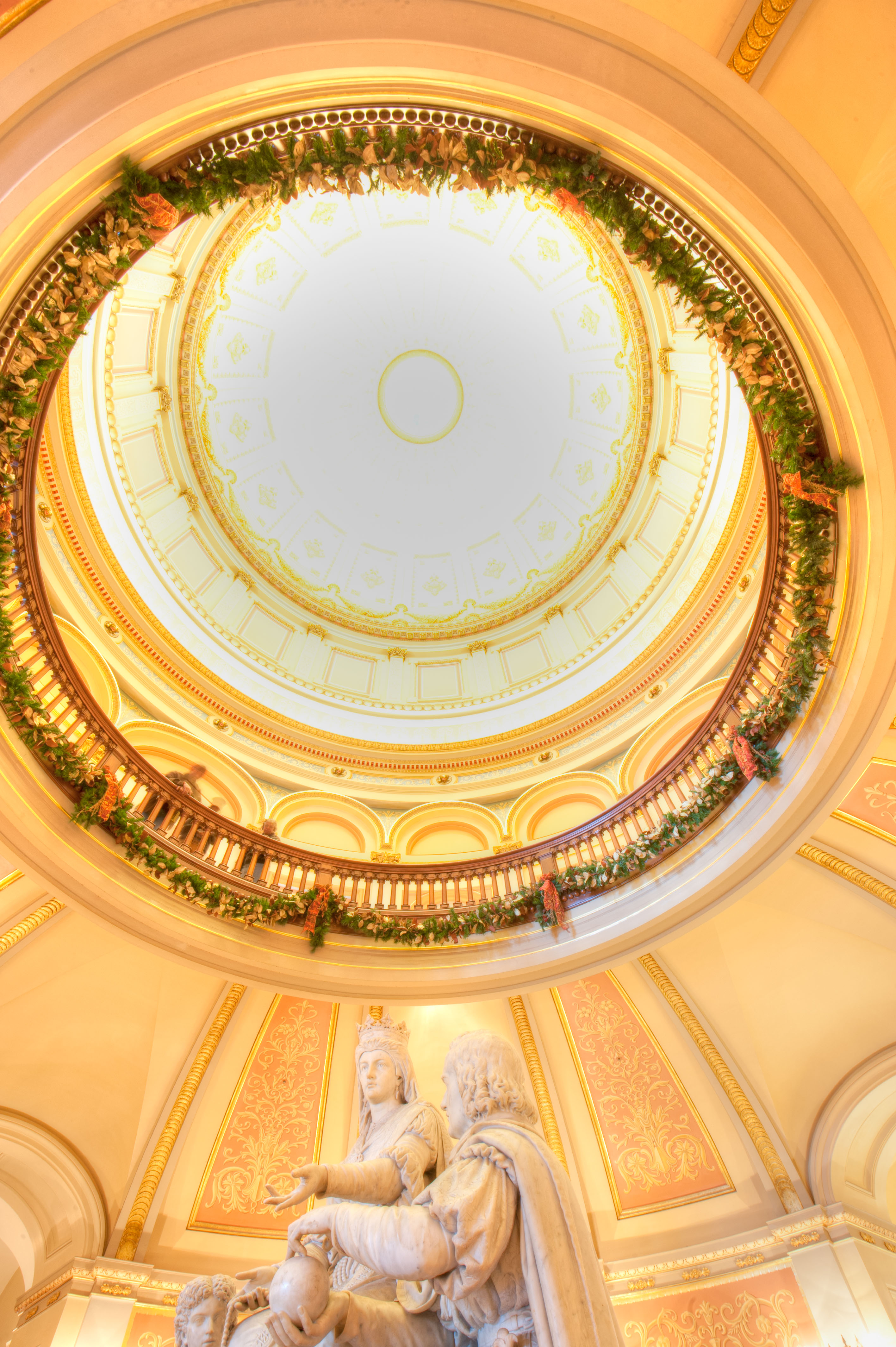
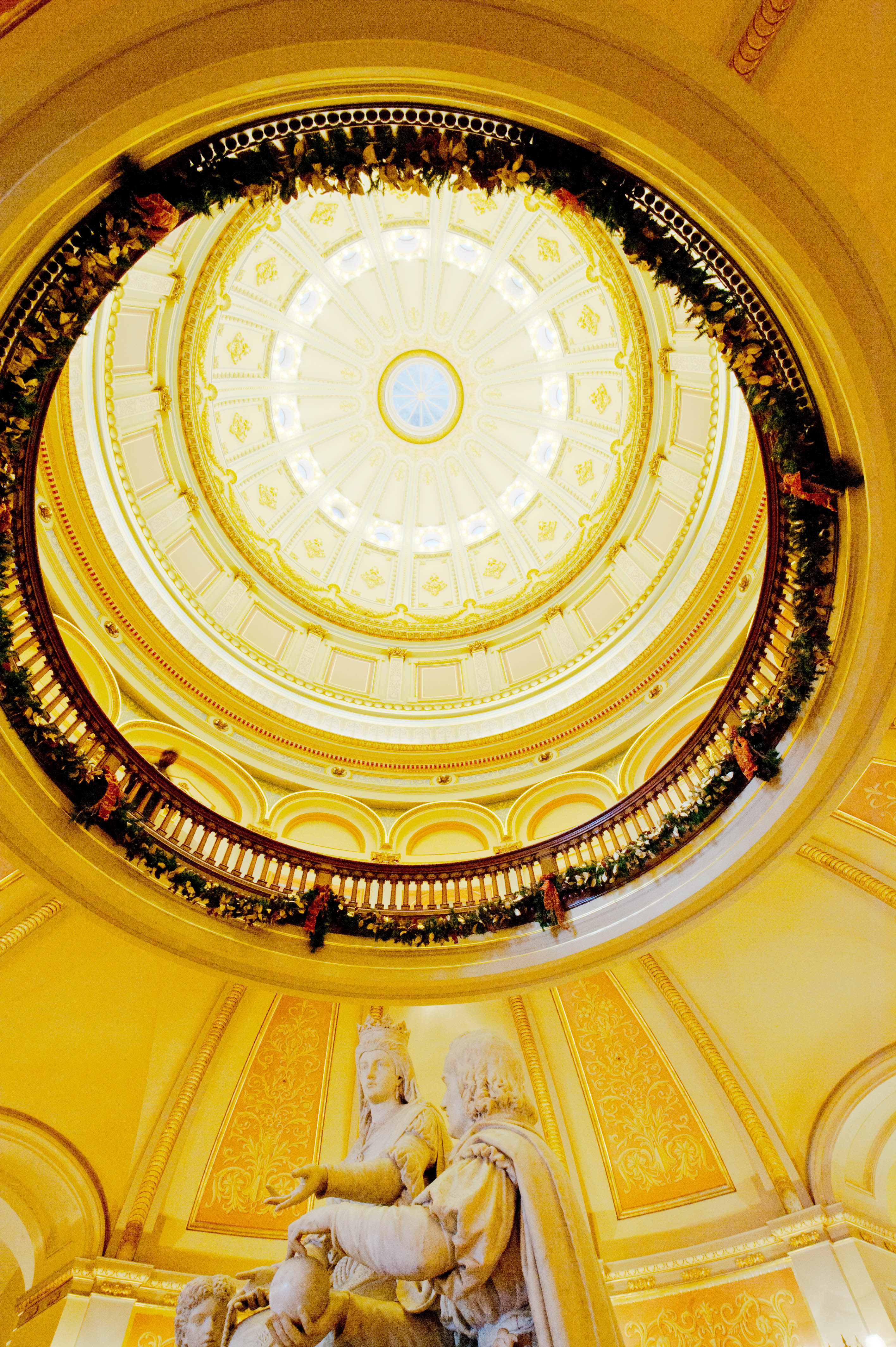
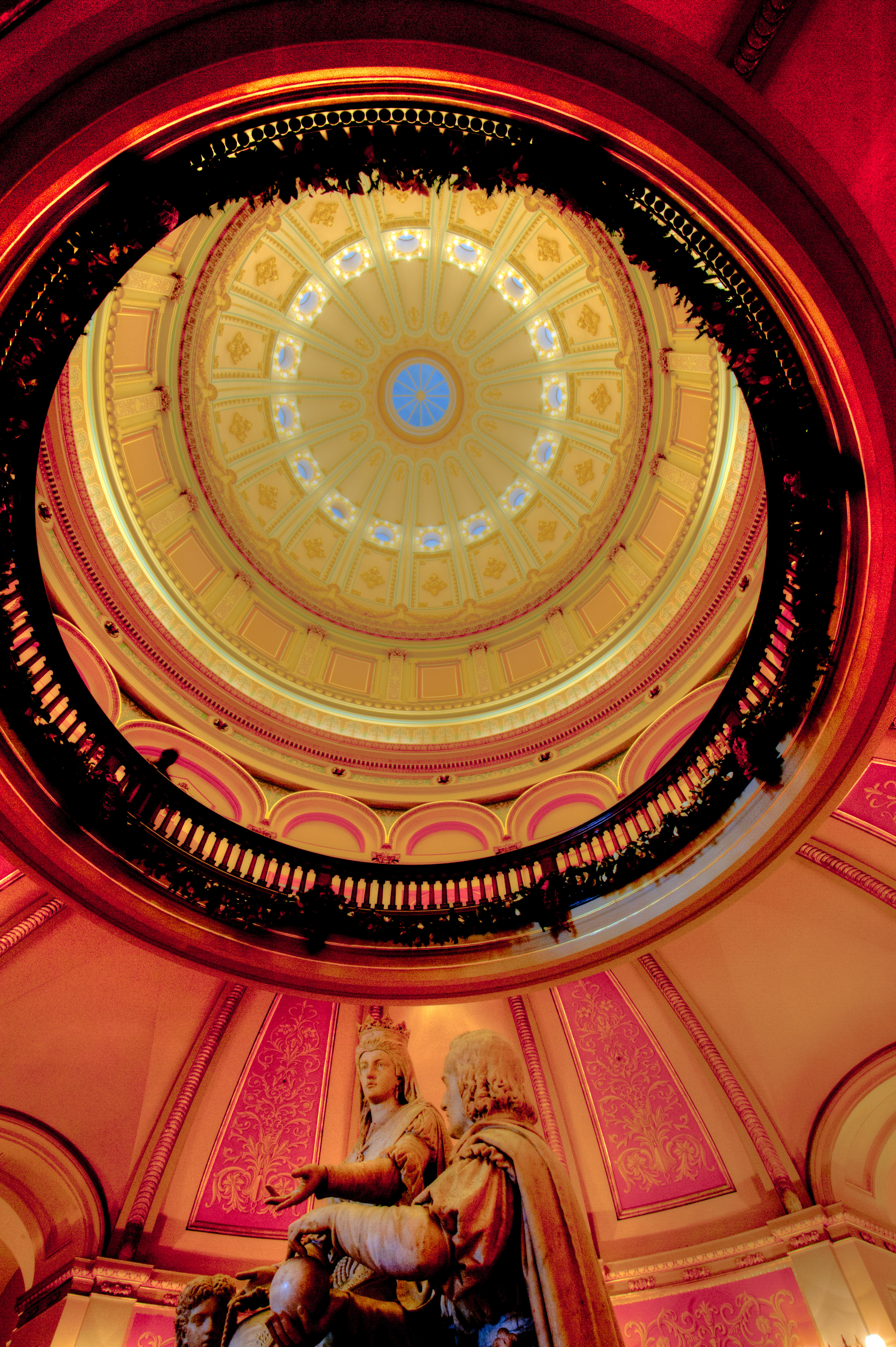
We’re only trying to evaluate these workflows and the quality of the two different RAW converters, so to keep things simple we’ll start with a single RAW file. The first/left image below is a low-dynamic range (LDR) JPEG exported from that RAW image in Lightroom with no corrections or adjustments. It’s generally overexposed, but there are substantial areas that appear entirely blown out. However, because the original is a RAW image, we can possibly recover some detail from those highlights that don’t appear in a 0EV LDR JPEG.


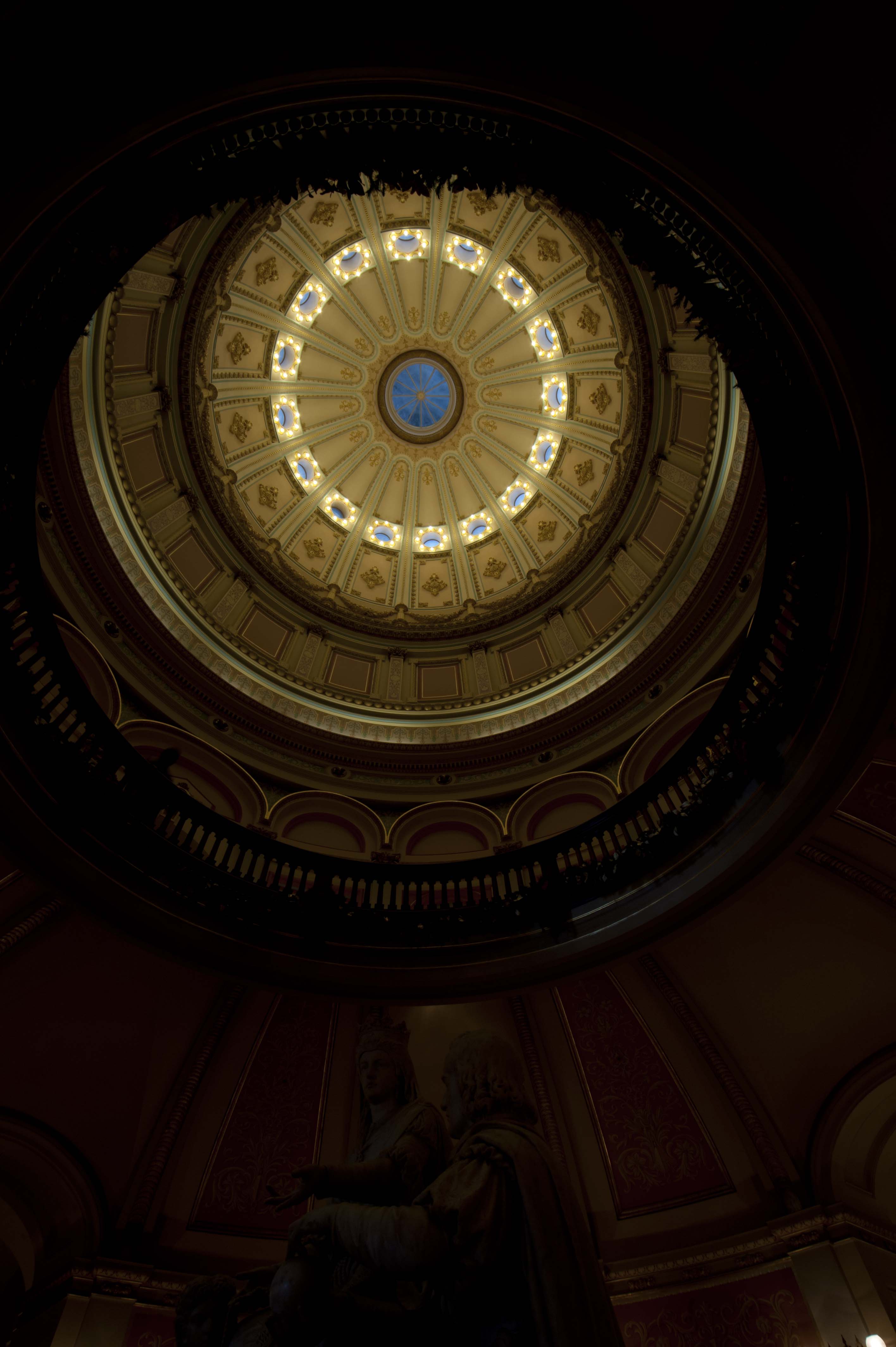
The second image was made by selecting Plug-in Extras…Export to Photomatix Pro… in Lightroom. This creates a single TIFF image which is then opened by Photomatix Pro. I used Photomatix Pro’s default settings and returned a 16-bit sRGB TIFF to Lightroom, which I then exported as the JPEG above. There is virtually no recovery of any burned-out highlights in the resulting image.

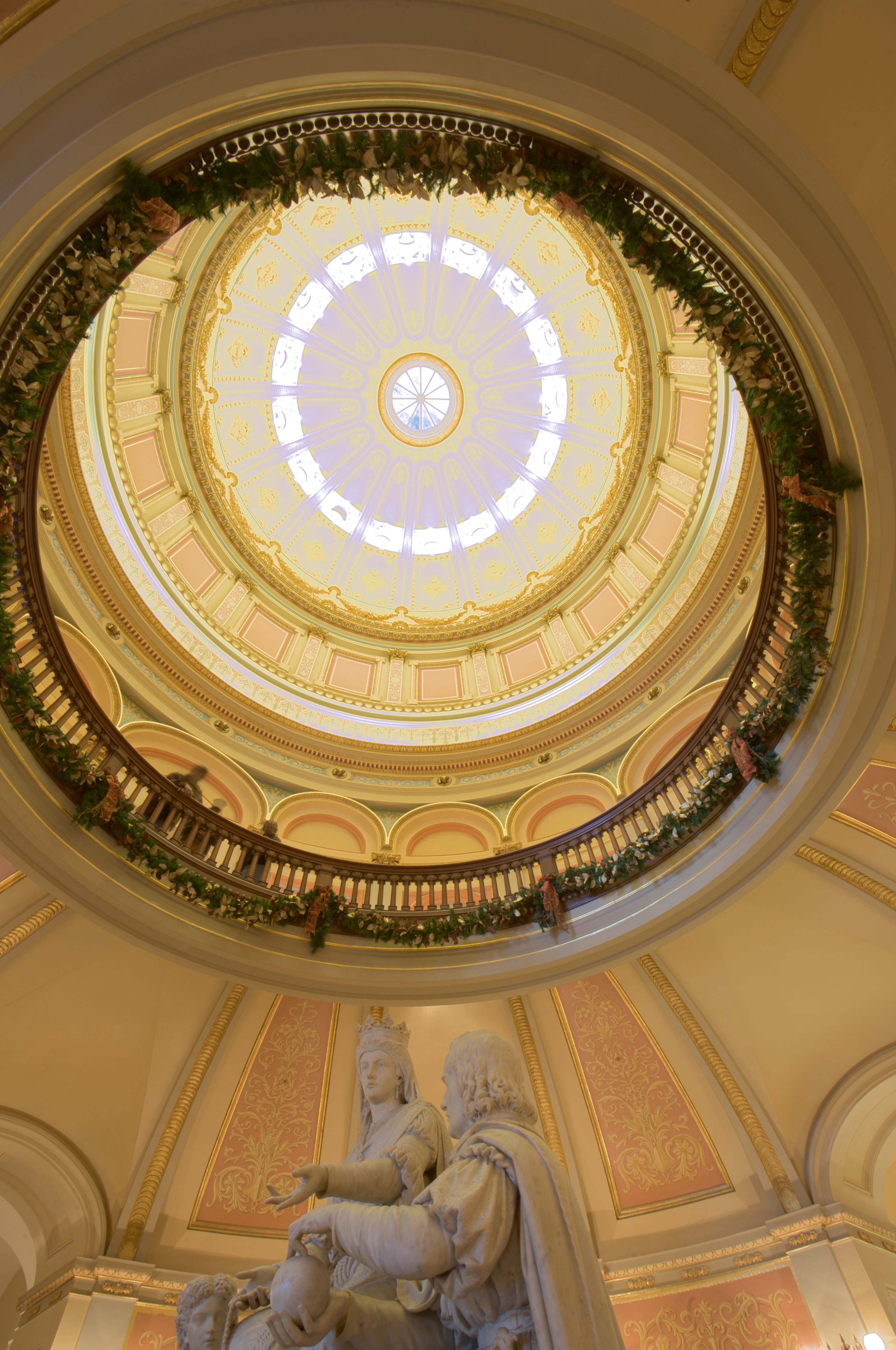
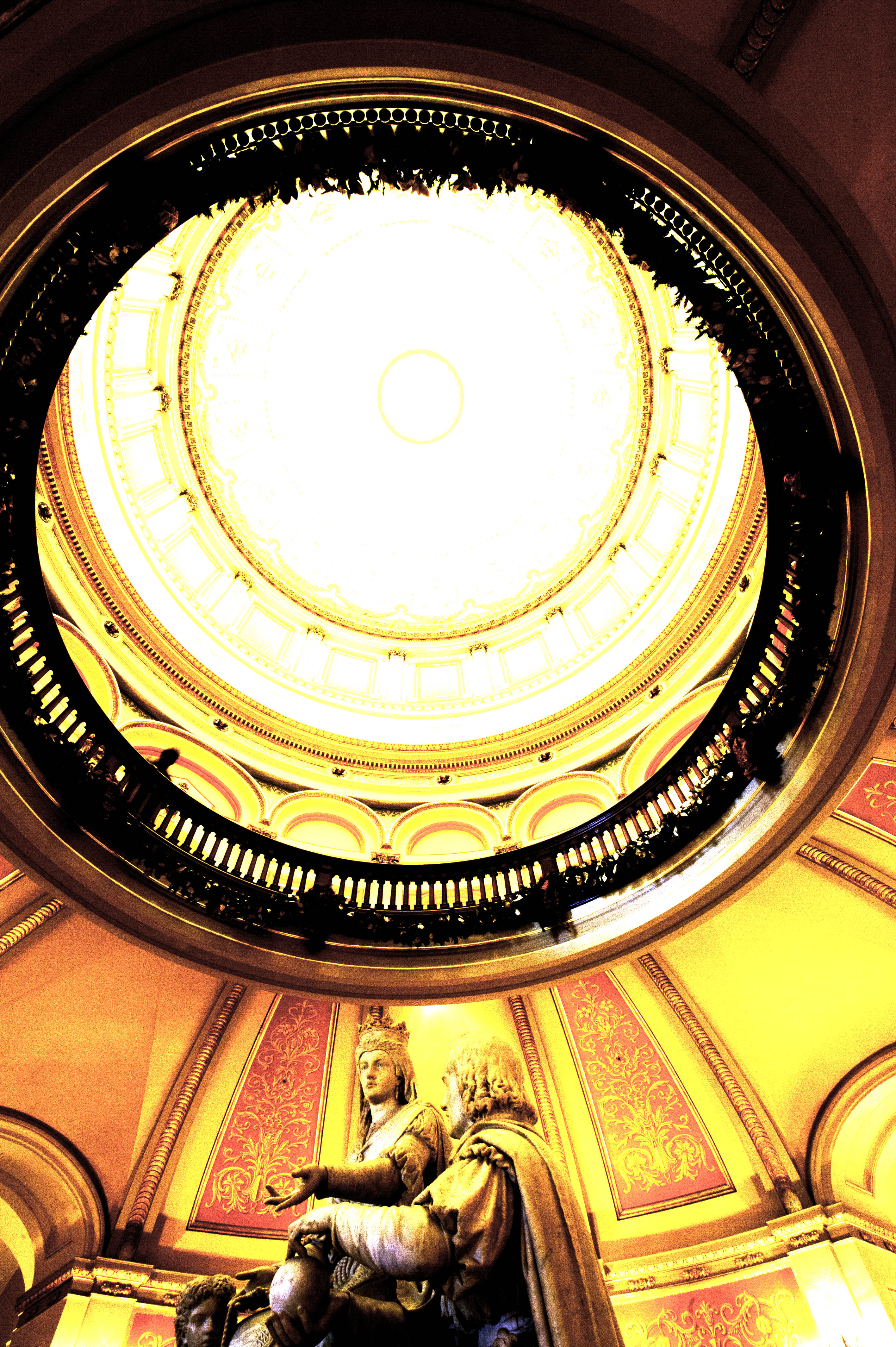
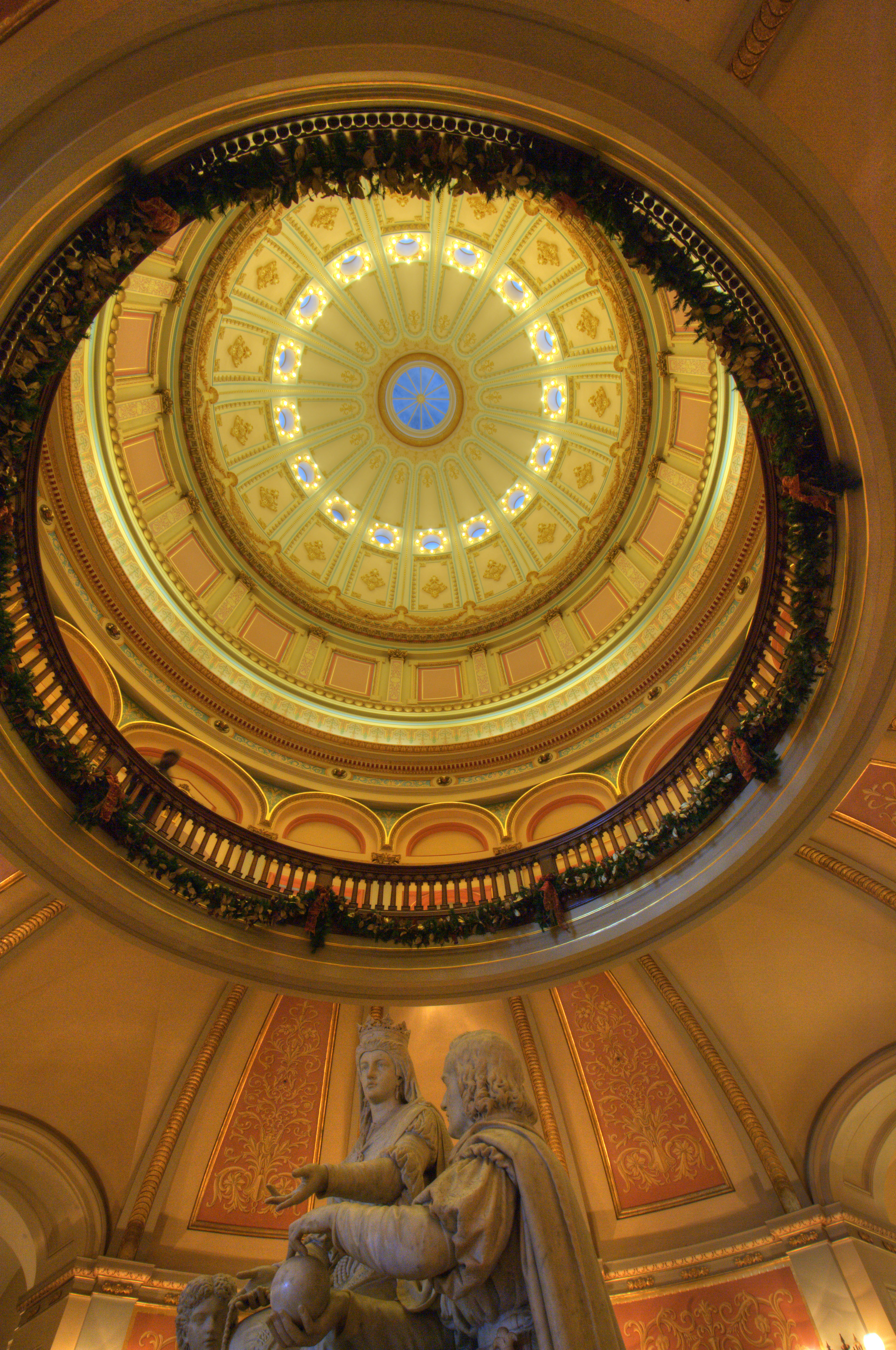
The third image is the result of opening the original RAW file directly in Photomatix Pro, using its default processing, saving the results as a 16-bit sRGB TIFF from which the above JPEG was made. You can see that some of the details in the blown-out areas have been recovered.

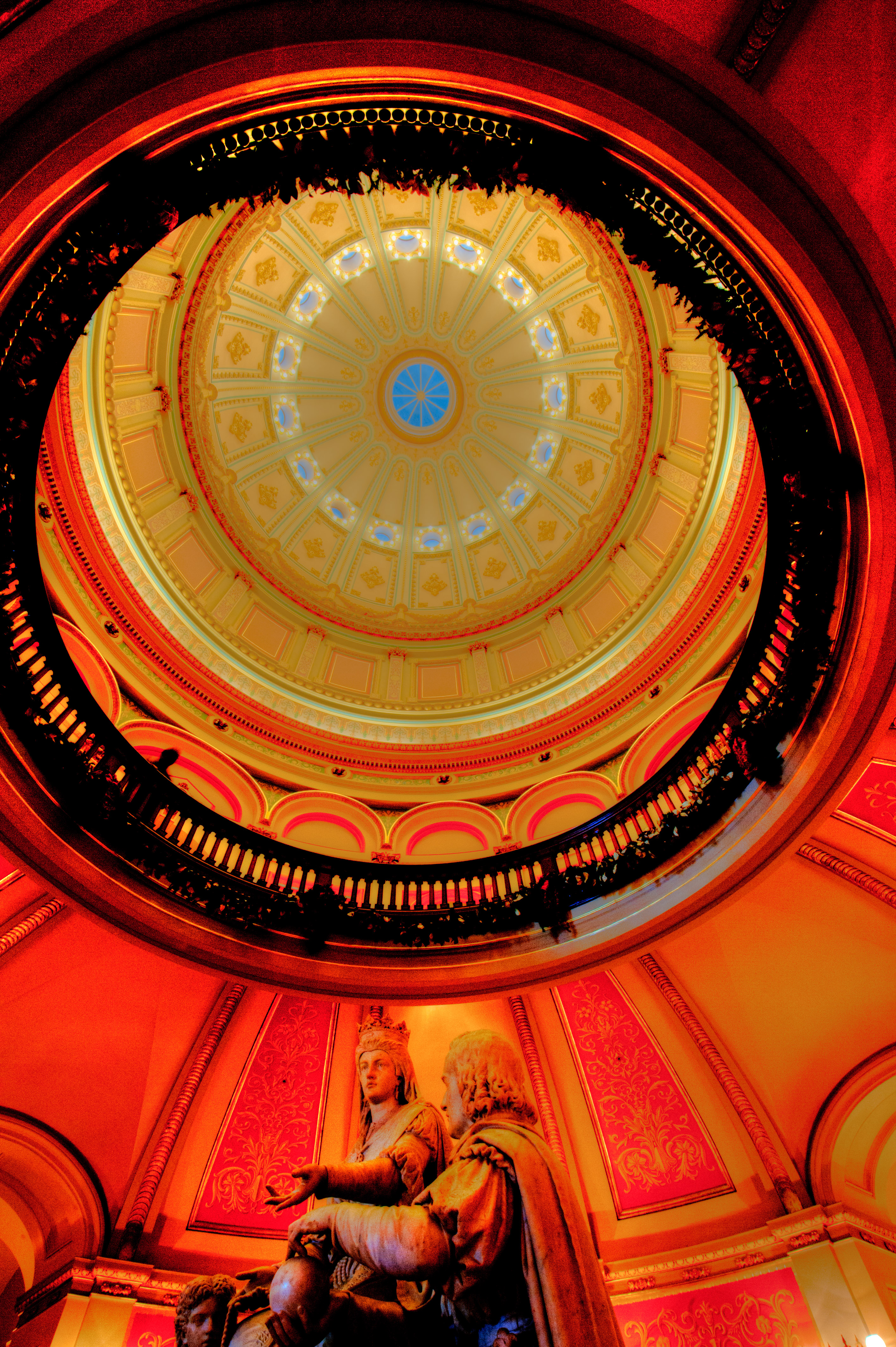
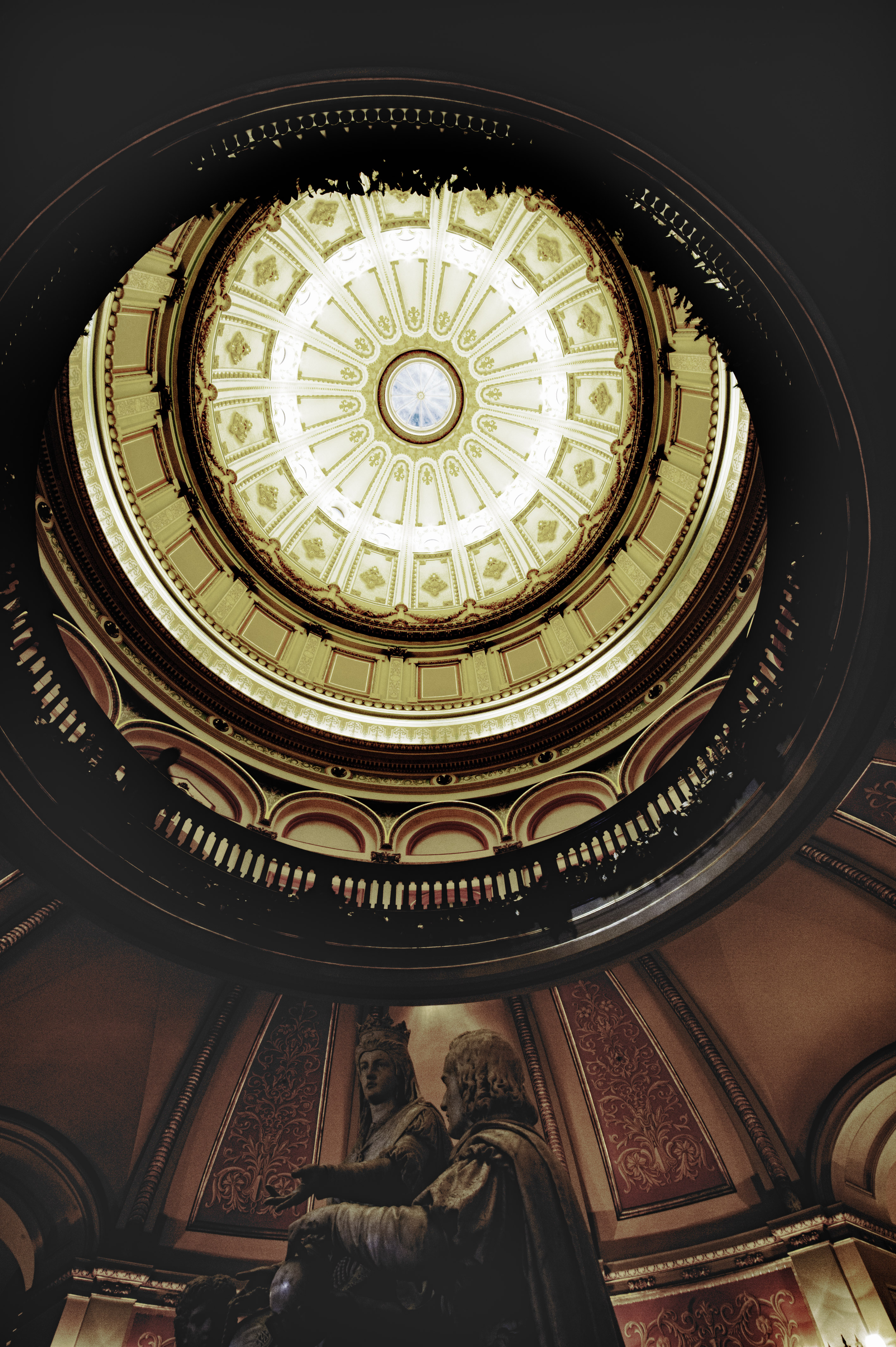
I then used the technique which I recommend in order to save/recover as much dynamic range as possible when working with Lightroom and Photomatix Pro to create the image below.

The steps to create the above image are a bit more complex that the other workflows. The first step was to export three different 16-bit ProPhoto TIFF files from Lightroom. All three were from the same original RAW file as was used for the first two images, but the Exposure slider in Lightroom’s Develop module was set to 0.00, -2.00 and -4.00 respectively. I then opened all three TIFFs in Photomatix Pro as a set of bracketed originals. As you can see, this process recovered far more detail in what at first appeared to be the blown-out areas. (Don’t worry about what appears to be a shift in color. This is a separate issue and is easily resolved.)

These tests support the general understanding of many experienced HDR photographers that the Lightroom/ACR RAW file processor is dramatically superior to the one built into Photomatix Pro and that Lightroom’s Export to Photomatix Pro should be avoided in all cases. To take advantage of this workflow in realistic situations (eg, when you have bracketed originals instead of just one) I recommend following Klaus Hermann’s Five TIFFs method.

Update: Based on a friend’s suggestion, I decided to compare Unified Color’s HDR Expose to Photomatix Pro. Below are two images from HDR Expose. The first was made using the application’s own RAW processor. The second was made from the same three bracketed TIFFs as used for the last Photomatix Pro test.

If you ignore the differences in saturation, which are fairly easily corrected, these two images are quite similar to one another and to the three-TIFF Photomatix Pro output. When you consider that the left image was made without the hassle of first exporting three different TIFF variations, it appears that HDR Expose would be a better choice for this test case. This is even more so when you further consider that the left image above requires less color hue and saturation correction.

[Please use my Google+ page for comments. There are a lot more photographers there!]

The Lightroom “Edit in…” Problem

This is the second in a series of articles abut passing images between Lightroom, Photoshop and various plugins. The other posts include:

[See Update at the end of the post. 4:20pm PST on 1/10/12.]

Yesterday I posted the first in this series of articles (Are You Wasting Dynamic Range?) about problems passing images between Lightroom and Photoshop, plugins, etc. Today I want to look at just one such situation, the use of the Edit in… menu option in Lightroom 3. An hour ago I saw the announcement of Lightroom 4 beta. I wonder if this is something Adobe would consider fixing for version 4.

The Challenge

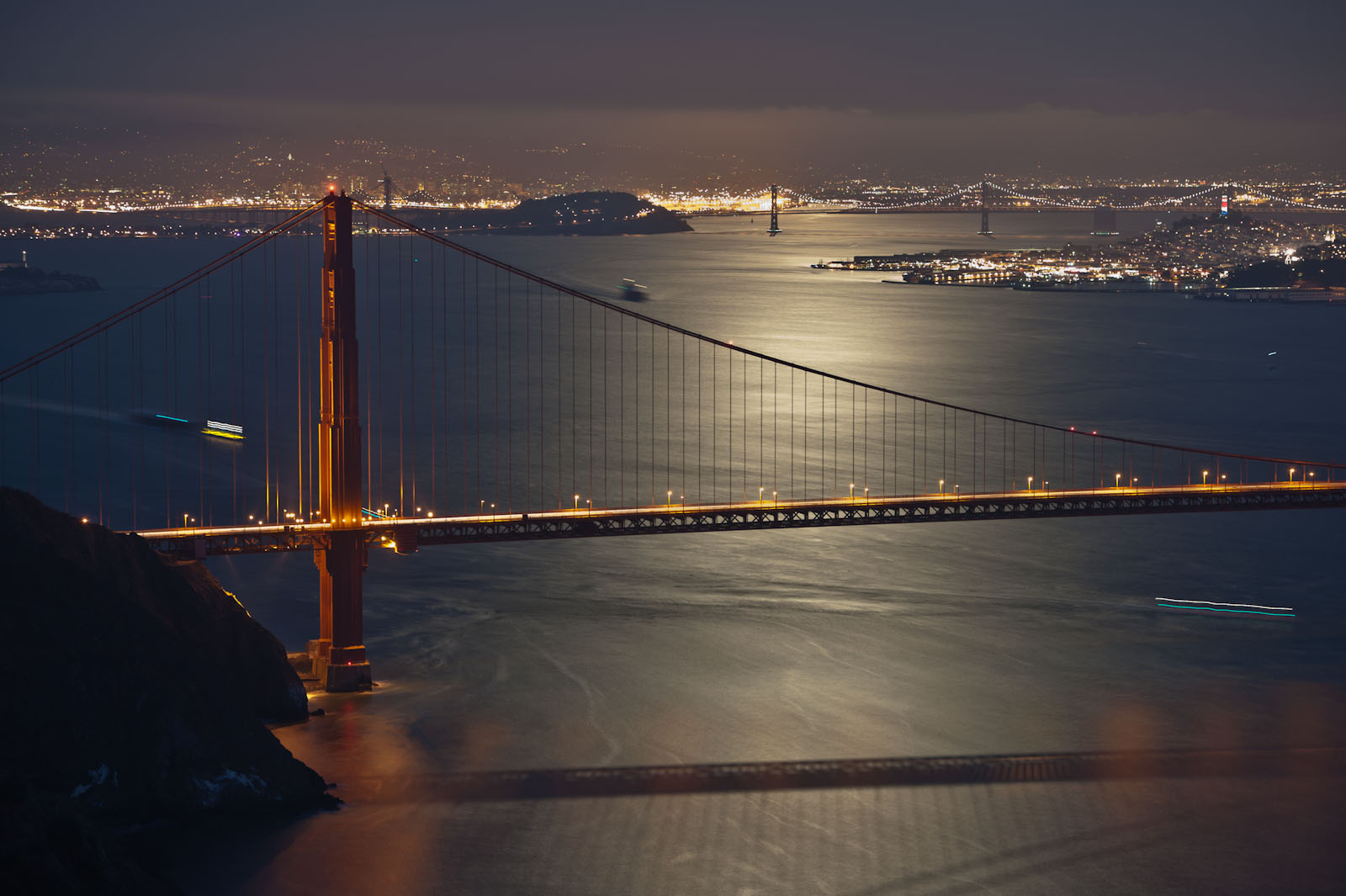
We start with the image below of the Golden Gate Bridge at night. Not only is the image generally overexposed, the highlights are completely blown out. Can we rescue this image? It’s easy to darken it overall, but what about those highlights?

Luckily it was shot in RAW so there’s a lot of data in the highlights and (to a lesser extent) the shadows that we can’t see in this uncorrected version. Just to be clear, what you see below is not a RAW image. There’s no way to display a RAW image in a browser or on your screen. The dynamic range of the image is just too great. Instead, what you see here is a JPEG derived from the RAW file using the default Lightroom settings. [Note: You can click on any image to see a larger version.]

Uncorrected

Correcting in Lightroom’s Develop Module

Below is an example of what we can do in Lightroom (or pretty much any other RAW file processing application) to recover the highlights and reduce the overall exposure. (For the curious, the settings are Exposure=-2.55, Recovery=65.) Additional corrections could certainly be made, but this illustrates what we’re trying to show. We’ve recovered a lot of detail in the highlights in both the moon’s reflection on the water and the city lights in the distance.

Corrected in Lightroom

Passing the Image to Photoshop

Now suppose you use Lightroom to organize your images, but you want to make your corrections in Photoshop rather than in Lightroom’s Develop module. Select Edit in…Photoshop CS5 from the Photo menu or right/ctrl-click on the image in the grid. Photoshop starts up and shows you pretty much the same thing as the first image at the top of this post.

But if you now try to recover the highlights, the image below is pretty much the best you can get. (Exposure adjustment layer with Exposure=0.38, Gamma Correction=0.37.)

Edit in...Photoshop CS5 and Corrected There

This looks a little better than the original, but not as good as the image corrected in Lightroom. Why? It’s because of how Lightroom passed the image to Photoshop. Rather than passing the original RAW file with all it’s wide-ranging data, Lightroom created a TIFF file, which is inherently low-dynamic range) and passed that to Photoshop instead.

From the Lightroom…Preferences…External Editing menu you can select the format and colorspace of the intermediate images passed to Photoshop, but a 16-bit TIFF using the ProPhoto RGB colorspace is the best option available. You cannot pass a DNG or other RAW-file image with high dynamic range.

What to Do?

Does this really make a difference to you? It all depends on whether you need to recover highlight or shadow details in your images. If not, then go ahead and use the Edit in…Photoshop CS5 feature. But if you want to recover any such data, there are two choices. First, you can do your recovery using the Lightroom Develop module and then Edit in…Photoshop CS5, in which case your corrections will be baked into the intermediate image. Alternatively, you can open the original RAW file in Adobe Camera RAW (ACR) or in Adobe Bridge, which will start ACR for you. This will allow you to make the same corrections as you can in Lightroom’s Develop module since it uses the same RAW file processor engine as ACR.

And if you shoot in JPEG instead of RAW, you don’t have to worry about any of this. Those highlights are burned out and gone for good. There is nothing to recover from a JPEG, which is already an LDR image. You can go from high-dynamic range (HDR) to LDR, but there’s no poing in going the other direction. Once you’re in the LDR world, the extended data is forever lost.

Edit in…(something else)

What about all those other options under the Edit in… menu? If you have some plugins installed, you might see them listed there. Passing an LDR intermediate image to these plugins is the only option. Therefore, if you want to recover highlights or shadows, you must do that in the Lightroom Develop module before invoking the plugin. My suggestion is that you also perform certain other Develop-module tasks before invoking the plugins such as Lens Correction — the plugin may delete the lens’ EXIF data — and preliminary sharpening and noise reduction.

[If you have any comments or questions related to this post, please make them on my Google+ page. There are a lot more photographers reading g+ than reading my blog!]

Update!

I’ve discussed this issue and my idea that Edit in… might support DNG intermediates in LR4 with Eric Chan, one of Adobe’s ACR gurus on the Adobe Labs Forum. Eric made a good case for why this might not be an appropriate feature. You can read the discussion here.

But over on Google+, Marko Haatanen provided a solution. In LR you can Photo…Edit in…Open as SmartObject in Photoshop… It won’t appear as though you’ve successfully moved the RAW file into PhotoShop, but if you double-click on the SmartObject in the Layers panel Photoshop will open the image in ACR. And if you’ve previously made adjustments in Lightroom’s Develop module, you’ll see them there, slider-for-slider. (Remember LR’s Develop module is virtually the same as ACR.) Very cool.

If you select two or more images in LR and go for Photo…Edit in…Open as SmartObject in Photoshop…, you’ll get the same number of images in Photoshop. But if your goals are either HDR or you just want to mask-in selections from multiple selections, what you really want is a single image with a SmartObject layer for each original. Again on Google+, Tarun Bhushan showed me how to do this. “In PS, click on a Smart Object layer in one open document and use Duplicate Layer. In the dialog that comes up, choose the destination document as the one where you want the Smart Object to be as a layer. Now you will have the two Smart Objects as layers in one document that you can then manipulate independently.”

I’ll have more to say about this as I continue to explore some of the best options for HDR in particular.

Are You Wasting Dynamic Range?

[Update 1/15/12: Added tests for Unified Color’s HDR Expose 2]

This is the first in a series of articles abut passing images between Lightroom, Photoshop and various plugins. The other posts include:

The other night at the meeting of our local photo club’s HDR Special Interest Group, we began a discussion about the preservation of the full dynamic range of RAW images when you use plugins, exports and scripts in Lightroom and Photoshop. I made the statement that, for example, when you Export from Lightroom to Photomatix Pro, the default is to pass the source images as TIFF files, which inherently reduces the dynamic range and looses data. A few people challenged that assertion, so I’ve set out to research it in some detail. This post represents the first round of my test results.

Note that this discussion does not apply only to HDR. The principles apply equally to exporting any RAW images to Photoshop or any plugin. [Spoiler: I’m going to demonstrate why you should use Adobe’s Digital Negative (DNG) file format when exporting images to Photoshop or Photomatix Pro.]

Buzzword Backgrounder

Let’s make sure we understand the classes of image-file formats. Only the RAW file formats (.NEF, .DNG, .CR2, etc.) can preserve the full dynamic range of data captured from your camera’s sensor. Once you convert to any other format (.TIFF, .JPEG, etc.) you will lose dynamic range. It doesn’t matter what colorspace you use (sRGB, Adobe RGB, ProPhoto). It doesn’t matter whether you use 8- or 16-bit encoding. And it doesn’t matter whether you select compressed or uncompressed options. All file formats other than RAW (or true HDR, which is rarely used) are designed for viewing or printing and are therefore inherently low dynamic range (LDR) to match the LDR-only capabilities of our displays and printers. If you add bit depth (switching from 8-bit to 16-bit) you’re just increasing the number of colors that can be represented and therefore minimizing banding. You are not significantly increasing the dynamic range of what can be represented.

RAW, HDR and LDR

It’s also important to understand that we don’t have the tools (hardware or software) to view the full dynamic range of a RAW or HDR image. Even if you shoot in RAW format, the image you see on your camera’s display is an LDR derivative. If you open your RAW images in Lightroom or Adobe Camera RAW (ACR), you’re again looking at an LDR derivative. And when you merge images in Nik’s HDR Efex Pro, HDRSoft’s Photomatix Pro and Unified Color’s HDR Expose the output is an LDR image. (We often look at an image and say, “It’s an HDR” or “It looks like HDR.” In fact, these are LDR images created from one or more originals or HDR intermediates. The data are only truly HDR while you’re within the HDR apps.)

The RAW File Converters

There’s a class of applications called “RAW file converters” which includes Lightroom, ACR, Phase One’s Capture One Pro, Nikon’s Capture NX2, etc. These apps have one goal: to create an LDR image from a RAW file. In doing so, the dynamic rage of the image will necessarily be reduced and data will be lost. The adjustments (sliders, curves, etc.) within these apps allow you to decide which data are removed and which are preserved, but “preserve all” is not an option. You have to lose something in order to create an image that can be viewed or printed. (Note that Photoshop cannot directly process a RAW image. If you try, Photoshop will first launch ACR and require you to create an LDR image that is then passed into Photoshop.)

The images below help to explain this point. I started with a RAW file that’s just one of a bracketed set. This is the -4EV (ie, most underexposed) of the set of five. I loaded this RAW file into Lightroom and then created the two images shown below. [Click on any image in this post to see a higher-resolution version.]


Yes, both of the above JPEG (ie, LDR) images were created from the same RAW file original. The left one used the default settings in Lightroom’s Develop module. For the right, I used Exposure=+4.00, Fill=70, Recovery=100 and Brightness=0. I could have used Adobe Camera Raw (ACR) instead of Lightroom and achieved the same results because the RAW processing engine of both apps are identical. Note that in order to bring out the detail in the shadows, I had to compromise and let the highlights burn out.

Using LDR file formats it takes multiple images to represent the full dynamic range of even one RAW image. You can’t squeeze all this information into a single TIFF or JPEG even by just reducing the contrast. If you try, you’ll lose too much tonal distinction. That is, levels of brightness will clump together and you’ll end up with tonal banding.

As you can see, there’s a lot more information in the shadows of the original RAW image than you might think if you only saw the first image. The goal I want to explore is how to ensure that all of that information is available within Photoshop or the various plugins and HDR applications.

Some popular HDR tools such as HDRSoft’s Photomatix Pro also can accept and fully exploit RAW images, but if you pass those RAW images to these applications from Photoshop, Lightroom, etc., you may unknowingly be first converting your RAW files into an LDR format and throwing away substantial detail that you cannot ever recover. Lightroom’s export to Unified Color’s HDR Expose is unique in that the default is to pass the full RAW image to the plugin. Because NIK’s HDR Efex Pro apparently cannot process RAW files directly, this is exactly what will happen if you use that plugin.

Exporting from Lightroom

What happens instead if you export the RAW image from Lightroom to Photoshop using the default settings (16-bit Adobe RGB TIFF). This is what you’ll see. It looks pretty much like the default JPEG from Lightroom.
But suppose you then want to use Photoshop to recover that shadow detail? The image below shows what happens when you add an Exposure adjustment layer.

It’s clear that some detail in the dark areas can be recovered, but the image is very contrasty and saturated and the highlights are now even more blown out. Certainly a lot of information has been lost by using a 16-bit TIFF as an intermediate format.

Could the problem be with the choice of the colorspace in the intermediate TIFF image? The images below were created in the same manner as the above image except that I used the sRGB (left) and ProPhoto (right) colorspaces.
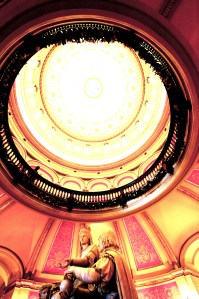
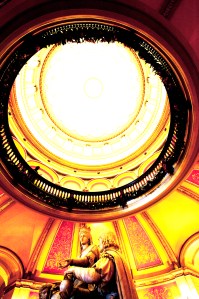
   

None of these images comes close to the JPEG I was able to create directly from Lightroom. Specifically, none of the images made using an intermediate TIFF and Photoshop were as good in recovering shadow details. (Check the area under the statues at the very center/bottom of the image.)

Using DNG as an Intermediate Format

If you want to export images from Lightroom to Photoshop, how can you avoid this loss of data? The simplest solution I know of is to use Adobe’s DNG format for intermediate files. The image below shows that result. When Photoshop opens the DNG, it first launches Adobe Camera RAW (ACR). This gives you the opportunity to extract the extended-range data before creating the LDR image used in Photoshop.
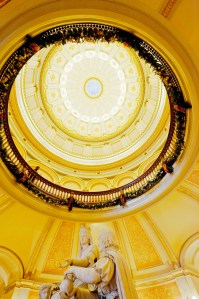
As you can see, this is quite similar to the JPEG created directly in Lightroom. Again, that’s because Lightroom’s Develop module is based on ACR. Like Lightroom, ACR is also a RAW-file converter, which means it generates an LDR image from a RAW file. It’s that LDR image that is passed to Photoshop when you Open a RAW file from ACR. And as with Lightroom, that means there’s the potential for losing even more data.

Exporting for HDR Processing

If DNG is the best intermediate format between Lightroom and Photoshop, what about getting images into our HDR tools such as Photomatix Pro and HDR Efex Pro?

Starting with the same single unmodified RAW file in Lightroom, I ran an Export to Photomatix Pro. Here’s the result using Photomatix Pro’s default settings and three different intermediate options: (1) 16-bit Adobe RGB TIFF (Lightroom’s default); (2) 16-bit ProPhoto RGB TIFF; and (3) DNG.


The DNG version is again quite superior to the TIFFs.

What about exports from Lightroom to HDR Efex Pro Pro? The images below were exported from Lightroom to HDR Efex Pro using: (1) 16-bit Adobe RGB TIFF; and (2) 16-bit ProPhoto RGB TIFF. I had to use some rather extreme settings in HDR Efex Pro to make the images look even this good: Exposure=+1.7EV, Contrast=+25%, Saturation=-45%, Blacks=+85%. As far as I can tell, there is no way to pass an image from Lightroom to HDR Efex Pro as a DNG or other type of RAW file.


And what about the newcomer, Unified Color’s HDR Expose 2? The default export to this plugin apparently passes the RAW file, and the RAW converter is quite good. The image below is the result of the default export from a single RAW image to HDR Expose 2.

Conclusions

I’m going to run a few more tests. In particular, I want to demonstrate how it is possible to use extended-EV TIFF files created from RAW files as intermediates. I first learned this technique from Klaus Herrmann in the section in his excellent online HDR Cookbook entitled Creating HDR Images the Right Way. (Look for the Five TIFFs method.) I also want to get some feedback from other photographers who have studied this. I expect I’ll have to make a few corrections to this post even as far as I’ve gotten so far.

It seems DNG is the best format for a simple export from Lightroom to Photoshop or Photomatix. Unfortunately, HDR Efex Pro doesn’t support this. For that application, you should use Klaus’ Five TIFF method, which is a lot more time consuming. If you’re using HDR Expose, you don’t have to worry — the default work well. More to come.

[See also the next post in this series: The “Edit in…” Problem in Lightroom.]
Autofocus Calibration

I only brought one lens to the #MarinPhotowalk on Sunday: a Nikkor 135mm f/2 AF DC, which I bought used a few weeks ago. I shot everything wide open at f/2. But when I uploaded the images, it seemed as though every one of them was a little soft. In fact, the in-focus point was just a bit farther than where I intended, usually someone’s closest eye.

So today I dragged out my MTP LensAlign and checked that lens on my D700, which I also bought used about a year ago. Sure enough the tests were back-focused about 1/2″ at f/2 and a distance of six feet. That may not sound like much, but with that configuration the depth-of-field is only +/-0.36″.

I assumed the problem was just for my 135mm f/2 lens, but no. It’s off the same amount for all my lenses. The good news is (a) it’s adjustable in my D700, and (b) instead of changing it for each lens, there’s a Default setting that applies to all lenses. The range of correction is +/-20. (I don’t know what the units represent.) It took -13 to get it right.

I mentioned this to Scott Loftesness, who wasn’t aware that you can also do this on a Canon 5DMkII. I know it’s also adjustable on my cropped-sensor Nikon D7000.

The Lens Align MkII is way overpriced at $79.95, but it does work quite well. I haven’t seen discount prices anywhere. I recommend borrowing one if you can. BorrowLenses.com rents the Pro version for only $11 for three days. The difference among the models is relatively insignificant.

I previously bought the Spyder LensCal which is a few dollars cheaper, but I sent it back to Amazon because the construction quality was so poor.

Labs and Papers for Black & White

This post is a review of black-and-white printing on eight different papers from four U.S. photo labs.

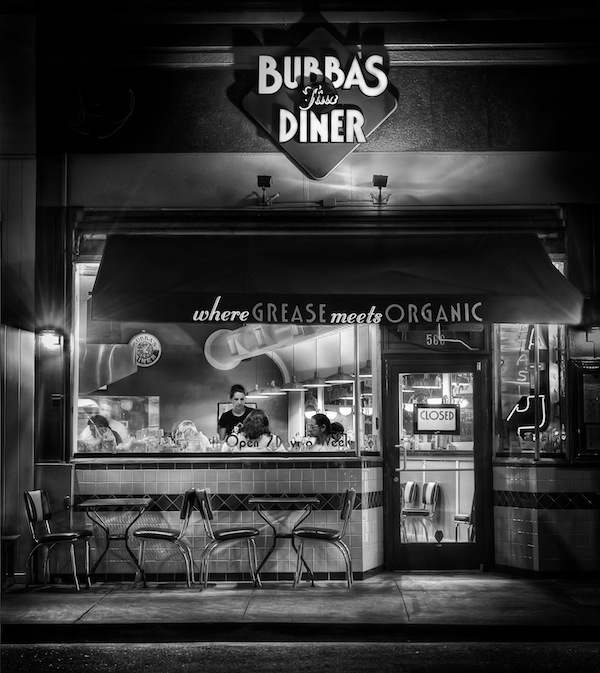
I’ve been uploading my recent photos to Google Plus, where I’ve been getting good feedback and meeting great photographers. When I published this b&w image of Bubba’s Diner in San Anselmo, California, the comments were particularly enthusiastic. And then, totally out of the blue, two people said they wanted to buy prints. How cool is that? I didn’t get (back) into photography to sell my images, but why not? If someone can get pleasure from hanging one of my photos on their wall, that would be pretty cool.

Bubba's Diner, San Anselmo, California

How to sell prints to my first two customers? I quickly cleaned up my SmugMug portfolio at DougKaye.com — it still needs a lot of work — and upgraded to a Pro account so I could order the prints through there and even sell them directly. But before I accepted money for my work, I wanted to know what the prints would look like, so I decided to order prints of most of my portfolio images for myself. SmugMug uses two labs, and I opted for BayPhoto, which appears to be their more high-end lab. (The other, ezprints, is somewhat less expensive.) I first ordered a print on Kodak Endura paper, which SmugMug/Bay Photo refer to as their Lustre stock. When the print arrived, I was rather disappointed in the color and texture of the paper. So I turned to other photographers on Google+ and asked them what labs and papers they used for b&w. I got a few recommendations and then ordered prints from four labs (including BayPhoto) on eight different papers. Here’s a summary of my opinions, listed by the coolness/warmth of the papers, starting with the coolest. It’s not an exhaustive test, as I’m sure there are far more papers and labs out there. But if you’re thinking about black-and-white printing, this may be a helpful starting place.

Bay Photo’s Lustre is Kodak’s Supra Endura VC, a resin-based photographic paper finished with a “fine grain pebble texture,” which is too much artificial texture for me. SmugMug recommends it as a compromise between full matte and glossy and as a way to minimize fingerprints. I expect my prints to be matted and mounted behind glass, so fingerprints aren’t really an issue. This is the coolest of all six papers. It actually has a noticeable blue cast to it. I’d say it’s my least favorite of the batch. ($3.23 via SmugMug for an 8×10 color-corrected print. Direct from BayPhoto: $3.50, or $1.79 without color correction.)

Bay Photo’s Metallic (Kodak Endura Metallic VC) is actually a touch warmer than the Endura, which shows how cool/blue the regular Endura really is. The metallic is obviously very glossy and has a bit of a greenish cast to it. The whites and highlights are very reflective/silvery, hence the metallic moniker. I don’t think I’d be likely to use this paper. ($4.12 via SmugMug for an 8×10 color-corrected print. Direct from BayPhoto: $4.03, or $2.06 without color correction.)

Bay Photo’s Glossy (also a Kodak Supra Endura VC) is the third coolest paper, and still not particularly warm. The blacks are deep and there’s pretty good detail in the shadows. I’d probably use this for images where I wanted to emphasize the drama of a contrasty, particularly crisp picture. ($3.23 via SmugMug for an 8×10 color-corrected print. Direct from BayPhoto: $3.50, or $1.79 without color correction.)

MPIX offers a paper they call True B&W, Ilford’s True B&W. This is a silver photographic process, so there are no color dyes or inks at all. It’s yet another cool paper, almost as cool as the Bay Photo papers. Like the Endura Metallic, it has a slight greenish cast. Of all the printer/papers combinations, it’s the lowest contrast. There are no deep blacks and it has the least detail in the shadows. The opposite of Bay Photo’s Glossy paper, I might use MPIX’s True B&W when I particularly wanted a softer, gentler low-contrast look. ($2.49 for an 8×10 print)

I wasn’t really thrilled with any of these combinations, so I asked Matt Russell, a friend who shoots and sells a lot of b&w landscapes, about the high-end labs he uses. He suggested I look into West Coast Imaging and Digital Silver Imaging. WCI has a $250 minimum order, but they were willing to work with me on these tests. Obviously, you don’t want to order one or two 8×10’s at a time from WCI.

DSI uses Ilfospeed Resin-Coated paper with an Ilford Pearl (lustre) surface for their Custom RC prints. This is another lower-contrast combination, but not as low contrast as the MPIX True B&W. The blacks are also deeper and richer than the MPIX, but still not as deep as others. Furthermore the blacks are rather warm. It’s a very nice combination: a neutral paper with slightly warm blacks. One of the best. ($18 for the first 8×10; $9 for prints 2-10.) DSI also offers a less-expensive Direct to Print option (ie, not their Custom service) that delivers Ilford RC Pearl prints for much less ($4.59 for 1-9 8×10 prints; $4.19 for 10 or more).

DSI’s Custom Fiber Base prints are on Ilfobrom Galerie Fiber paper. This is fairly warm paper, but the blacks are actually cooler, similar to the MPIX True B&W. It’s a heavy double-weight semi-gloss fiber paper, about the same weight as the Ilford Gold. It’s in the lower-contrast category like the MPIX True B&W and the DSI Custom RC, but not as low-contrast as the others. The paper is quite warm, but the blacks are cool (again like the True B&W). The depth and richness of the blacks are excellent as are the shadow details. ($38 for the first 8×10; $25 for prints 2-10)

WCI offers Ilford Gold (Ilford Galerie Gold Fibre Silk), warmer still than DSI’s Custom Fiber Base. It’s a very heavy paper made with real rag and has a marvelous rich look to it without sacrificing good, deep blacks. ($12.22 for the first 8×10 of a single image; $10 for prints 2-9; $8.33 for 11-.)

WCI also offers Silver Rag (Crane’s Museo Silver Rag), a 100% cotton paper. It has slightly more rag texture than even the Ilford Gold. This is the warmest of all the papers I tested, with a slightly yellow cast. I would use this paper if I wanted a particularly warm look. Otherwise, I’d stick with the Ilford Gold. (Same price as WCI’s Ilford Gold.)

With the exception of the Ilford True B&W paper used by MPIX, all of the above have deep, rich blacks. It’s possible that a different print on the True B&W might not have such a low-contrast look. But while all the others have solid blacks, all but the two WCI combinations do so by increasing contrast and therefore losing some detail in the shadows.

There’s no question that the more costly prints from DSI and WSI are superior to the others. DSI’s Custom Fiber Base prints are downright expensive.

I’m sure your experiences vary and you probably have used labs and papers not listed here. Leave your reactions in the comments for all to see. DSI’s pricey Custom Fiber Base prints are perhaps the best of all for most of my work, but damn expensive. It’s the one option that starts to become more than a substantial part of the total (including matting and framing) costs. A 12×18 costs $88 plus tax and shipping. For most high-quality work, I’d probably chose Ilford Gold from WSI if I had enough work to justify their $250 minimum order. Otherwise, I’d probably go with DSI’s Direct to Print Ilford RC. For by far the fastest service and the lowest cost (and so long as I wanted a very crisp look), I’d use Bay Photo’s Endura Glossy. WCI’s Silver Rag is an option I’d reserve for those times when I needed very warm (almost toned) whites.

Fair Use?

This is a fascinating case, particularly for me both as a photographer and a fair-use advocate. You should probably read the story for yourself, but I’ll summarize it here. Andy Baio is well-known and respected in the tech world. He produced an album (Kind of Bloop) based on the songs from Miles Davis’ classic album, Kind of Blue. He got all the permissions and rights he needed to the music, but when it came to the album art, he created a somewhat pixelated version of the original image without getting any permission. It turns out the orignal album-art photo was taken by and belongs to a great photographer, Jay Maisel. Jay sued Andy and they settled out-of-court for $32,500. Andy still feels he was right based on the concept of “fair use.” Here are the two versions: Jay’s original and Andy’s interpretation.

kind_of_bloop_comparison-20100701-172352

What do you think? Should Andy have been able to sell his album using the cover on the right without first getting permission from Jay? Would you say that Andy’s version qualifies as “fair use” of the original? It’s a tough call for me.

First, you should know that I’m a supporter of and contributor to the Electronic Frontier Foundation (EFF), who played a role in this case, so I’m a strong believer in the fair-use concept. I believe our copyright laws are severely inhibiting creativity and are increasingly just serving a copyright consortium rather than serving the public good, as originally intended. I have some experience in copyright, trademark and other intellectual-property law, but I am not an attorney. I’m a layperson who has taken an interest in this area for decades. Most notably, I am not up-do-date on the latest details of the fair-use doctrine. In other words, I’m not qualified to give a legal opinion about who is right or wrong in this case — only an emotional one.

Given that disclaimer, I do have an opinion, event though it’s not based in law. To me, I think Andy’s image is a derivative work that goes beyond what I consider to be fair use. From a purely practical point, I can’t figure out why Andy didn’t try to get permission to use Jay’s image in the same way as he did for the music? Did he think it was somehow more incidental? If you’re a photographer, your images are as important to you as a song might be to its composer. This is an iconic album cover, which on one hand suggests that it’s fair game for fair use, but it’s also a work of art and deserves the same protections as any other.

Ultimately, Andy asks an important question at the end of his blog post (scroll to the bottom of the page) where he writes, “Extra credit: Where would you draw the line?” Is there some point in abstracting the image at which the original image is obscured to the point at which the derivative work is no longer infringing of Jay’s copyright? Is this even a legitimate way to evaluate the issue? A fascinating debate in any case. What do you think?

Update: I should have mentioned that I first heard about this from Thomas Hawk, for whom I also have great respect. In this case, however, I disagree with him. But check out Thomas’ blog post and the comments.

Salvaging the Shoot

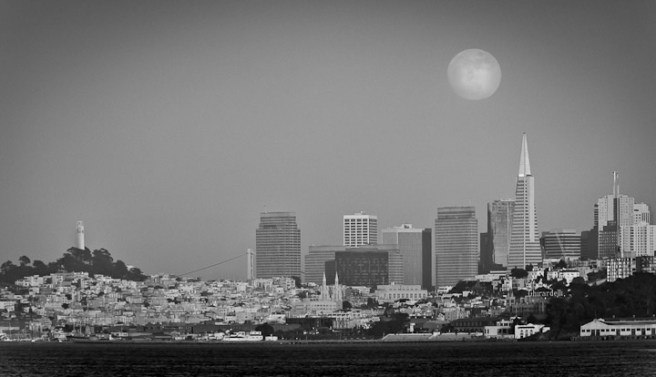
Once again, I’m determined to get the shot. In this case, it’s the full moon rising behind downtown San Francisco. Last night was my first attempt, but given the horrible results, it won’t be my last. I was about to delete all the images from the session, but first I decided to play with them to see how much I could extract before giving up.

Like all serious shoots, it began with research.

  • The experts told me the best time to shoot is when the moonrise is 30 minutes before sunset. That’s often the night before full moon on the calendar. In this case (June 14, 2011) moonrise was at 7:48pm and sunset was8:33pm. Not a bad spread.
  • To find the best position I used The Photographer’s Ephemeris, an awesome iOS app that shows you the exact position of the sun and moon on any date at any time.
The Photographer's Ephemeris

Everything was ready, save for the one big fear: the fog, which everyone knows can come barreling in through the Golden Gate during the summer. But fog didn’t turn out to be the problem. Due to a moderate high-pressure system just offshore, there was no marine layer and no wind. And that meant haze and smog: a fairly heavy layer up to about 1,000 feet. Yuck.

But having gone this far, I schlepped all the gear (including a second body+tripod for a timelapse) to the location where I found three other photographers, all with Nikon gear. Two of them had pinpointed the location using The Photographer’s Ephemeris as well. It was so hazy, we couldn’t even see the moon until it was well above the skyline, so the photo below is one of the first of the evening. And one of the best. This was shot about 25 minutes before sunset.

Original from the Camera

As you can see, it’s horribly flat and dull. After some tweaking in Lightroom, I was able to recover some of the contrast and clarity:

700_9034
With Global Lightroom Tweaks and Crop

Yes, I could have further lightened the unnaturally dark and saturated water and made a number of other improvements, but I just didn’t want to waste a lot of time on this one.

I posted the tweaked image on Facebook, where photo pal Scott Loftesness suggested I see how it looked as a black-and-white. I popped it into Silver Efex Pro 2, where I spent some time making a number of global and local adjustments and ended up with this:

700_9034-Edit-Edit
Further Tweaked in Nik Silver Efex Pro 2

What do you think? It’s still not at all the shot I’m looking for, but compared to the original, I think it’s at least a serviceable image. If nothing else, it shows that if you keep working at it and consider all the options (b&w in this case) you can sometimes salvage a shot that would otherwise end up in the trash.

Update: I went back and tweaked the moon. First I changed the mapping from RGB into b&w, then I adjusted the contrast. Finally, I used a layer mask in Photoshop to merge the enhanced moon into the original image. It gives the picture an entirely different look, doesn’t it?

700_9034-Edit-Moon-720w

I’m a TWiP Again

Once again I had the privilege of being a guest host on the This Week in Photo podcast (#202), sharing the show with Frederick Van Johnson, Syl Arena and Ron Brinkmann, three of my personal photo heros.

On this episode of TWiP, in case of a water landing – take pictures, Getty Images acquires PicScout, Adobe gets touchy feely, and an interview with SnapKnot.com co-founder Reid Warner.

My first appearance was on episode #153, nearly a year ago.

Photography Workshops

Like any other photographer, I’m always looking for ways to improve my skills. There are a lot of options out there: books, magazines, community college classes, online videos (free and $$$) and local photography clubs. And then there are the photo workshops — they’re everywhere. I’ve attended two workshops in the past few months, and while that certainly doesn’t make me an expert, I do now feel like I know what to look for in the next one. (I’m not including the San Francisco stop of the FlashBus 2011 Tour, which was fun, but more of an event than a workshop.)

Artist's Road, Santa Fe, at Sunrise

In March I attended a workshop led by Derrick Story. A good friend, Scott Loftesness, had been to one of Derrick’s earlier workshops and enjoyed it. Since I was able to talk Scott into trying another one with me, and because Derrick’s classroom and studio are in Santa Rosa, California (just an hour from home), it was a low-risk investment. The two-day workshop included eight students and cost $495. Derrick provides lunch both days, but you’ve got to get yourself to Santa Rosa and pay for a hotel room unless you’re local.

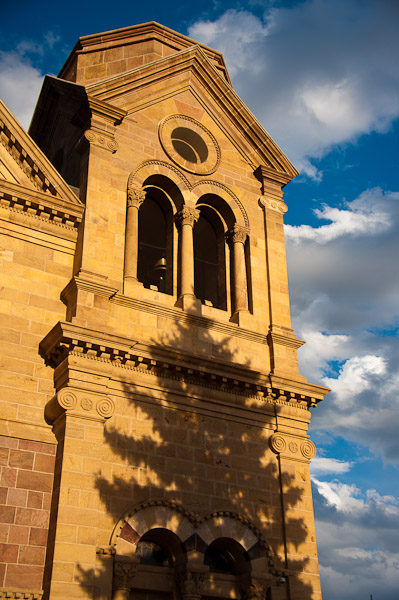
Santa Fe Cathedral at Sunset

Two weeks ago I went to a very different kind of workshop: the Mentor Series Photo Trek in Santa Fe, New Mexico. This three-day program had 37 students, two instructors, a bus and driver for the first two days and cost $1,000, which included no food, housing or transportation to/from the event. Mentor Series is owned by Popular Photography and runs about a half-dozen  workshops each year all over the world.

So how did they compare? In the case of the Mentor Series Trek, it’s “trek” that’s the operative word. It’s more about the location and somewhat less about photography. Yes, the attendees are all photographers (some with some very fancy gear) but you spend virtually all your time on the go. The first two days we were on the bus getting from one scenic location to the next a few hours each day, and once we arrived, there were often miles of walking to do. Beautiful scenery to be sure, but more hiking than shooting. And certainly not a lot of time to stop and “work” a subject for an extended period. The best shooting was actually the day they dumped the bus and we walked the city of Santa Fe on foot: once at sunrise and once at sunset. [Santa Fe is one of the best cities I’ve ever shot in. You could easily spend two or three days just walking its streets with a camera. Great art and architecture, terrific light and shadows, and a community that is very accepting of (and used to) photographers wandering around.]

By comparison, Derrick Story’s workshops often include a location such as a local safari park or (as next month) an early morning balloon launch, but there’s usually just one outside event per weekend. The rest of the time is spent in his studio — he usually includes at least one model session — and in the classroom. And it’s the classroom (and the class size) that really sets the two experiences apart. Derrick spends some of his time actually teaching from a podium and he gives the students actual assignments. For example, he might send you into the studio to shoot a model using only a single strobe. That’s something you can do when there are only eight students and they break into groups of four. With 37 students — forget it; everyone is on their own.

This brings up the question of why take one of these workshops at all. Professional photographers on assignment are obviously going to shoot a lot. But we serious amateurs have an interesting challenge. When my wife and I recently went to Egypt, I would have loved to have been able to stop and spend an hour or two studying the light and playing with the composition at each location. I would have given up half or more of the less-visually interesting sites in order to have more time at a few of the good ones. But that’s just me. My wife doesn’t particularly enjoy standing around while I study and experiment, and certainly the 22 other non-photographers in our tour group wouldn’t stand for it.

In one sense this is the role that weekend or weeklong workshops play. They allow the serious amateur to immerse him/herself in photography, surrounded by other photographers in a context where their peculiar habits of stopping, studying and shooting are socially acceptable. I imagine this is why Trekkies go to conventions. Wearing Mr. Spock ears to the grocery store is going to earn you some very strange looks. At a workshop you can truly geek out. Even when you’re on a bus, it’s all photography. All the time.

And what about the other students? Looking back, it’s not too surprising that a group of 37 would include a wider range than one of only eight. But I was surprised that the Mentor Series Trek included same true novices, some with the most expensive DSLRs. There were times when the instructors had to explain the relationship of aperture to shutter speed and ISO, and that surprised me. The instructors were even cornered by students with questions like, “What is ISO and how do I set it on my camera?” or “How do I focus this camera?” (Perhaps not surprisingly, some of these technically naive students sometimes produced some of the compositionally most exciting pictures.) In the smaller group of Derrick Story’s workshop, the range of skills was somewhat narrower although it still varied more than you might expect. Derrick does a good job of giving assignments that are applicable to each student’s skills.

In Santa Fe, I had relatively little access to the instructors given the 1:18.5 ratio as opposed to 1:8 at Derrick Story’s workshop. But even in Santa Fe, they were there if you had an important question. Towards the end of the Mentor Series weekend each student had the chance to show each of the instructors five images for critique (ten images total), and those sessions were quite valuable. We each got four or five minutes of constructive criticism that was appropriate for our skills.

Another benefit of any workshop or joining a photo club is the chance to see how other photographers interpret the same objects and locations. This happens in both the small and large workshops. No matter your level of experience, there are always those moments of, “Wow, I missed that!” that are truly educational.

So which of these two (or any other) do I recommend? It depends on what you want, of course. If pure learning is your goal, then I’d recommend a workshop with the smallest number of students, even a day of one-on-one. And I wouldn’t worry about finding the absolutely best photographer. So long as it’s someone whose work you respect and has been shooting it for a lot longer than you, you’re going to learn. Of course, reviews and opinions of previous students will help a lot.

On the other hand, if it’s a destination you particularly want to shoot or if you particularly want to travel, a larger more-distant workshop might be better for you. Mentor Series, for example, runs treks to places like Switzerland, London, Hawaii, Sedona and Wyoming. If you’re drawn to one of those locations and you want to experience the places in the context of photography, these might be better choices for you.

As for me? My prejudices probably show through in this blog post. I’m signed up for Derrick Story’s Hot Air Balloon Photo Workshop in a few weeks. None of the Mentor Series treks are on my calendar. I’m going to continue looking for small-group workshops that I can get to without hopping on an airplane. I’m also going to spend as much time as possible taking photo walks with friends. For example, tomorrow Scott and I will be shooting at the San Mateo Maker Faire as we did together last year. It’s tremendously visual and there’s enough to keep you engaged for a full day or more.

PocketWizards for Nikon

I’ve been using Nikon’s light-based CLS system for triggering my SB-600 and SB-900 strobes, but as others have experienced, I’ve been running into the line-of-sight limitations of that system. Last week I bought a set of Nikon-specific PocketWizard radio triggers. Learning how they work took a little longer than I expected, but the preliminary results are good. The supplied instructions are rather terse, so perhaps the following will save you some time if you go this route. In addition, you’ll want to refer to the wiki-based online documentation. (The Nikon-specific information is in an appendix.) There are all sorts of peculiarities such as how the PW system interacts with Nikons VR lenses.

The Nikon-specific PocketWizards are primarily designed to work with Nikon’s excellent TTL-based exposure system, iTTL, although they will also trigger older PW receivers. The basic setup is to pop a PocketWizard MiniTT1 transmitter on the camera’s hot shoe and a FlexTT5 transceiver under each Nikon strobe. You then set the strobes to TTL mode, make sure all PW devices are on the same configuration (C1/C2) and you’re set. All strobes will fire in sync and the Nikon CLS will do its thing to compute the exposure. I found:

  • Flash exposure compensation works as usual.
  • High-speed sync (FP) works well to 1/8000 sec, and you don’t have to do anything special to enable it. It just works all the time.
  • Even the modeling light works when you press the camera’s depth-of-field preview button.
  • Don’t put your strobe into Remote mode. Just set them up as though they were connected to your camera’s hot shoe.
  • In this basic configuration, the selection of groups (A/B/C) on the FlexTT5 makes no difference.
  • Automatic strobe zooming does not work, which makes sense whenever the strobes are not in the camera’s hot shoe. You must zoom your strobes manually.

Nikon’s Commander Mode, the ability to adjust the power of remote strobes individually (Nikon menu: Flash Control for Built In Flash) doesn’t work with PocketWizards. Instead, you need to buy a third device: the AC3 Zone Controller. This gadget sits on top of the MiniTT1, which is already atop your camera. The AC3 lets you dial-in power adjustments in 0ne-third stop increments for strobes in three groups (A/B/C). Note that these have nothing to do with Nikon’s A/B/C groups. It took me a while to comprehend this. The remote strobes think they’re each connected directly to the camera’s hot shoe. When used with PWs, the strobes know nothing about Commander Mode. They’re not “remotes” in that sense.

The AC3 really is a must-have unless you’re only shooting manually.  In addition to adjusting the power for each group relative to what Nikon’s CLS/iTTL would otherwise direct, you can switch a group into Manual mode to override the CLS control. The AC3’s +/- control wheel for each channel is mapped into controlling the flash output from 1/64 to full power. Note that so long as you want to use the AC3 for exposure control, leave your strobes set to TTL mode, even if you select Manual (M) on the AC3.

I occasionally use a Sekonic L-358 flash meter, so I decided to buy the optional Sekonic RT-32N module that fits inside the meter and allows one to trigger the strobes from the meter via PW radio signals. It took me quite a while to figure out how to configure everything for this mode of operation. It required changing the internally stored configurations of the PocketWizard devices, which in turn requires that you connect them to a computer via a USB cable, then use the PocketWizard Utility, which you can download from the company’s website. It runs on OS X or Windows and is very simple to use. You can save configurations in files, which makes updating a set of devices a simple matter.

I ended up using the two configuration settings (C1/C2) for TTL and “metered” mode, respectively. Here are the configuration values I’ve used successfully:

Config 1: AC3 for TTL or Manual Exposure Control

  • Strobe: TTL/FP Mode
  • FlexTT5: Normal Trigger Mode, Channel 7
  • Mini TT1: Normal Trigger Mode, Channel 7

Config 2: Sekonic-Meter Triggering and Manual Exposure Control

  • Strobe: Manual (M) Mode
  • FlexTT5: Basic Trigger Mode, Channel 27
  • MiniTT1: C2: Basic Trigger Mode, Channel 27
  • Sekonic: Channel 27, Group A (or other groups as needed)

With the above configuration, you can simply switch all the devices from C1 (for TTL) to C2 (for manual metering). In the manual-metering mode, you no longer have the ability to control strobe output using the AC3. Instead, you have to go to each device and set its power output manually. This is because the trigger signal is being transmitted directly from the Sekonic meter to the FlexTT5 transceivers. The camera, MiniTT1 and AC3 aren’t involved. Of course, you can still press the camera’s shutter release to trigger the strobes, which is why you need to set both the MiniTT1 (on the camera) and the Sekonic meter to the same channel as the FlexTT5 transceivers.

It all makes sense once you work your way through it. Or you can just copy my configurations as a shortcut. You might want to use channels other than 7 and 27 if you’re going to be shooting near me!

After just a few days, I’ve grown to like the PW system, as have most others who’ve tried it. On one hand there are more gadgets, batteries and things to go wrong. On the other hand, they don’t seem nearly as finicky as using Nikon’s optically based system. I can just set and aim my strobes where I wan’t. I don’t need to worry about whether they can read the signals from the camera. Now to see if I can get past the gadgets and make some good pictures with them.