How to Get an iPhone 5 in Just 12 Hours

Apple is currently quoting 3-5 weeks delivery on an iPhone 5 in the U.S. But I was able to order two and pick them up the next day. Here’s how.

  • Log into the Apple store website and almost complete the purchase process. Do everything except the final checkout.
  • About two minutes before 10pm local time, go to your shopping cart and change the delivery option from “ship” to “pickup at an Apple store”.
  • Enter your ZIP code when asked and scroll through the nearby stores. You probably won’t find any phones available.
  • Keep trying. At some point just before or around 10pm, you should see a phone or two show up as available at an Apple store near you. At this point they’re only getting a few of each model each day at each store. Don’t hesitate. You have only seconds to grab it. Click on a store you’re willing to drive to and complete the online ordering process.
  • Early the following morning you’ll receive email from the store, saying your new iPhone 5 is ready for pickup.
  • Go and get it.

This worked for me on Thursday night 9/27 for a 32GB black Verizon model, which I picked up in Palo Alto, CA. Last night I did it again for 16GB black Verizon model for my wife. Picked that one up this morning closer to home at the Corte Madera, CA store.

One word of warning: If you’re like me and are simultaneously switching form AT&T to Verizon, be prepared to spend 1-2 hours at the Apple store completing the provisioning process. Verizon is totally f*ed up on this. Two hours yesterday, even though I had answered all the questions, etc., online. Today I just had to switch my wife’s phone from AT&T and add it to the family Verizon plan. Still took an hour. If you’re not switching carriers, it should go much more smoothly.


BTW, the phone is great. I skipped a model and upgraded from an original iPhone 4. The camera is awesome. Same as the 4S. But the phone’s CPU is much faster than the 4. It’s just much more responsive. And I love LTE. No more 3G for me, let alone the dreaded Edge network. Luckily I have decent LTE coverage in my neighborhood.

The Conversations Network: Mission Accomplished

(The following letter was sent to all members of The Conversations Network earlier today, Sunday, August 16, 2012.)

Hello, Members of The Conversations Network!

It’s been a long time since I’ve sent out a Newsletter, but we’ve been working behind the scenes on some important changes here at The Conversations Network. We’ve been discussing these plans for the past two months with our Board of Directors, Executive Producers and Senior Managers. Channel-by-channel and site-by-site, here’s what we’re going to do.

  • Social Innovations Conversations will continue at the Center for Social Innovation at the Stanford Graduate School of Business. All existing programs will be migrated to CSI’s website, which is where all new episodes will appear.
  • CHI Conversations will return to its original home on the BayCHI web site.
  • IT Conversations production of new programs will cease around December 1.
  • SpokenWord.org will be shut down around December 1.

The remaining assets of the Conversations Network (cash and intellectual property) will be acquired by the Internet Archive, another U.S. 501(c)(3) non-profit organization. All existing programs will be moved to the Internet Archive where the world will be able to continue to listen to them for free.

Trying to anticipate some of the questions you may have:

  • We hope to preserve all existing URLs by running a “redirection server” for many years if not permanently.
  • We will stop accepting new and renewal membership dues and donations within 48 hours.
  • All monthly subscriptions will be canceled via PayPal within the next 48 hours.
  • Dues and donations already received will be used to help preserve the content (audio files and webpages) we’ve published over the past 9+ years.

So why are we doing this? A bit of history will help explain.

Our flagship channel, IT Conversations, was the second podcast ever published and today is still the longest running of all podcasts. In The Conversations Network’s nearly ten years we’ve published more than 3,300 programs on our three primary channels.

When we started this project, no one else was publishing free audio from conferences or other events. We were the first to stream live tech-conference audio and the first to offer recordings of conference sessions as free podcasts.

We created the Levelator software to standardize audio levels. It’s now in common use by podcasters and broadcasters worldwide and has been downloaded more than 350,000 times.

SpokenWord.org, our a metadata/search site for all audio and video recordings of spoken-word content, has cataloged more than 1.5 million audio and video programs.

Most significantly, we pioneered the concept of a worldwide distributed team of part-time (essentially volunteer) writers, audio engineers and producers to publish broadcast-quality programs. Since 2003, 215 people in all corners of the planet have been members of TeamITC. They are the real force behind what you see and hear on The Conversations Network.

And we’ve done it all on a shoestring budget thanks to our contributing members, content providers, underwriters and Limelight Networks, our long-time content-delivery partner.

We’re proud of what we’ve accomplished. Much of what we’ve pioneered in the past ten years is now commonplace. Our goal was to make it easy for others to produce audio recordings of events and make them available to the world for free. That’s now the norm. We have succeeded.

We’ve helped event producers and podcasters to create and publish programs themselves, and increasingly that’s what they’re doing. There simply isn’t as great a need for a service like The Conversations Network. So we’ve decided to complete our mission by helping our remaining partners continue their podcasts on their own websites.

If you have any questions about these changes, feel free to reply publicly or privately. The best place for your public comments is here on my personal blog.

Thanks again for listening and for your support of The Conversations Network.

…doug

Doug Kaye, Executive Director
The Conversations Network
A 501(c)(3) Non-Profit
doug@rds.com
twitter (DougKaye)
facebook (doug.kaye)
google plus

Nikon D800/D800E Autofocus Problems

There have been some discussions online about an autofocus problem with the new Nikon D800 and D800E bodies, and there’s been a fair amount of misinformation about this problem published as well. It’s not at all clear how many D800/D800Es have this problem, but I’ve confirmed that my D800E does. This post is to document the problem and to help others determine for themselves if their bodies suffer from this as well.

Here’s the problem: If you autofocus using the far-left autofocus point (and ONLY the far-left autofocus point) your image will be slightly out-of-focus. My tests are below.

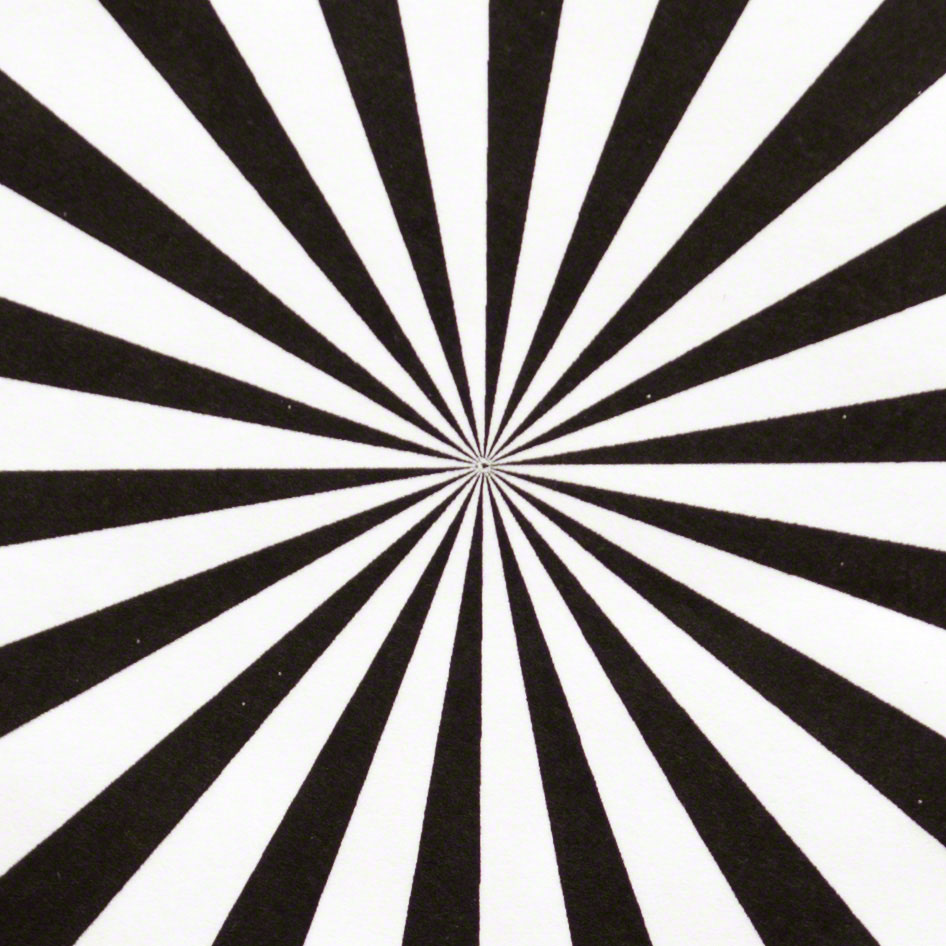
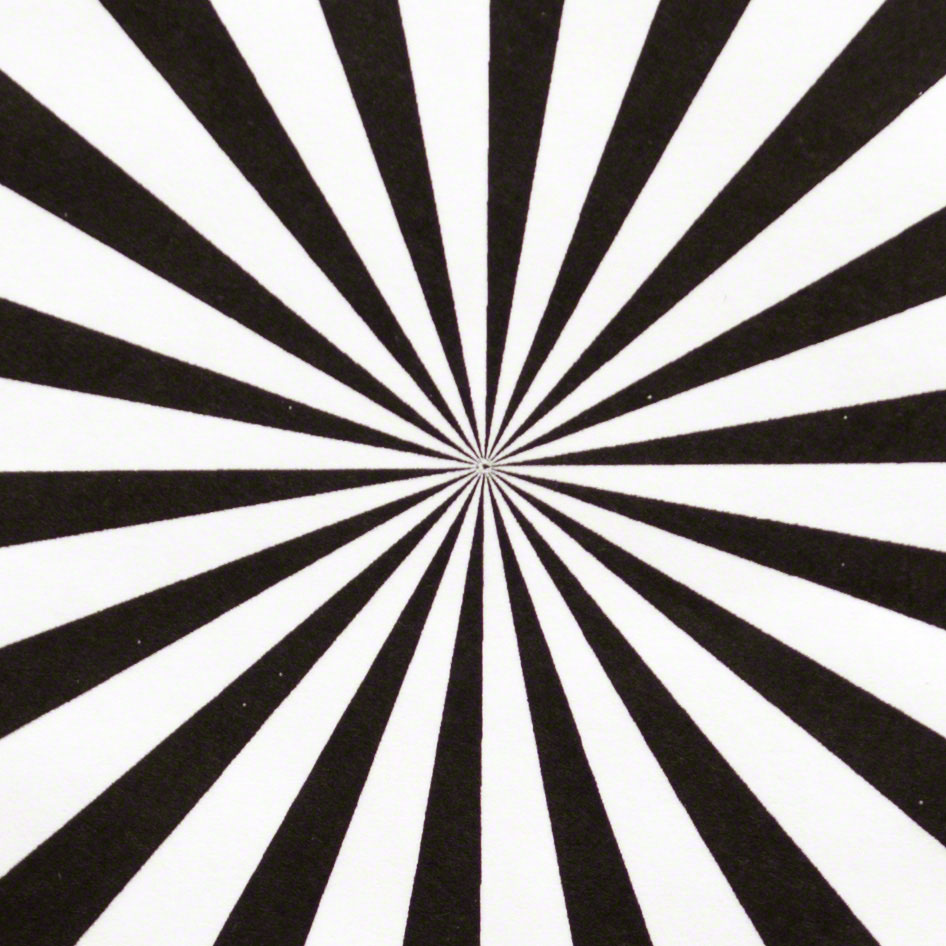
First, here is the focus test pattern, shown as a scaled JPEG from the full-frame image. The patterns are placed carefully to align with the leftmost, center and rightmost autofocus points. This particular set of tests was done using Nikon’s 24-70mm f/2.8 zoom set at 48mm and f/2.8. I repeated the tests with a 24mm f/2.8 prime with virtually identical results, but not shown here.


The superimposed images below are crops of the center test pattern. For the “before” image, I focused on the center pattern manually using LiveView. For the “after” image I used regular (non-LiveView) autofocus selecting the center focus point. (It’s hard to see, but there’s a vertical line in the center of the image with a draggable handle near the middle of the chart. You can move the slider left and right to hide and reveal the images.) As you can see, the images are virtually identical. Autofocus using the center focus point is accurate.

[beforeafter][/beforeafter]


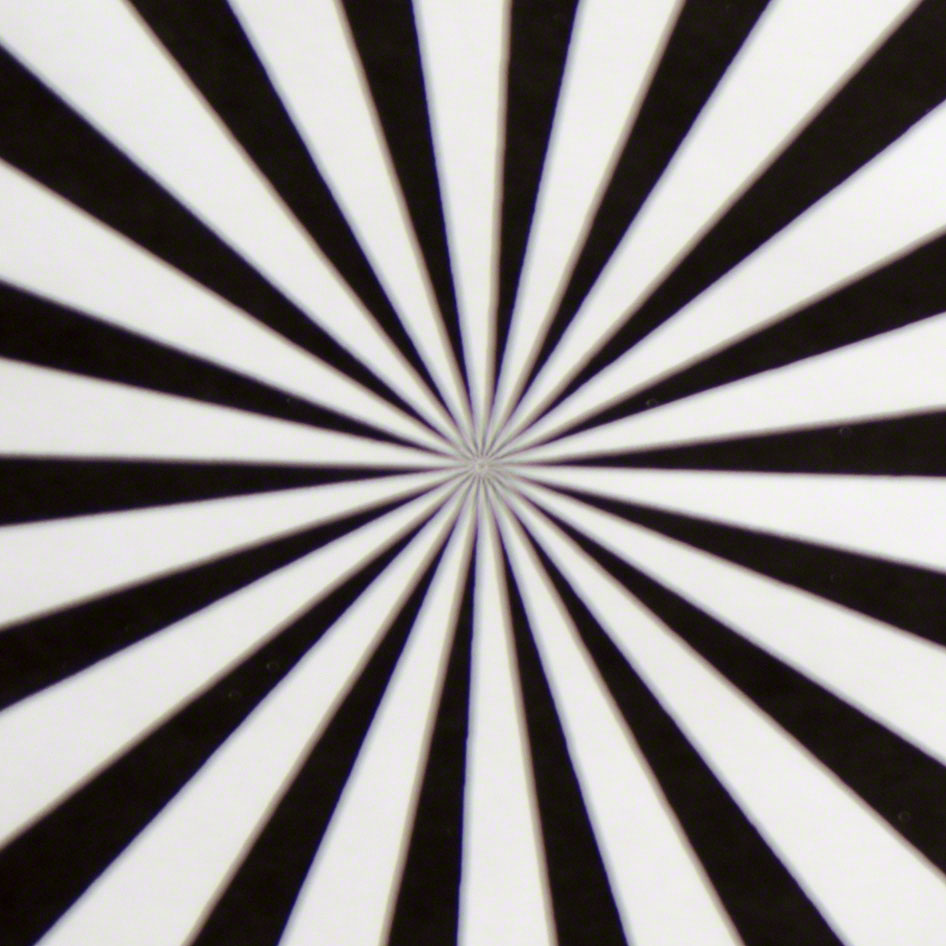
The superimposed images below are crops of the left test pattern. For the “before” image, I focused on the left pattern manually using LiveView. For the “after” image I used regular (non-LiveView_ autofocus selecting the leftmost focus point. As you can see, autofocus using the leftmost autofocus point is off. This is 100% repeatable using a variety of lenses.

[beforeafter]

[/beforeafter]


I called the Nikon Service Center about this. The representative was initially vague until I told him I’d run these tests and had the results available. He acknowledged the problem and told me it’s correctable. I asked him whether I should return the camera to the retailer from which I purchased it or send it to Nikon for  warranty service, and he recommended the latter. After all, there’s no guarantee a replacement wouldn’t have the same problem.

My new D800E is heading to Nikon tomorrow. Wish me luck!

Update 9/11/12: I didn’t get around to sending the D800E to Nikon in El Segundo, California, until 9/6/12, but Nikon’s online status page says Received 9/10/12. It’s now “In Shop” in Category B2: Moderate Repair: Major Parts Replace. The description of the problem includes “Optical Alignment”. It will be interesting to see what the actual fix turns out to be.

Update 9/17/12:  Got the D800E back from Nikon today, so 11 days door-to-door. The work order merely said “Adjusted Autofocus” so who knows what they did. I had to leave for a trip and didn’t have a chance to test it, but I’ll give a thorough report next week.

Update 10/4/12: The camera is back from Nikon. See Part 2 for the results.

Glossy and Lustre Papers for Color Images

Last year I posted a review of Labs and Papers for Black & White. At that time I was using outside labs for all my prints. Based on my ongoing frustration with the results, I decided to start making my own prints and purchased an Epson 3880 printer for the task. With advice from Martin Bailey and his great eBook, Making the Print, I focused on high-end fine-art matte papers. I’ll be posting reviews of many of these matte papers soon, but first I want to cover glossy papers.

Why am I using glossy papers, particularly after Martin convinced me to check out the matte papers? It started when I entered the above image into a local competition that was judged by printing guru Mark Lindsay. I entered a print on Breathing Color’s Optica One. Mark liked the image, but he bumped it down to second place because of the choice of paper. He noted it was a particularly sharp image with a fairly wide gamut, and that it really needed a high-gamut smooth glossy paper. He was absolutely right. My problem was that I had been so focused on matte papers, I’d been using them for everything. BC’s Optica One has a wide color gamut and  high d-max (ie, dense blacks), but as Mark explained, the range of what you can reproduce on glossy papers fundamentally exceeds what you can do with matte papers.

I ordered sample packages from five manufacturers. Yes, there are many others, and when I get a chance I intend to test a few more. But for now I used 19 gloss, satin and lustre papers from Breathing Color, Hahnemühle, Ilford, Red River and Epson. For these tests I printed two images, the one above and the one below. I chose the one below because it contains some extreme colors that are out-of-gamut for any paper.


For each paper I used the ICC profile provided by the paper manufacturer for my printer. I started with the full-gamut sRGB images, soft-proofed them in Lightroom 4, and adjusted the saturation to bring the images to be within gamut for each individual paper. In some cases I changed the exposure in order to best approximate the original.

Most important is that my judging of the results was entirely subjective. Yes, I checked for (but did not measure) the density of the blacks, detail in the highlights and shadows, and the accuracy of the colors. But I also just looked at the prints and decided which ones I liked best. Many of these papers are quite similar, particularly those from the same manufacturer. In an attempt to minimize arbitrary judgmental differences, I compared the papers blind (ie, unlabeled) four times, using each of the above images in two different lighting conditions. Luckily, when I was all done I discovered I’d been fairly consistent in my rankings. In all four comparison passes I chose the same papers as my favorites, although within the top four papers they were particularly close. Likewise, I was consistently disappointed with the bottom six or seven. In the middle of the rankings the order did change somewhat more from one judging pass to another. Of course these are my personal preferences and only for these two images, which are notably colorful, saturated, sharp and contrasty. What’s right for you and your images will likely be different, but I hope I can give you a good place to start in your search for the best glossy papers. Here are the results, in order of my preference.

  1. Hahnemühle Fine Art Baryta ($81 per 50 8.5×11 sheets) is a gorgeous, heavy, very bright white paper with a fair amount of texture. The blacks are not the darkest, but the overall look is terrific. Visually, this is the best paper I tested. But it’s so expensive, I’m not likely to use it very often. (17×22 sheets cost $6.40 each.)
  2. Breathing Color Vibrance Gloss ($15) is a very close second, and is my favorite true glossy (ie, smooth) paper. It’s bright white and renders rich dark blacks. Best of all, it’s one of the least expensive papers I tested. This will likely become my most-used glossy paper. (17×22 sheets currently cost only $1.10 each, only 17% of Hahnemühle Fine Art Baryta, a much heavier paper. It appears that BC is offering Vibrance Gloss for a discount. It’s not clear how long this will be the case or what the price will be after the discount period ends.)
  3. Ilford Gold Fibre Silk ($58) is a warm/ivory color with a smooth but not fully gloss surface. It has good (but not deep) blacks and reproduces warm colors (reds and yellows) particularly well. It’s reasonably expensive, but I expect to use this paper when I want a warmer look than what one normally expects from glossy papers. This paper is also terrific for b&w images, but that’s for another set of tests.
  4. Hahnemühle Baryta FB ($70) is a heavy paper with a light texture and appears to me to have an even wider color gamut than the first-place Hahnemühle Fine Art Baryta. Overall, however, I still prefer the other paper.
  5. Ilford Smooth Gloss ($27) is a lightweight paper with a classic smooth glossy finish and deep blacks. For my work, it’s just a notch below the BC Vibrance Gloss but nearly twice as expensive.
  6. Hahnemühle Photo Rag Baryta ($70) is a heavy paper with a light texture and good blacks. It has a warmer, more-ivory color than the Fine Art Baryta. By now you’ve probably figured out that the Hahnemühle Baryta papers are all pretty good. And expensive.
  7. Hahnemühle Fine Art Pearl ($81) is a wide-gamut medium-weight paper with a subdued lustre-like finish and a bright white color. The blacks aren’t particularly dark, however.
  8. Ilford Smooth Pearl ($25) is a lightweight lustre-finish paper with a very slightly warm/ivory color. I find its blacks to be a bit weak.
  9. Red River Arctic Polar Gloss ($28) is a bright white, lightweight glossy paper with deep blacks. The three Red River gloss papers are all quite similar, which is why they’re clumped together in my rankings. In fact, in one out of four passes I judged them in the reverse of this order. The color gamut of these papers appears to be narrower than BC’s Vibrance Gloss and nearly all the Hahnemühle papers.
  10. Red River Pecos River Gloss ($25) is very similar to RR’s Arctic Polar Gloss, just slightly warmer and less expensive.
  11. Red River Ultra Pro Gloss ($20) is again very similar to RR’s Arctic Polar Gloss but with a yet narrower gamut. It’s a good value, but still more expensive and (to my eye) not as nice as BC’s Vibrance Gloss.
  12. Breathing Color Vibrance Lustre ($15) has a typical lustre finish. Otherwise it’s virtually identical to BC’s Vibrance Gloss.
  13. Epson Ultra Premium Lustre ($28) is one of the most common papers. It’s lightweight, slightly warm, with strong blacks and a lustre finish.
  14. Hahnemühle Photo Rag Pearl ($86) is heavy with a slight warm/ivory color and a texture that’s smoother than lustre but not full glossy. It’s less contrasty and has lighter blacks than my preferred papers.
  15. Red River Arctic Polar Satin ($28) is a lightweight slightly warm paper with a finish that’s somewhere between gloss and lustre. The gamut isn’t as wide as most of the full-gloss papers, but the blacks are deep.
  16. Red River Ultrapro Satin ($20) is another lightweight RR satin paper. It’s the warmest of RR’s gloss-family papers, but still not as warm as, for example, BC’s Vibrance Rag. The color gamut is somewhat narrow and the blacks aren’t quite as deep as others.
  17. Epson Exhibition Fibre ($35) is a heavy paper with a lustre finish. To my eye, it’s a fairly low-contrast, bright white paper.
  18. Red River Arctic Polar Lustre ($42) is a bright-white medium-weight lustre paper. The color gamut is about as wide as RR’s Arctic Polar Gloss but the blacks are not quite as deep.
  19. Breathing Color Vibrance Rag ($57) is similar to BC’s Vibrance Lustre except that it’s a heavy paper with an ivory/warm color. The paper is not available in 8.5×11 but costs $111 for 25 sheets of 13×19 sheets.

Conclusions: I’ve settled on Breathing Color’s Vibrance Gloss as my everyday gloss paper. It’s one of my top picks regardless of price and is available now for nearly half the cost of Epson’s Ultra Premium Lustre, one of the most common papers. I’ve also purchased some large sheets of Hahnemühle’s Fine Art Baryta for situations that call for the very best.

If you’re interested in glossy, satin or lustre-finish papers I strongly suggest you buy sample packs from at least some of these manufacturers and run your own tests. My experiments are far from technically rigorous and my images probably don’t look anything like yours. Running your own tests is the only way to decide.

If you have the ability to make your own paper/printer ICC profiles rather than depend on those from the manufacturers, you may want to do so. For example, I found that using the profiles from Hahnemühle yielded prints consistently lighter than using manufacturer-supplied profiles for other papers. Although my monitor is calibrated, I don’t have a reflective spectrophotometer needed to read test charts on paper.

I also come at this with my own set of prejudices. For example, I just don’t like lustre papers. While they may be the most resistant to fingerprints (from which glossy papers suffer) and smudging (the curse of matte papers), I don’t like the way they scatter light. I prefer a smooth-finish matte paper or a smooth glossy. I was, however, impressed with some of the satin finishes. (If you do print on glossy or matte papers and expect your prints to be handled such as during competitions, I strongly recommend Hahnemühle Protective Spray.)

Finally, I found that the greatest variations are between the manufacturers. For example, within the Red River line of papers, I had a very difficult time reliably distinguishing Arctic Polar Gloss from Pecos River Gloss and Ultra Pro Gloss. The same is true among the Hahnemühle Baryta papers.

I hope this has been helpful as you explore the beauty of these great glossy papers.


Nikon D800E First Look

I’ve had the new Nikon D800E for less than a week, but already it’s proven to be everything I hoped for. Let’s begin by looking at a simple comparison to the also superb Nikon D3s. The following images were shot with a Nikkor 70-200mm f/2.8 at 200mmm f/8 and 1/400 sec. The first image is scaled from the uncropped original from the D3s. Although the D800E’s sensor has more pixels, it’s the same size as the D3s (full 35mm frame equivalent) so both cameras have the same field of view. Yeah, I know it’s not an interesting shot. But I wanted to see how much detail I could capture a half-mile away.

The second split-screen image demonstrates the differences between the two sensors. (Click on the image to see it at 100%. You may need to maximize your browser window and perhaps zoom in. The image is 1920×1280 pixels.)

The first thing you’ll notice is that at 100% the D800E is simply larger, reflecting the difference between its 36.3mp sensor and the D3s’ 12.1mp. The result is a 73% larger image from the D800E assuming the same pixel density. How large? If you print an image from the D800E’s 7360×4912 sensor it will be larger than 30×20 inches at 240dpi, a standard density for prints. Put another way, you can crop to as small as 40% and still fill an 8×10 print at full scale.

Other than large prints and/or tight crops, what’s the benefit of the D800E? Take another look at the above image at full size. In the very center of each crop is some text in the shadows. At 100% you can nearly make out the name on the building in the D800E version. At 200% it’s easy to read. In the D3s version, you can’t read the name regardless of how much you enlarge the image. That’s the real difference between these cameras.

But this much detail does come at the cost of some very large files. For example, the RAW file (14-bit, lossless compression) from which the above D800E image was made is 48.1MB! When converted to a DNG file in Lightroom it shrinks slightly to 42.9MB. The uncompressed RAW files are a whopping 74.4MB. At that size, a 16GB CF card holds only 340 shots. (I just bought my first 64GB card.) When you start tweaking these images in Photoshop with layers and SmartObjects, your files get big quickly and certain compute-bound operations such as noise reduction are noticeably much slower than for the D3s’ far smaller files.

The two questions I’m asked most often are “Should I buy a D800?” and “Should I buy a D800 or a D800E?” I’ll start with the second question.

The only difference between them is that for an additional US$300 the “E” model doesn’t have the usual anti-aliasing filter in front of the sensor. The advantage is a slight (and I mean really slight) improvement in detail. From other reviews I’ve studied, I wouldn’t expect to see any difference in the rather unscientific tests I performed above. The disadvantage is that you may see moire patterns when photographing images with fine repeating lines. I’ve already seen this when shooting through a screen door, for example. If you’re only shooting still images and using Lightroom 4, this isn’t really an issue since LR4 now includes a software moire filter. Where it would be a problem would be if you’re shooting video. In that case removing moire can be quite time consuming. Bottom line: Buy the “E” version only if you’re like me, (a) don’t shoot video, and (b) are likely to test your camera’s resolution before you take a normal photograph. Video on the D800 is gorgeous, so if you think you’d like to use it, stay away from the D800E.

Now to the first question: should you buy one at all?

I would not recommend this as your only DSLR or as a general-purpose camera. I think of the D800(E) as a tripod-only camera for carefully planned and executed shots. Sure, you can use it handheld and you can shoot your kids’ birthday parties with it. But for those tasks I’d rather use an older D700 or even the cropped-sensor D7000. Shooting casual pictures outdoors in daylight? I’d probably grab my Sony NEX-7 instead. Shooting action/sports or in low light, it’s the D3s without question. But for landscapes or other detailed images, particularly those I’m likely to print, the D800(E) is my camera of choice.

Now I just have to pay for it. The D700 and my few remaining DX (cropped-sensor only) lenses are going onto eBay. In addition to the D3s, I’m going to hang onto my D7000. It’s just perfect when I want a versatile camera that weighs less than a cinder block but is better in low light and has better glass than the NEX-7.

Sony NEX-7 Tests, Part 3

These are my final tests (for now) of the Sony NEX-7. See also Part 1 and Part 2. To wrap this up, I rented two Sony E-mount lenses: a second 18-35mm f/3.5-5.6 and a 18-200mm f/3.5-6.3. The reason for getting a second 18-55mm was to determine whether the disappointing performance was due to my particular copy or shows up in other copies.

As for the 18-55mm, my copy of the lens is in fact slightly sharper at 55mm and f/5.6. At f/8, both mine and the rental lens were equally sharp. As mentioned in the previous tests, this is really a “keep it at f/8” lens if you want the sharpest possible results.

Comparing the 18-55mm to the 18-200mm was also interesting. At 55mm f/5.6 the longer lens was sharper in the center but noticeably softer in the corners. At 55mm f/8 they were equally sharp in the center but the longer lens was again softer in the corners. And comparing the 18-200mm to itself wide open at 55mm (f/5.6) and 200mm (f/6.3), it was quite soft at the longest focal length (center and corners) as well as showing quite a bit of chromatic aberration in the corners at 200mm.

While I still like the camera quite a bit, I’m really looking forward to some better zoom lenses. I like the 11x range of the 18-200mm, but since it’s about the same size/weight as the Nikon 18-200mm f/3.5-5.6, there’s not much advantage over just using the Nikon lens on my D7000. The Nikon body is larger, but with a big lens, the difference isn’t as significant. With the smaller 18-55mm, you take more advantage of the NEX-7’s diminutive body. For now, at least, I’m going to stick to the smaller lenses for the NEX-7 and just take my big Nikons (D700, D3s) with the superior glass when compactness doesn’t matter.

FYI: I’ve heard the Sony 50mm f/1.8 ($300) is supposedly a better lens than these zooms, and since it’s obviously much faster, I may give that one a try. I like the idea of a 75mm full-frame equivalent lens.

Sony NEX-7 Tests, Part 2

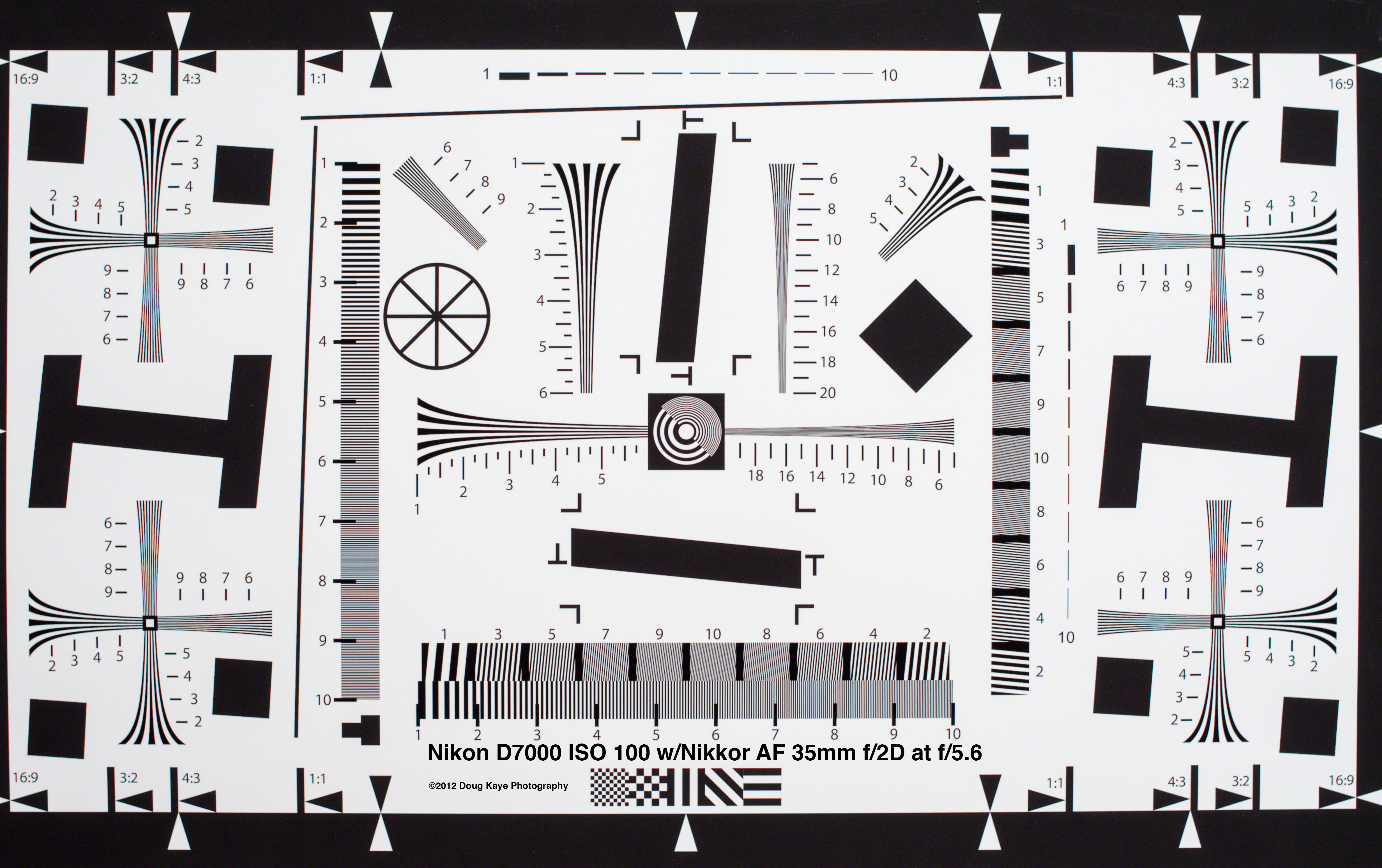
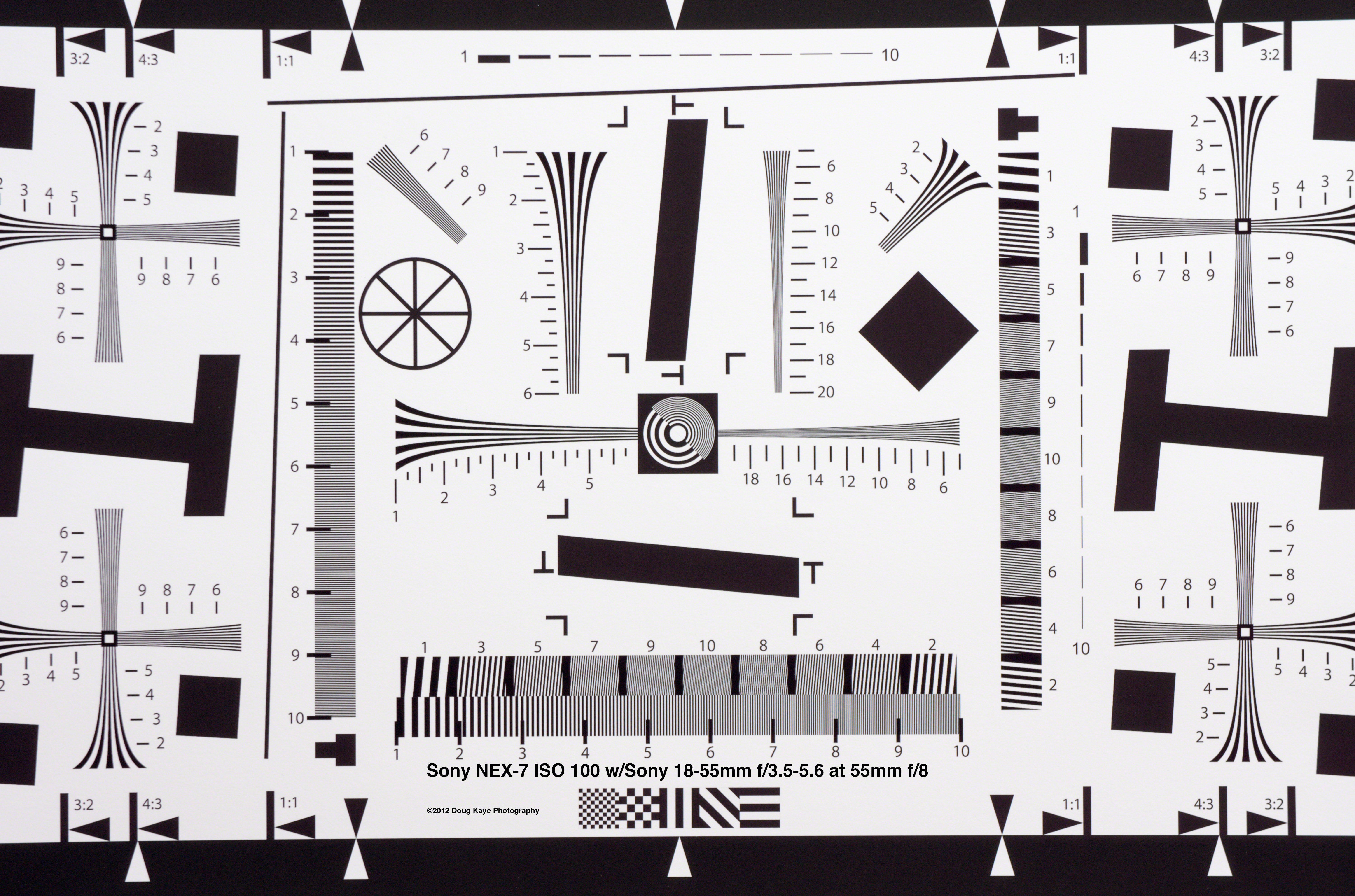
In an attempt to understand why the images from my new Sony NEX-7 w/18-55mm f/3.5-5.6 kit lens are soft, I ran some basic tests earlier today. I wasn’t satisfied with the results for a variety of reasons (wrong ISO, not enough variables and general sloppiness) so this afternoon I repeated and expanded the tests. The results are shown below. All exposures were at ISO 100. Click to see the image in full-res.

Conclusions:

  • On the Sony NEX-7 body, the Nikon 35mm f/2D prime (via an adaptor) is sharper than the Sony 18-55mm, both at f/5.6. No surprise on this one.
  • The Sony 18-55mm has less chromatic aberration at 35mm than the Nikon 35mm prime (both at f/5.6).
  • The Nikon 35mm prime is equally sharp on the NEX-7 (24mp) and the Nikon D7000 (16mp). (The Sony’s extra megapixels don’t help, but it’s just as good as the D7000 in this regard.)
  • None of my tests at 35mm explain my soft images from Saturday’s shoot. So I tested at 55mm…
  • The Sony 18-55mm is noticeably soft at 55mm wide open (f/5.6), but stopped down one f-stop (f/8) it looks quite a bit better.
  • Not shown here, it gets soft again at f/11 and beyond. At 55mm, the Sony 18-55mm is a “keep it at f/8” lens.
  • Also not shown here is the fact that the NEX-7 underexposed this test one full f-stop. This was corrected in Lightroom 4. No other corrections (sharpness, noise reduction, CA removal) have been applied to any of these images.

To see the full test charts, click on the images below. Mouse over to see which is which. These high-res JPEGs were made 1:1 from the original RAW files using quality 80/100.

Nikon D7000 ISO 100 w/Nikkor 35mm f/2 @f/2  Sony NEX-7 ISO 100 w/Nikkor 35mm f/2 @f/2  Sony NEX-7 ISO 100 w/Sony 18-55mm f/3.5-5.6 @35mm f/5.6  Sony NEX-7 ISO 100 w/Sony 18-55mm f/3.5-5.6 @55mm f/5.6  Sony NEX-7 ISO 100 w/Sony 18-55mm f/3.5-5.6 @55mm f/8

I’m curious to know if it’s just my copy of the Sony 18-55mm that’s soft or is it common to all copies. I’m also curious to see if the Sony 18-200mm zoom is much better. I’ll have copies to test this coming weekend.

Sony NEX-7 Tests

[See Update/Part 2]

In early May I managed to get my hands on a Sony NEX-7 camera with a couple of lenses. On May 15 I recorded a video review with Frederick Van Johnson on This Week in Photo. Ultimately, I decided this would be a great small, mirrorless camera to complement my huge Nikon D3s and its lenses, so last week I ordered one from Sony. I spent half of this past Saturday shooting with the NEX-7 and its kit lens, an 18-55mm f/3.5-5.6 (about 28-85mm full-frame equivalent). But when I got home and transfered the images, I was disappointed in their sharpness, pretty much uniformly. Did I get a bad copy of the lens? Was the camera just not as good as I though when I had a review copy? I decided to run some tests.

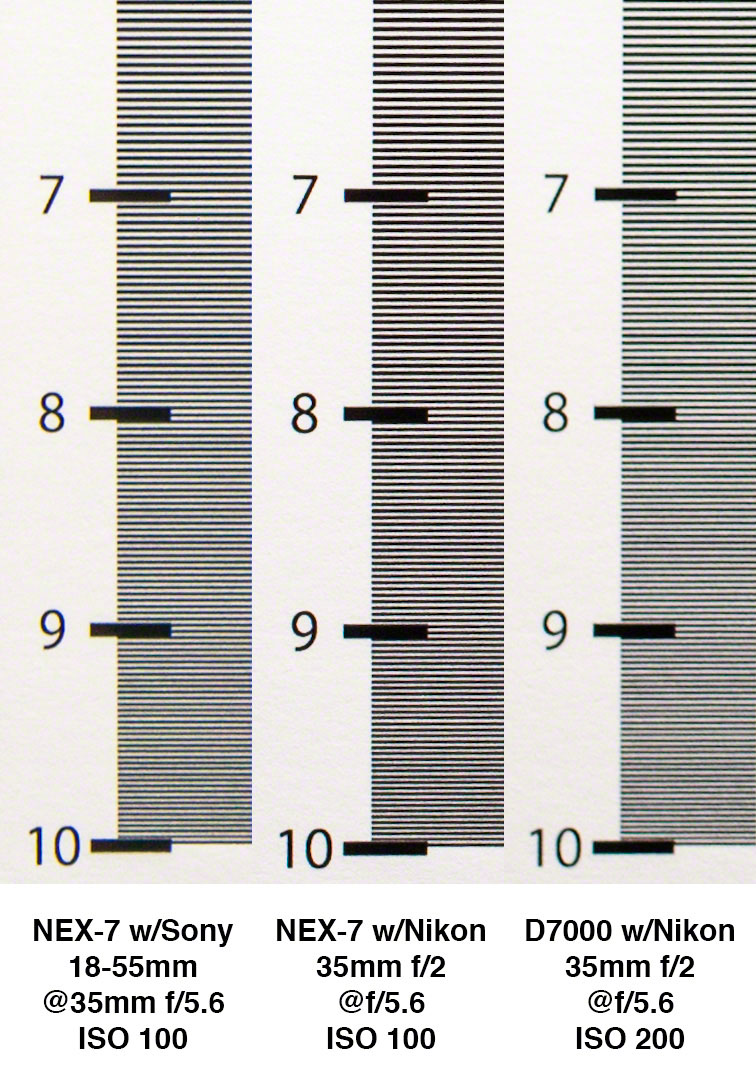
I’m just getting started, but here are the initial results. I started with the kit lens set to 35mm and f/5.6. (Wide open at 35mm is f/4 on this lens.) For comparison, I used an adaptor to mount a Nikon prime lens to the Sony body — an AF Nikkor 35mm f/2 D. Finally, I used the same lens on my Nikon D7000, which has an APS-C sensor, the same size as in the NEX-7. I used the lowest  “normal” ISO on each body: 100 for the NEX-7 and 200 for the D7000. The results are below. Click the image to see it full-sized, 1:1.

My interpretation? The Nikon 35mm on the Sony NEX-7 body is sharper than Sony’s 18-55mm. No real surprise there. But both lenses are sharper on the NEX-7 than the prime on the Nikon D7000. Well, maybe that’s not really a surprise after all, since the D7000 is a 2+ year-old camera and uses an older Sony sensor that’s the same size as the NEX-7’s.

As for the final decision about the NEX-7, we’re not there. I still don’t have an explanation as to why this weekend’s images are so soft. Perhaps it’s because most were shot at 55mm. Or maybe it’s that I used ISO 200 most of the day. In any case, further tests are required to determine what’s going on here. Stay tuned.


Interviewed on TWiT Photo

I was honored to be the featured guest on TWiT Photo, which normally features only the very best professional photographers. The on-demand video (and audio-only version) are now live. While the usual hosts +Leo Laporte and +Catherine Hall were in Norway, I had a terrific time with stand-in co-hosts +Trey Ratcliff and +Sarah Lane. And thanks to +Tony Wang for putting the show together. Hope you enjoy.

[I was particularly impressed with the skills of the TWiT team. I’ve always appreciated Sarah’s on-screen talents, but it’s not until you sit down on a set with her that you realize how good she is at listening and keeping the show moving. And Tony not only runs the show, but has the uncanny ability to switch in web pages and images almost before they’re mentioned, even when he doesn’t know what’s coming. True professionals.]

http://twit.tv/embed/11001

HDR Workflows

Update 1/19/12: Based on feedback from many including John Omvik at Unified Color, I’ve improved my #1 workflow and substantially edited all the workflow descriptions below.

This is my first-ever high-dynamic-range (HDR) image, shot nearly three years ago. Since then my HDR workflow has changed quite a bit — almost weekly, it seems. As I’ve recently been running tests on some aspects of HDR processes and tools and particularly methods for transferring images between applications, I thought this would be a good time to pin down and document the workflows I’ve been using and explain why I’m still using them or not.

My primary applications are Adobe’s Lightroom (LR) and Photoshop (PS). I use LR to organize my images and for basic processing. I turn to PS for images that require adjustments beyond LR’s capabilities. The HDR tools I’ve used at one time or another include Photomatix ProLR/EnfuseHDR Efex ProHDR Expose 2 and its cousin, 32 Float. Note that all of these applications are available as free-trial versions. I encourage you to download them and experiment with these workflows.

Because you may not have some of these applications, I’ll describe seven different multi-image workflows as well as some for single-image HDR. My goal is to cover not only the tools and methods I’m currently using, but also those that I tried, tested and in some cases abandoned before settling on my current choices.

Workflow #1: 32 Float (with Photoshop)

I’ve recently started using Unified Color’s 32 Float for most of my high-quality HDR images. 32 Float is a PS-plugin version of HDR Expose. Given that I usually end up in PS anyway, this gives me a simpler workflow than I’d get with HDR Expose. I’m only giving up batch operations and a few functions that are better performed in LR or PS anyway. This is my current workflow for my highest-quality HDR images.

  1. Unless you’re shooting action/sports, which rules out multi-exposure HDR anyway, always shoot in RAW. Otherwise none of this applies to you.
  2. In LR, make only two adjustments to your images: lens correction and camera calibration, which can only be done at this stage. Defer everything else until your RAW files have been merged into a single 32-bit image. (I have camera profiles for each of my body/lens combinations made using a ColorChecker Passport.) Use Copy/Sync to apply the same adjustments to all the bracketed originals. If you’re not an LR user, you can instead perform the equivalent of this and the following step using Adobe Bridge and Adobe Camera Raw (ACR).
  3. Select the bracketed RAW files in LR then (from the Photo menu or ctrl/right-click) Edit in…Merge to HDR Pro in Photoshop. Importantly, and unlike some other Edit in… and Export options, Merge to HDR Pro sends full-range 32-bit files to PS, even if you’ve made adjustments in LR. This launches PS’s own HDR Pro module. [PS’s tonemapping is weak, which is why all these third-party tools exist. But the merge-to-HDR function seems to work as well as any other.] In Merge to HDR Pro don’t be alarmed if you don’t see your highlight or shadow details. You’re only looking at a low-dynamic-range (LDR) preview of the HDR image, which can’t be properly displayed on your monitor.
  4. In HDR Pro set the Mode to 32 Bit and click OK. This merges the originals to create a 32-bit HDR image, then opens it as the Background layer in PS.
  5. Launch 32 Float from PS by selecting Filter…Unified Color…32 Float.
  6. In 32 Float tonemap the HDR image to low-dynamic-range (LDR). Many operations are best done here, while you’re in 32-bit mode and your luminance data are separate from your color data. Go ahead with global changes such as sharpening, noise reduction, local contrast and color and tone adjustments, but I’d stay away from dodging and burning in particular. At least in the version I have, there’s no undo feature, so an erroneous burn can wipe out what you’ve done, just like in a wet darkroom!
  7. You’ve now done pretty much all you can do in 32-bit mode, so set Upon Apply Convert To to 16 bpc. This will return a 16-bit image back to PS and change PS to 16-bit RGB mode. It’s also better to change to 16-bit mode while you’re still in 32 Float since there can be some rather quirky artifacts when the 32-to-16 bit conversion is done within PS.
  8. Back in PS, decide whether you want to merge in any of the original exposures. I will often do this in cases where there are ghosts such as people in different positions or if there are artifacts, details, tones or colors that are much better in one of the original images than in the merged one. If so, go back to LR, select the original RAW images and click on PhotoEdit In…Open as Layers in Photoshop… Back in PS, select the merged image then use Layer…Duplicate Layer to copy it as the top layer in the RAW-image stack. Use layer masking and other tools to manually combine your  originals and the merged image.
  9. Further tweak the combined image as necessary. If you need a filter that’s only available in 8-bit RGB mode such as Pixel Bender, Distort or the Topaz Labs suite, change the Mode to 8-bit RGB, but do so as late as possible. Otherwise keep the image in 16-bit mode.
  10. Click Save, which returns the image to LR.
  11. In LR do your cropping, final sharpening, noise reduction and vignetting.

Workflow #2: HDR Expose (without Photoshop)

This variation is designed for those who either don’t have PS or just prefer to do all their retouching in LR.

  1. Don’t make any adjustments in LR’s Develop module. The one exception might be if you need to correct for severe chromatic aberration, which is quite difficult to do later in the workflow.
  2. Select the bracketed RAW files in LR then select File…Export…Merge and Edit in HDR Expose. This uses HDR Expose’s alignment and merge engines instead of PS’s. Important: Make sure you select Merge and Edit Original Image(s) in the Export dialog box. This will send your RAW files directly to HDR Expose. If you select Merge and Edit Images with Lightroom Adjustment(s) you will be sending LDR 16-bit TIFF files and thereby throwing away a lot of important data. The only time to use this option is if you corrected chromatic aberration in step #1. It’s a tradeoff. [There’s a workaround for this tradeoff: You can make adjustments in LR’s Develop module. (I’d suggest limiting them to lens correction and camera calibration.) Then Export your set of bracketed RAW images as DNG files. This retains their full 32-bit range. You can then start HDR Expose as a standalone application and merge the saved DNG files.]
  3. Tonemap and adjust the image in HDR Expose.
  4. Click OK and save the image as a 16-bit TIFF. It will be returned to LR.
  5. You have the option at this stage to perform additional processing on the merged LDR image in PS. Use Edit in…Photoshop CS5 to export to PS. When you’re done, Save will return the results to LR.
  6. Crop, sharpen, reduce noise and vignette in LR.
  7. Continue with step 8 in Workflow #1.
Workflow #3: LR/Enfuse

Before a friend told me about HDR Expose and 32 Float, this was my first choice for HDR merging and tonemapping. Not only is it free (donationware, actually) it’s also fast and simple and produces a fairly linear tonemapped image ready for additional adjustment. LR/Enfuse is the open-source Enfuse command-line utility packaged as a LR plugin.

  1. Select your bracketed RAW images in LR.
  2. In the LR menu, select File…Plug-in Extras…Blend exposures using LR/Enfuse…
  3. In the Output tab select 16-bit ProPhoto TIFF and Reimport image into Lightroom.
  4. LR/Enfuse will perform the HDR merge and tonemapping. Although you can make some adjustments before it runs, there’s no interactive preview.

The tonemapping in 32 Float, HDR Expose and LR/Enfuse generally give me the most realistic results. But occasionally I want a less-realistic look, in which case I typically turn to Photomatix Pro. There are three different ways to use this utility, depending on the balance you want to strike between simplicity/speed and quality/control.

Workflow #4: Photomatix Tone Mapping Plugin for Photoshop

This plugin is sold separately by HDRsoft. It’s the best way to use Photomatix Pro with PS.

  1. Follow steps 1-4 in Workflow #1.
  2. Launch the Photomatix plugin by selecting Filter…Photomatix…Tone Mapping…
  3. In Photomatix tonemap the HDR image to LDR and make other adjustments. I tend to use default settings here, waiting until I return to PS to make further changes.
  4. Click OK, which returns a 32-bit HDR image to PS.
  5. Don’t worry if the LDR preview of the 32-bit HDR image looks all wrong in PS. Click on Image…Mode…16-Bits/Channel.
  6. If you want the double-tonemapping look, you can make further tweaks in this second HDR Toning step.
  7. Continue with step 8 in Workflow #1.
Workflow #5: Photomatix Pro (with Photoshop but without the Plugin)

If you want to work with PS but don’t want to buy the Photomatix Tone Mapping Plugin for Photoshop, this variation works fine. It’s just a little more complex.

  1. Follow steps 1-4 in Workflow #1.
  2. Save the HDR image as a Radiance (.hdr) file in a temporary location. (You don’t need to keep this for archival purposes since it is easily reproduced from the RAW images at any time.)
  3. Start Photomatix Pro and open the .hdr file.
  4. Use tonemapping and other adjustments to create an LDR image from the HDR image.
  5. Save the LDR file as a 16-bit TIFF and Import (Copy) it into LR. Use a filename that will place it near your originals in the LR grid view.
  6. If you need to make PS adjustments, use Edit In…Photoshop CS5, and return the results to LR as another LDR 16-bit TIFF.
  7. Continue with step 8 in Workflow #1.

Workflow #6: Photomatix Pro (without Photoshop)

This workflow bypasses PS altogether, moving images from LR directly to/from Photomatix Pro. This process is fine for some HDR images, but it has certain weaknesses. First, it depends on Photomatix Pro to perform the HDR merge and image alignment — functions performed better by PS.

  1. Select the bracketed RAW files in LR then select File…Export…Photomatix Pro. But make sure you change the File Settings in the Export One File dialog box to DNG. If you don’t do this, you’ll be sending LDR images to Photomatix Pro and therefore losing highlight and shadow detail. (For an in-depth explanation, see Are You Wasting Dynamic Range?)
  2. Photomatix Pro will merge the DNG (RAW) files into an HDR image.
  3. In Photomatix Pro use tonemapping and other adjustments to create an LDR image from the HDR image.
  4. Click on Save and Re-Import and Photomatix Pro will return a 16-bit TIFF to LR.
Workflow #7: HDR Efex Pro

Nik Software’s HDR Efex Pro is the new kid on the block. While I like Nik’s control-point UI and have settled on their Silver Efex Pro as the #1 plugin for monochrome, HDR Efex Pro has become a tool I don’t use much any more. But many people use it, so I’ve included it in my workflows.

  1. Follow steps 1-4 in Workflow #1.
  2. In PS select Filter…Nik Software…HDR Efex Pro. 
  3. After tonemapping and possibly making other adjustments in HDR Efex Pro click OK, which returns a 16-bit LDR image to PS.
  4. Continue with step 8 in Workflow #1.
Single-Image HDR

When your source is just a single RAW file, there’s no need for the Merge to HDR Pro step. In fact, you can’t run Merge to HDR Pro with just one image. In this case you need to get your RAW file to your tonemapping utility as directly as possible. Starting in LR, use one of these tools, ranked in order of my personal preference:

  • LR/Enfuse: Because it’s simple, this is a workflow I sometimes use for single-image HDR. Just follow the same steps described for Workflow #3.
  • Photomatix Pro: You can’t send a single RAW image through PS to the Photomatix Tone Mapping Plugin, but you can export a single RAW image directly to Photomatix Pro, which automatically returns the resulting image to LR. Use File…Export…Photomatix Pro, but make sure you change the File Settings in the Export One File dialog box to DNG as described in Workflow #6 for multiple source images using Photomatix Pro.
  • HDR Expose: This workflow is more cumbersome than using LR/Enfuse or Photomatix Pro, but it’s the process I use for single-image HDR if I’m not satisfied with the results from the simpler tools. HDR Expose is the standalone version of 32 Float, and it can open one or more RAW files directly. Unfortunately it can’t deal with a single image exported from LR, so you need to start HDR Expose and open the file from there. This means you’ll have to save the output of HDR Expose as a file (typically a 16-bit TIFF) then import that back into LR.
  • 32 Float: Because PS’s Merge to HDR Pro won’t accept a single RAW image, the only way to get the full dynamic range of a single RAW image into PS is via the extended-EV TIFF method, described below.
  • HDR Efex Pro: This application does not include a RAW file processor. The only way I know to preserve the full dynamic range of a single RAW file for HDR Efex Pro is to use the extended-EV TIFF method.
The Extended-EV TIFF Method

This is a method for recovering data from RAW files when the tools you’re using cannot read those RAW files directly. It is not required or recommended for any of the multi-image workflows above. The only time I use it is when I want to process a single RAW file using 32 Float or HDR Efex Pro, which is now pretty much never. You’re probably better off just using another tool such as LR/Enfuse, Photomatix Pro or  HDR Expose, but if you don’t have one of those applications or plugins, the following is your best choice.

I first learned this technique from Klaus Herrmann in the section in his online HDR Cookbook entitled Creating HDR Images the Right Way. (Look for the Five TIFFs method.) A RAW file can contain image data from the darkest shadow detail to the brightest highlights, spanning a range of 10EV-12EV. But an LDR file such as a 16-bit TIFF can only represent 6EV-8EV. The idea of the extended-EV TIFF method is to replicate the wide dynamic range of data found in a RAW/HDR image using a bracketed set of LDR TIFFs from that image. Each TIFF file will contain the data from a different (but overlapping) portion of the RAW image’s brightness range.

  1. Open the RAW image in a RAW file processor application such as Lightroom, Adobe Camera Raw (Photoshop), Phase One’s Capture One Pro, Nikon’Capture NX2, etc.
  2. Using the app’s Exposure slider or equivalent, reduce the luminosity by 4EV.
  3. Save the image as a 16-bit TIFF, preferably in the ProPhoto RGB colorspace, with a filename that both identifies the original image as well as the adjusted EV. Something like “IMG1234_-4ev”.
  4. Repeat the previous two steps so you end up with five TIFFs, one each with exposure adjustments of -4EV, -2EV, 0EV, +2EV and +4EV.
  5. Check the +2EV and +4EV images and decide if they should be included in the set. While the -4EV and -2EV are very likely to include extra highlight data that appears blown out in the 0EV image, the same is often not true for shadow recovery. If the +2EV and +4EV images don’t contain true shadow detail that doesn’t appear in the next-lower-EV image, don’t use them — they won’t add detail to the shadows, but they will increase the noise.
  6. Treat these three, four or five images as bracketed originals and submit them as input to your HDR merge application such as HDR Pro (Photoshop), HDR Expose, Photomatix Pro and HDR Efex Pro. You can see the results of my tests of this method at HDR Tools Comparison.

If you’re working with multiple bracketed RAW originals and you’re still getting blown-out highlights when tonemapping, you may be able to recover them using a variation of the extended-EV TIFF method:

  1. Create a 16-bit ProPhoto RGB TIFF with no exposure adjustment from each RAW original.
  2. From the darkest (lowest-EV) RAW image, create two additional TIFF files: one darkened an extra -2EV and another at -4EV.
  3. If you started with three RAW images, for example, you’ll now have five TIFFs.
  4. Use these TIFFs instead of the RAW files as the source images for your HDR merge process.
  5. As with the single-RAW image variation, you can also try +2EV and +4EV TIFFs made from the brightest RAW image, but again to avoid noise don’t use them unless they provide details in the shadows that don’t already appear in a lower-EV image.

[Please post all comments questions on this Google+ page since there are far more photographers there than are reading this blog.]