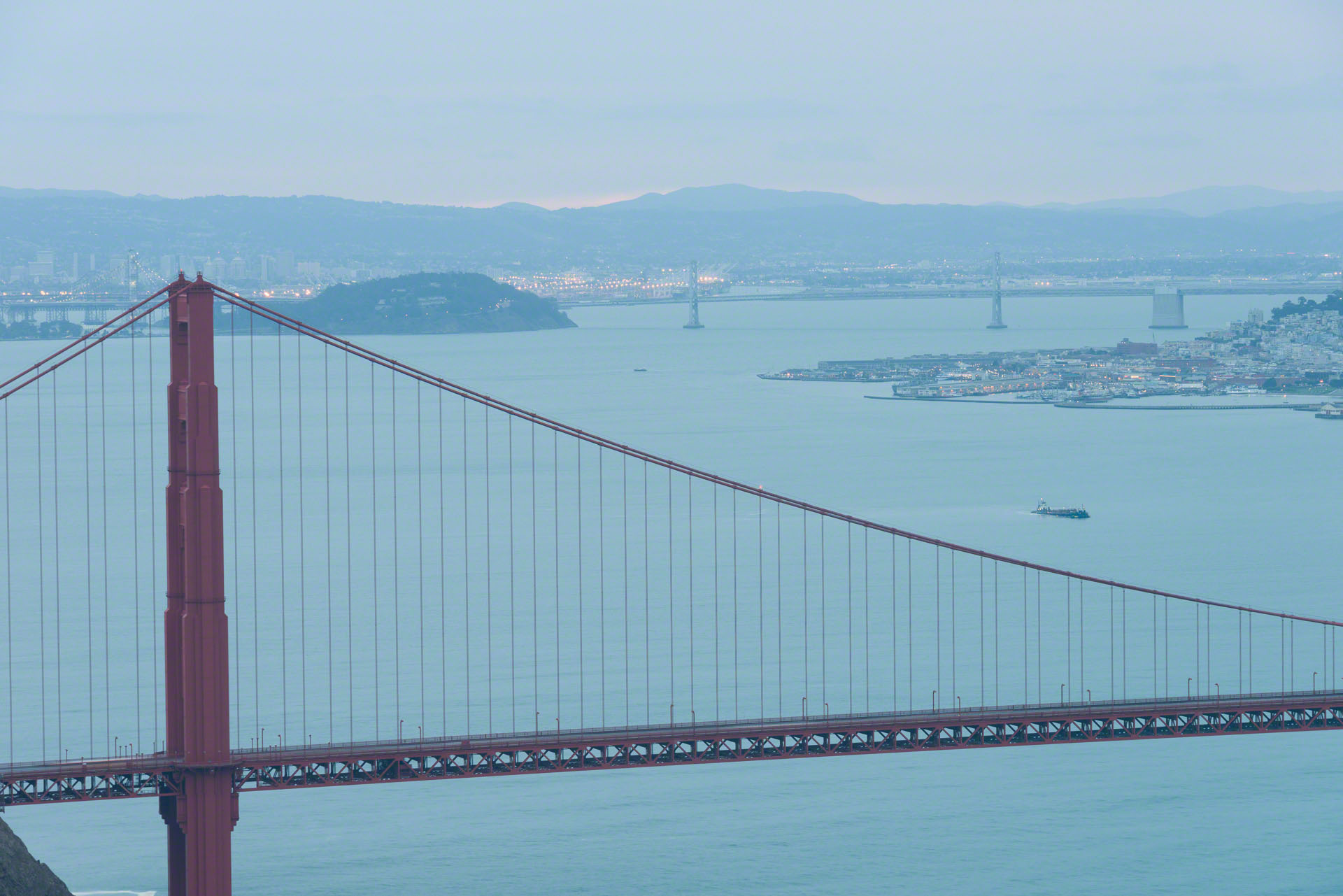
Not every outing results in a usable image, and today’s pre-dawn trip to the Golden Gate bridge proves that point. Before deleting everything on my CF card, I opened the files in Lightroom to see what I had come home with. The ugly image below is actually one of the best of today’s shots. It’s shown here straight-out-of-camera with no adjustments other than scaling for the blog. [The original is a 36.3 megapixel (7360×4912) RAW file from my Nikon D800E, shot with a 28-300mm zoom, ISO 100, 1.3 seconds, f/11 145mm.]
Aside from all the other problems with this image, I thought I saw an artifact as shown below. See that thin line above the diagonal bridge cables? It looked to me like I had some vertical camera shake or something else that caused a slight double exposure. I haven’t been able to reproduce it convincingly here, but trust me — that’s what it looked like. It was a little windy this morning, but I thought I’d used my best techniques: solid tripod, mirror-up mode, remote release, etc.
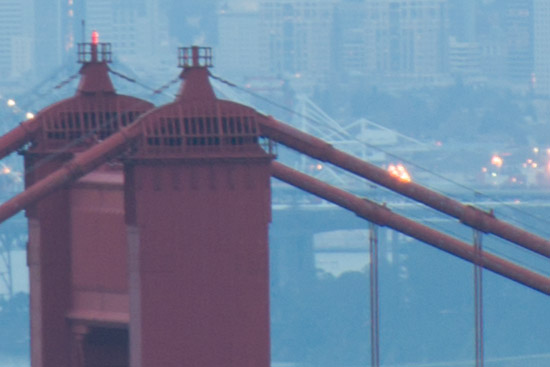
Next I zoomed in to 100% and look what I discovered: There’s a whole additional set of cables or wires draped from the tops of bridge towers that parallel the suspension cables. In all the years of shooting the Golden Gate bridge, I’d never noticed them.
Below is another version at 100% after some color adjustment and sharpening in Photoshop.
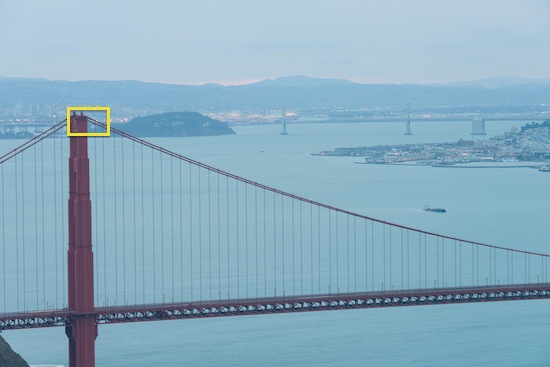
The above may not give the impression that I’ve captured much detail until you check the image below. The yellow rectangle shows the area from which the above 100% crop was made. It represents only 0.5% of the full-image pixels. This is the advantage of a 36.3 megapixel sensor. And it would have been even more dramatic if I’d used the sharper 70-200mm f/2.8 lens.
I’ve lately been talking about photo post-processing workflows on various podcasts, Google+ hangouts, classes and workshops, which has generated a lot of questions and requests for more info. It’s my workflow du jour because I’ve never had a single workflow that’s lasted for more than a few weeks. By the time you read this, it will already be out of date. For that matter, I don’t really have a formal workflow since every image is different. But I’ve developed a default sequence as the starting point for most of the images I shoot. At least for this week.
I spent some time debating whether I would publish this blog post or not. I’m actually a bit nervous about telling everyone about some parts of the workflow — not because I want to keep them secret, but because I fear you will go directly to the shortcuts I recommend without taking the time to understand the concepts behind them. You can get pretty good results without studying the underlying theories, but you’ll be shortchanging yourself. Obviously, I’ve decided to go ahead with this post in the hope the tools not only simplify your post processing but also encourage you to dig deeper into how they work and how they can be further manipulated.
I should also point out that there’s nothing of my own creation in this workflow. Everything I’m using I’ve learned from others who know a lot more about post processing than I do. Towards the end of this article I’ve linked to the original work of my personal workflow gurus so you can learn directly from the sources.
What Are the Prerequisites?
Although much of my workflow uses automated Photoshop actions, some of the steps must be done manually. This is not for Photoshop newbies. Before utilizing any of the tips and tools in this article, you should first learn the following aspects of Photoshop:
selections
layers and layer masks
channels
curves
the Image->Apply Image… menu feature
What Are the Shortcuts?
My workflow du jour uses two Photoshop plugins. The first is Dan Margulis’ free Picture Postcard Workflow Panel shown below on the left. (The name is cute but misleading. It’s not just for a picture-postcard look.) The panel automates many of the steps in Dan’s Picture Postcard Workflow, which if done by hand not only make for a complex process but can’t be performed by mere mortals without pages of notes. You can really get yourself into trouble with this tool, but you can also achieve amazing results in no time at all once you get the hang of it.
The second Photoshop plugin, shown on the right, is the Channels Power Tool (€20). This is a tremendous timesaver for identifying and swapping channels and applying them as layers and masks such as in Lee Varis’ 10-Channel Workflow.
What About Lab Color?
Much of my current workflow is based on the Lab colorspace, which I’ve been using on and off for about 2.5 years. I first wrote about Lab color in 2010, specifically in conjunction with HDR. I stopped using Lab color for a while because I didn’t fully understand it. Although I’m still learning and experimenting, I now believe I’ve achieved a deeper comprehension of the true potential of working in this colorspace.
You’re probably familiar with the RGB colorspaces in which there are three channels: red, green and blue. Your digital camera records images in RGB and your browser displays images using RGB. When an image is printed using offset press inks, it’s converted to the CMYK colorspace with cyan, magenta, yellow and black channels.
Consider how you change the brightness or luminosity of an image in RGB or CMYK. In RGB you increase the levels of all three channels. 100% red, green and blue gives you white. 0% results in black. In CMYK, you reduce the amount of ink in all channels in order to get to white, the color of the underlying paper. But the problem with both RGB and CMYK is that there’s no way to change the luminosity of an image without also changing the hue and/or saturation of the colors.
When is Lab Better Than RGB or CMYK?
Lab is just another colorspace like RGB and CMYK, but it separates luminosity from color. There are three channels: The “L” channel controls luminosity but has nothing to do with color. Conversely, the “a” and “b” channels control only color and don’t affect brightness. The range or gamut of the Lab colorspace is huge. Not only can it represent every color of RGB and CMYK, it can also represent colors that are beyond reality. (Try to imagine a yellow that is simultaneously very saturated and as dark as pure black.) Lab is also an extremely accurate and standardized colorspace. Whereas we all need to calibrate our RGB monitors and adjust for our printers, papers and inks, the colors in Lab are precise. For example, when an automobile body shop wants to exactly match the color of your car’s paint, it uses the Lab color specified by the car’s manufacturer.
Unlike RGB and CMYK, the Lab colorspace is designed to approximate human vision, which has a powerful ability to segregate colors. For instance, we can perceive variations in green leaves where there may be very little luminosity difference. The channel structure of Lab allows us to manage both luminosity contrast, with which we’re all familiar, and (separately!) color contrast. The latter concept may be new to you. In RGB we have little opportunity to adjust the contrast of various colors, but in Lab color mode we can do just that. Photographs can often be improved by increasing the color contrast in order to enhance those differences.
Lab’s a and b channels specify opposing-color axes that you can visualize as a color wheel. The a channel specifies the green/magenta axis while the b channel represents the blue/yellow axis. (The image below is a bit misleading because it doesn’t show the variations from the center to the edges. Unlike RGB and CMYK, these are variations of pure saturation, not combined with luminosity.)
[CC-BY-SA-3.0] via Wikimedia CommonsWhen you add a curves adjustment layer in Lab color you can do things you’d never be able to accomplish in RGB. For example, you can warm up the saturated blue portions of your image without affecting the other less-intense blue areas, and do so without ever creating a layer mask. You can increase the contrast in the greens without shifting the overall cast of the image. It takes a while, but once you get the hang of it, working in the Lab colorspace is extraordinarily powerful.
Why Should I Use Lab Color in My Workflow?
Let’s start with an example. Below are three versions of a single image.
The above image is pretty much straight out of the camera. Note a few problems:
There’s a blue cast in the shadows.
There’s relatively little contrast either in luminosity or color.
The lack of contrast makes the image look flat and lacking in depth and detail.
The second version above is typical of what you can achieve with basic Photoshop skills. The color and contrast are somewhat better, but there’s still a blue cast to the shadows.
The final image above is the result of spending no more than five minutes tweaking in the Lab color space. I was able to remove the blue cast from the shadows as well as increase both the luminance and color contrasts.
Did I correct this image using only plugins and clicking on buttons? No. In this case I had to resort to creating curves in Lab color mode and to changing the opacity of various layers. Although I made all the changes to this image in less than five minutes, I did rely on some of these more fundamental and manual operations. I mention this as an example of why the shortcuts alone are often insufficient and why you need to learn the underlying concepts.
So What’s Your Workflow du Jour?
As of today, here are the steps I follow for many of my images, particularly landscapes, cityscapes and abstracts. Product shots (in which colors need to be accurate), portraits or other photographs that feature faces require a rather different approach and aren’t addressed here.
Default Sharpening (minimal; just the equivalent of what the in-camera JPEG processor might do)
Noise Reduction
Chromatic Aberration removal
White Balance (overall correction)
HDR Merge: If it’s a multi-exposure HDR image, this is the point at which I use Photoshop’s Merge to HDR Pro and bring a 32-bit merged HDR image back into Lightroom. I make no adjustments while in Photoshop at this stage. [video]
Tonality: The goal here (still in Lightroom) is just to squeeze everything into a narrow dynamic range. RAW files and 32-bit HDR images typically have too wide a dynamic range and will need to be tonally compressed or tonemapped down to 16-bit RGB. I adjust the exposure, contrast, highlights, shadows, whites and blacks to create a low-contrast image in which everything (including highlights and shadows) is away from the edges of the histogram. My objective is a technical one, not to make the image look good yet.
Stop There: I do not use clarity, vibrance, saturation or anything else in Lightroom if I’m going to use the rest of this workflow.
In Photoshop, I start with a 16-bit RGB image from the above steps.
I perform any retouching other than color corrections.
Save this version as a .psd file with all layers in case I need to revert to this stage.
Dan Margulis’ Picture Postcard Workflow (PPW)
Using the Photoshop PPW Panel, I start at the top and work my way down, typically (but not always) using the actions listed below. For each action, I experiment with the visibility and opacity of the layers until I get the look I want. Occasionally I add a layer mask if the effects need to be localized. This is where it’s really helpful to understand what the PPW actions are doing behind the curtain.
Bigger Hammer for tonal contrast.
Switch from RGB to Lab color mode.
Color Boost and/or the Modern Man from Mars for color enhancement and contrast.
If I can’t get the results I want using Dan’s PPW, I return to the pre-PPW saved .psd. I haven’t spent a lot of time in PPW so far, so I don’t worry about throwing away my work.
I use the Generate Preview button on the Channels Power Tool panel to look at all ten channels available from the RGB, CMYK and Lab colorspaces.
I use one or more of the channels to replace others or as luminance mask to bring out detail or color.
Once I’ve done the best I can using individual channels, I take the image through Dan’s PPW.
Final Touch-Ups
After all of the above (particularly sharpening) all my sensor’s dust spots magically appear, so I often make another cleanup pass at the end.
Where Can I Learn How to Do This?
You can download Dan’s PPW Panel and start using it immediately, but as I wrote at the beginning of this article, you’ll be far more effective if you invest the time to understand how the various actions work and Lab color in particular. The PPW Panel includes extensive Help files, but they’re not the best place to start. The Help file for Dan’s 2012 Sharpen action alone is 23 pages long.
Unfortunately, there’s a huge gap and a steep learning curve separating the use of the shortcuts and truly understanding how they work. Here are my recommendations (in order) of the resources you might use to learn about channels, Lab color and the rest of these workflow concepts:
Mark Lindsay teaches and writes about Lab color and related techniques. Mark has posted some of the best introductory articles, but he hasn’t yet gone very deep into his workflow. His articles include:
The Classic Move — This is the very first thing you should learn how to do in Lab color mode.
Multiply and Layer Mask Technique for Lab Color Mode — Absolutely the second manual Lab mode technique you should learn even if you eventually decide to use Dan’s PPW panel instead. (When you figure out why blurring a layer mask sharpens your image, please explain it to the rest of us!)
Free videos covering Lee’s 10-Channel Workflow and many other topics. At this point you’ll be into swapping channels, using channels for masks and blending modes. You may never make another selection by hand again.
You’ll want to get the Channels Power Tool (€20). This is almost mandatory for Lee’s 10-Channel Workflow.
The False Profile Panel (free) is another plugin you’ll occasionally find useful once you get this far.
Download, install and use the latest Picture Postcard Workflow Panel for Photoshop. This automates most of what you’ve learned so far. Click on the Help button and read all of the associated PDF files. You’ll be busy.
Take a break from Dan’s extensive Help files, sit back and watch his videos on Kelby Training. If you’re not already a member, I suggest you sign up for one month (US$24.95) during which you can watch all these courses. It will be some of the best $$ you spend on photography.
Work with what you’ve learned from Dan and try the techniques as explained by Mark Lindsay above.
Come back to Kelby and watch the courses on the Picture Postcard Workflow Part 1, Part 2, and Part 3. These explain the manual processes of the PPW but pre-date the release of the PPW Panel.
For extra credit, now that you know all about channels, take your knowledge back to RGB and explore Tony Kuyper’s treatise on Luminosity Masks. (Note that the first steps in Margulis’ PPW are done in RGB, so Tony’s concepts work well here.)
What’s Next?
You’ve got to be kidding! It will take you months to get through the resources I’ve outlined above. And then you’ll want to go over them again to truly nail down the concepts. In any case, this is the point to which my knowledge of Lab color has progressed as of late November 2012. I’m in the process of my second pass through everything. It’s geeky, but it works for me. I hope it works for you as well.
As you have questions or learn of additional resources, please leave a comment and I’ll use it to update this page.
Updates
11/25/12: Scott Loftesness and I have been collaborating together on this Lab-based workflow stuff for the past few weeks. Each of us has tried one technique or another, then to have the other adopt and improve on it. It’s been a valuable, mostly remote collaboration. Because these techniques can be so confusing at first and the learning curve so steep, I recommend you also find someone with whom you can study/learn with. More than once, Scott and I have needed the other to either explain a technique or at least remind the other what it was we’ve already learned. Scott has just posted an example of his own workflow du jour and it contains some very specific steps. I’m still digesting them myself and will see if I can (a) understand them, and (b) merge them into my own processes.
11/25/12: Since posting the original article only two days ago, I’ve added the free Advanced Local Contrast Enhancer (ALCE) Photoshop plugin by Davide Barranca to my workflow. It’s like Lightroom’s Clarity feature, but on steroids. Make sure to check out the excellent video tutorials by Marco Olivotto.
Okay, I admit it. I’m a geek. There’s an abundance of evidence for this, not the least of which is that I fine-tune the autofocus for nearly all of my body/lens combinations.
What is autofocus fine-tuning (a.k.a. focus micro adjust)? Pretty much what it sounds like. It’s a feature built into most high-end DSLRs and other interchangeable-lens cameras that allows you to correct for small inaccuracies in autofocusing on a lens-by-lens basis.
Before diving into this, let’s consider the obvious question: Do you need to do this for your camera and lenses? Generally not unless you typically shoot with your lenses at wide-open apertures. Once you stop your lenses down by two stops or more, the depth of field usually increases to the point at which the default autofocus adjustment is fine. But if you do shoot wide open and you find things aren’t as sharp as you expect, then perhaps it’s worth going through this exercise. For me, it began with portraits I shot at f/2 using a 135mm prime lens. Even after carefully aiming my center focus point on the subject’s nearest eye, I could see the sharpest point was actually at least an inch or so behind the front of the eye and the eye itself was slightly soft. An autofocus fine-tuning adjustment was part of the solution. (I say “part” because that Nikon 135mm f/2 DC lens continues to be an untamed animal in my zoo of lenses. The DC “Defocus Control” feature is both a blessing and a curse.)
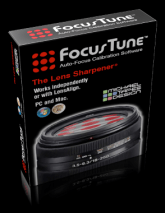
I first mentioned autofocus adjustments and the LensAlign (shown above) from Michael Tapes Design back in January. This is the tool I’ve used for measuring front- and back-focusing for the past two years. The concept is simple: You focus on a vertical pattern that’s aligned with a sloping scale, make an exposure, then examine the image to see what area on the sloping scale is actually in focus. You don’t really need to spend US$80 for this. You can use almost any high-contrast pattern and just shoot it at an angle. There are even patterns in PDF format that you can download for free. (Bernard Knaepen has posted an interesting and free technique.)
But I find using the LensAlign and other similar systems to be an inaccurate process. It’s usually a challenge to interpret the results — a fairly subjective process. For the past two months I’ve been working with Nikon to try and understand the autofocus problems of my Nikon D800E and I’ve been using flat test patterns on the wall. I haven’t been concerned about fine tuning since the issue is about a variation from one autofocus point to another rather than an overall adjustment.
While I was in the middle of this D800E issue, Michael Tapes released a new tool: a desktop application (Mac and Windows) called Focus Tune. Through December 31, 2012 it costs US$29.95 or just US$19.95 if you already own a LensAlign and it’s well worth the price. In fact, it’s so useful I suggest you get Focus Tune instead of (not in addition to) a LensAlign.
Compared to LensAlign, Focus Tune works in reverse, sort of like the game of Jeopardy. Rather than a tool that suggests what the autofocus fine-tuning value should be, you start by shooting tests at a range of values and the software tells you which is best. Take a look at the chart below, which was generated by Focus Tune for tests using a Nikon 28-300mm f/3.5-5.6 lens at 100mm f/5.3 (wide open) on my Nikon D600.
The data were collected in two steps. First I shot four high-res JPEGs using each of nine autofocus fine tune settings in steps of 5: -20, -15, -10, etc., through +20. I then ran the images through Focus Tune, looked at the results and saw that the peak was somewhere between -10 and 0. So I went back and shot four images for each of the remaining eight settings in that range. From this and the associated tabular data, I determined that the optimal setting for this lens on this body is -4.
How does Focus Tune do this? You tell the application what area of your test images to analyze and it then comes up with a “sharpness value” for each image. By taking multiple exposures at each setting, Focus Tune can deliver a very consistent result and ignore the “outliers” which appear as red dots on the chart. (Note this lens/body combination was already working well. Although I did set the autofocus fine-tune value to -4, I could have shot forever and never noticed this small offset.)
Here’s an example showing a combination that requires a larger adjustment: a Nikon 14-24mm f/2.8 wide open at 18mm on my D800E. When I added tests in the 15-20 range, Focus Tune reported that +18 was the setting that yielded the sharpest results.
Focus Tune is able to extract a great deal of information from the EXIF data in your JPEGs. For example, it knows which autofocus point you used to capture the image. This means Focus Tune can generate other reports including one that compares the accuracy of different autofocus points. It’s been a great help in diagnosing the D800E autofocus problem. Here’s a chart from test images using the 28-300mm f/3.5-5.6 at 100mm and f/5.3. C-C is the center point, while C-L5 is the far-left one.
From the above chart you can see that the accuracy of the farther left focus points are decreasingly accurate and that the far-left one is significantly worse than the others. Note that the centermost C-C and CL1 are phase-detect or “cross-type” sensors whereas the other four are the less accurate contrast type. Also note this is not a test of lens sharpness. In all cases Focus Tune is evaluating the sharpness at the center of the image regardless of which autofocus point was used to set the focus.
Focus Tune is in its first release and it’s still a bit rough around the edges. There are a few user-interface peculiarities, but it doesn’t take long to understand how to use it. If you’re curious, start by taking a look at the introductory video on Michael Tapes’ website. Although Michael demonstrates Focus Tune in combination with a LensAlign, I think you can get just as good results by using a good flat autofocus chart so long as you make sure the sensor plane of your camera is parallel to the target.
I’ll be using Focus Tune as part of my toolkit as I continue to track down the D800/D800E autofocus problems.
Five weeks ago I posted my analysis of the autofocus problems with my new Nikon D800E. I sent the camera to the local Nikon Service Center for repairs. 11 days later the camera was back and I’ve now had a chance to evaluate the results.
In one word: Unchanged.
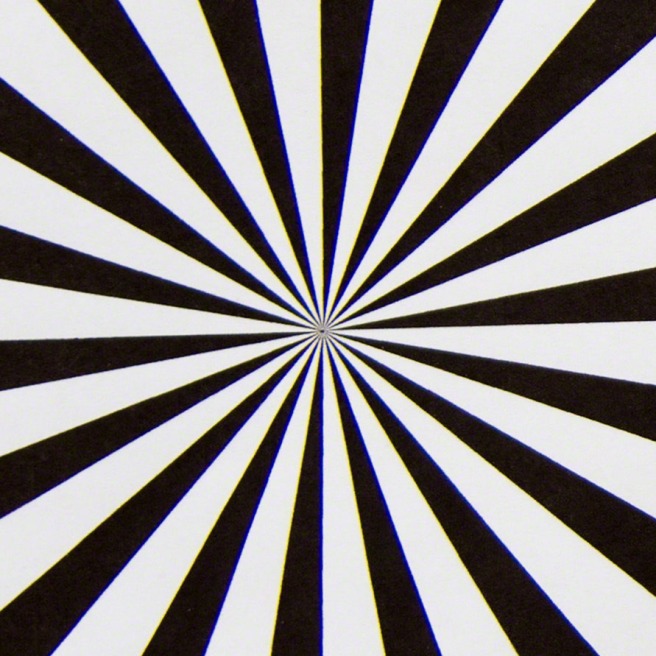
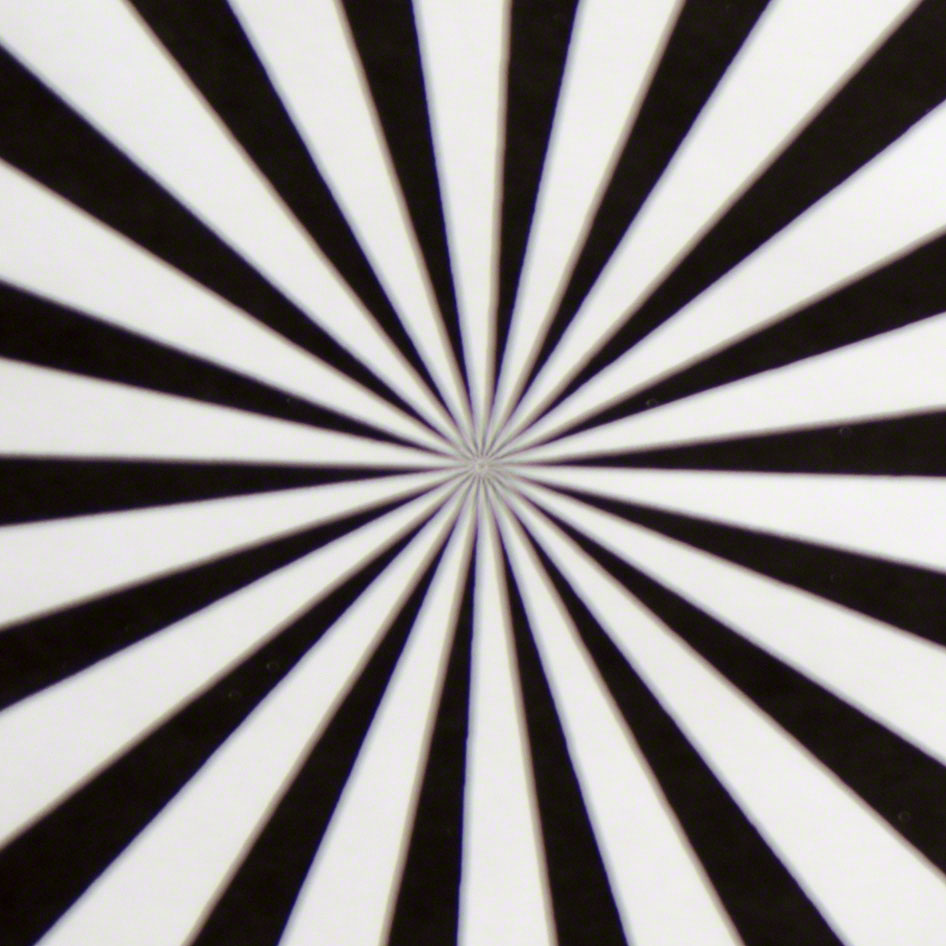
Here are the latest tests, performed after the Autofocus Adjustment performed by Nikon. The superimposed images below are crops of the a test pattern centered on the left-most autofocus point. For the “before” image, I focused manually using LiveView. For the “after” image I used regular (non-LiveView) autofocus selecting the left-most focus point. (It may be hard to see, but there’s a vertical line in the center of the image with a draggable handle near the middle of the chart. You can move the slider left and right to hide and reveal the images.) As you can see, the auto-focused (after) image is noticeably softer. And if you compare it to the before-adjustment tests, it’s virtually unchanged.
[beforeafter]
[/beforeafter]
Not shown here are the same tests performed with the center and right-most autofocus points. Those images appear as sharp as the manually focused images.
I’ve got an important landscape workshop coming up later this month, so I’m going to wait a few weeks. But after that I plan to call the Nikon Service Center and discuss this with them. Stay tuned for another episode in this saga.
Update 10/10/12: On 10/8/12 I called Nikon and asked to speak to a supervisor. I was told someone would call me back. On 10/9/12 I received email asking me to send in my test shots, which I did. Now waiting to hear their response.
Update 10/16/12: After another week, I called Nikon yet again on 10/15/12. I was told by Nelson that a supervisor (Stacy) would call me back. Nothing. On 10/16/12 I called again. Josh said they had sent me an email — nothing received, even in spam folder — and asked me to send RAW files instead of JPEGs. Give me a break. I’ll do that later today. In the meantime, Nikon sent me an online customer-satisfaction survey. I told them exactly how I feel. I can’t believe they’re dealing with me in this way particularly since this is an acknowledged problem on many of these D800/D800E bodies.
Update 10/22/12: Yes, yet another week has passed without a response from Nikon. I called today ans spoke to “Charles”. He said the problem had been escalated to “Level Three” (senior management). He had no explanation as to why no one had returned my call as promised, what might happen next or how long it might take. He would not give me a contact name, phone number or email address. He would not let me speak to his own supervisor since the incident has already been escalated. It has now been seven weeks since I first sent the camera to Nikon for repair.
Update 10/31/12: It has now been nearly eight weeks since I first sent my D800E to Nikon for repairs. On 10/24/12 I received my first response from them, email from “David” in New York. He asked me to send yet another set of JPEG images, which I did on 10/25/12. He also said he’d included a shipping label as an attachment, which he did not. He asked me to reply, but the email had a Do Not Reply message and indded my reply failed. So I posted my response to their service database.
Today I called again and spoke to “Crystal” a first-level contact. “I see this has already been escalated to Level 3 so there’s nothing else I can do. No, I have no way to contact him [David in New York].” I was also told that the New York facility was closed due to hurricane Sandy.
But ten minutes later Crystal called me back! The first time anyone from Nikon has ever called. She asked me for the serial # and to FAX my proof of purchase. Sill, of course, since I’d already sent the camera to them weeks ago along with a copy of the receipt. But hey…at least someone called! No idea where it might lead. Crystal didn’t say what to expect in response.
Update 11/5/12: Making progress. I’ve received a few emails from David, and I’ve sent him a few more test files as requested. Today David sent me a prepaid UPS return label, not to send the camera back to El Segundo, but to him in New York. The camera is on the way to him and I’m looking forward to getting his response.
Update 11/17/12: I got email from David that he couldn’t find any problem with the camera, so we agreed he would just send it back. The camera arrived on 11/13/12 and I ran some more tests using some new tools. Inconclusive. As you get away from the center focus points, all of my bodies have some degradation in autofocus accuracy. It’s just worse on the D800E. At this point, I’ve decided to sit tight and see what evolves over the next few months since so many people are reporting this problem. The fact is I rarely use autofocus with the D800E. I have a D3s that I use for handheld low-light and action photography. And I picked up a D600 for more general use. (Great camera, BTW.) The D800E is my tripod/hi-res body, and I almost always use manual/LiveView focusing with it. Every time I think about just selling the D800E I look at one of the images I’ve captured with it. The detail and dynamic range are remarkable. There’s really nothing like it without going to medium format. So although I still think there’s a problem with the camera, it’s a defect that doesn’t currently affect me.
Apple is currently quoting 3-5 weeks delivery on an iPhone 5 in the U.S. But I was able to order two and pick them up the next day. Here’s how.
Log into the Apple store website and almost complete the purchase process. Do everything except the final checkout.
About two minutes before 10pm local time, go to your shopping cart and change the delivery option from “ship” to “pickup at an Apple store”.
Enter your ZIP code when asked and scroll through the nearby stores. You probably won’t find any phones available.
Keep trying. At some point just before or around 10pm, you should see a phone or two show up as available at an Apple store near you. At this point they’re only getting a few of each model each day at each store. Don’t hesitate. You have only seconds to grab it. Click on a store you’re willing to drive to and complete the online ordering process.
Early the following morning you’ll receive email from the store, saying your new iPhone 5 is ready for pickup.
Go and get it.
This worked for me on Thursday night 9/27 for a 32GB black Verizon model, which I picked up in Palo Alto, CA. Last night I did it again for 16GB black Verizon model for my wife. Picked that one up this morning closer to home at the Corte Madera, CA store.
One word of warning: If you’re like me and are simultaneously switching form AT&T to Verizon, be prepared to spend 1-2 hours at the Apple store completing the provisioning process. Verizon is totally f*ed up on this. Two hours yesterday, even though I had answered all the questions, etc., online. Today I just had to switch my wife’s phone from AT&T and add it to the family Verizon plan. Still took an hour. If you’re not switching carriers, it should go much more smoothly.
BTW, the phone is great. I skipped a model and upgraded from an original iPhone 4. The camera is awesome. Same as the 4S. But the phone’s CPU is much faster than the 4. It’s just much more responsive. And I love LTE. No more 3G for me, let alone the dreaded Edge network. Luckily I have decent LTE coverage in my neighborhood.
(The following letter was sent to all members of The Conversations Network earlier today, Sunday, August 16, 2012.)
Hello, Members of The Conversations Network!
It’s been a long time since I’ve sent out a Newsletter, but we’ve been working behind the scenes on some important changes here at The Conversations Network. We’ve been discussing these plans for the past two months with our Board of Directors, Executive Producers and Senior Managers. Channel-by-channel and site-by-site, here’s what we’re going to do.
Social Innovations Conversations will continue at the Center for Social Innovation at the Stanford Graduate School of Business. All existing programs will be migrated to CSI’s website, which is where all new episodes will appear.
CHI Conversations will return to its original home on the BayCHI web site.
IT Conversations production of new programs will cease around December 1.
SpokenWord.org will be shut down around December 1.
The remaining assets of the Conversations Network (cash and intellectual property) will be acquired by the Internet Archive, another U.S. 501(c)(3) non-profit organization. All existing programs will be moved to the Internet Archive where the world will be able to continue to listen to them for free.
Trying to anticipate some of the questions you may have:
We hope to preserve all existing URLs by running a “redirection server” for many years if not permanently.
We will stop accepting new and renewal membership dues and donations within 48 hours.
All monthly subscriptions will be canceled via PayPal within the next 48 hours.
Dues and donations already received will be used to help preserve the content (audio files and webpages) we’ve published over the past 9+ years.
So why are we doing this? A bit of history will help explain.
Our flagship channel, IT Conversations, was the second podcast ever published and today is still the longest running of all podcasts. In The Conversations Network’s nearly ten years we’ve published more than 3,300 programs on our three primary channels.
When we started this project, no one else was publishing free audio from conferences or other events. We were the first to stream live tech-conference audio and the first to offer recordings of conference sessions as free podcasts.
We created the Levelator software to standardize audio levels. It’s now in common use by podcasters and broadcasters worldwide and has been downloaded more than 350,000 times.
SpokenWord.org, our a metadata/search site for all audio and video recordings of spoken-word content, has cataloged more than 1.5 million audio and video programs.
Most significantly, we pioneered the concept of a worldwide distributed team of part-time (essentially volunteer) writers, audio engineers and producers to publish broadcast-quality programs. Since 2003, 215 people in all corners of the planet have been members of TeamITC. They are the real force behind what you see and hear on The Conversations Network.
And we’ve done it all on a shoestring budget thanks to our contributing members, content providers, underwriters and Limelight Networks, our long-time content-delivery partner.
We’re proud of what we’ve accomplished. Much of what we’ve pioneered in the past ten years is now commonplace. Our goal was to make it easy for others to produce audio recordings of events and make them available to the world for free. That’s now the norm. We have succeeded.
We’ve helped event producers and podcasters to create and publish programs themselves, and increasingly that’s what they’re doing. There simply isn’t as great a need for a service like The Conversations Network. So we’ve decided to complete our mission by helping our remaining partners continue their podcasts on their own websites.
If you have any questions about these changes, feel free to reply publicly or privately. The best place for your public comments is here on my personal blog.
Thanks again for listening and for your support of The Conversations Network.
There have been some discussions online about an autofocus problem with the new Nikon D800 and D800E bodies, and there’s been a fair amount of misinformation about this problem published as well. It’s not at all clear how many D800/D800Es have this problem, but I’ve confirmed that my D800E does. This post is to document the problem and to help others determine for themselves if their bodies suffer from this as well.
Here’s the problem: If you autofocus using the far-left autofocus point (and ONLY the far-left autofocus point) your image will be slightly out-of-focus. My tests are below.
First, here is the focus test pattern, shown as a scaled JPEG from the full-frame image. The patterns are placed carefully to align with the leftmost, center and rightmost autofocus points. This particular set of tests was done using Nikon’s 24-70mm f/2.8 zoom set at 48mm and f/2.8. I repeated the tests with a 24mm f/2.8 prime with virtually identical results, but not shown here.
The superimposed images below are crops of the center test pattern. For the “before” image, I focused on the center pattern manually using LiveView. For the “after” image I used regular (non-LiveView) autofocus selecting the center focus point. (It’s hard to see, but there’s a vertical line in the center of the image with a draggable handle near the middle of the chart. You can move the slider left and right to hide and reveal the images.) As you can see, the images are virtually identical. Autofocus using the center focus point is accurate.
[beforeafter][/beforeafter]
The superimposed images below are crops of the left test pattern. For the “before” image, I focused on the left pattern manually using LiveView. For the “after” image I used regular (non-LiveView_ autofocus selecting the leftmost focus point. As you can see, autofocus using the leftmost autofocus point is off. This is 100% repeatable using a variety of lenses.
[beforeafter]
[/beforeafter]
I called the Nikon Service Center about this. The representative was initially vague until I told him I’d run these tests and had the results available. He acknowledged the problem and told me it’s correctable. I asked him whether I should return the camera to the retailer from which I purchased it or send it to Nikon for warranty service, and he recommended the latter. After all, there’s no guarantee a replacement wouldn’t have the same problem.
My new D800E is heading to Nikon tomorrow. Wish me luck!
Update 9/11/12: I didn’t get around to sending the D800E to Nikon in El Segundo, California, until 9/6/12, but Nikon’s online status page says Received 9/10/12. It’s now “In Shop” in Category B2: Moderate Repair: Major Parts Replace. The description of the problem includes “Optical Alignment”. It will be interesting to see what the actual fix turns out to be.
Update 9/17/12: Got the D800E back from Nikon today, so 11 days door-to-door. The work order merely said “Adjusted Autofocus” so who knows what they did. I had to leave for a trip and didn’t have a chance to test it, but I’ll give a thorough report next week.
Update 10/4/12: The camera is back from Nikon. See Part 2 for the results.
Last year I posted a review of Labs and Papers for Black & White. At that time I was using outside labs for all my prints. Based on my ongoing frustration with the results, I decided to start making my own prints and purchased an Epson 3880 printer for the task. With advice from Martin Bailey and his great eBook, Making the Print, I focused on high-end fine-art matte papers. I’ll be posting reviews of many of these matte papers soon, but first I want to cover glossy papers.
Why am I using glossy papers, particularly after Martin convinced me to check out the matte papers? It started when I entered the above image into a local competition that was judged by printing guru Mark Lindsay. I entered a print on Breathing Color’s Optica One. Mark liked the image, but he bumped it down to second place because of the choice of paper. He noted it was a particularly sharp image with a fairly wide gamut, and that it really needed a high-gamut smooth glossy paper. He was absolutely right. My problem was that I had been so focused on matte papers, I’d been using them for everything. BC’s Optica One has a wide color gamut and high d-max (ie, dense blacks), but as Mark explained, the range of what you can reproduce on glossy papers fundamentally exceeds what you can do with matte papers.
I ordered sample packages from five manufacturers. Yes, there are many others, and when I get a chance I intend to test a few more. But for now I used 19 gloss, satin and lustre papers from Breathing Color, Hahnemühle, Ilford, Red River and Epson. For these tests I printed two images, the one above and the one below. I chose the one below because it contains some extreme colors that are out-of-gamut for any paper.
For each paper I used the ICC profile provided by the paper manufacturer for my printer. I started with the full-gamut sRGB images, soft-proofed them in Lightroom 4, and adjusted the saturation to bring the images to be within gamut for each individual paper. In some cases I changed the exposure in order to best approximate the original.
Most important is that my judging of the results was entirely subjective. Yes, I checked for (but did not measure) the density of the blacks, detail in the highlights and shadows, and the accuracy of the colors. But I also just looked at the prints and decided which ones I liked best. Many of these papers are quite similar, particularly those from the same manufacturer. In an attempt to minimize arbitrary judgmental differences, I compared the papers blind (ie, unlabeled) four times, using each of the above images in two different lighting conditions. Luckily, when I was all done I discovered I’d been fairly consistent in my rankings. In all four comparison passes I chose the same papers as my favorites, although within the top four papers they were particularly close. Likewise, I was consistently disappointed with the bottom six or seven. In the middle of the rankings the order did change somewhat more from one judging pass to another. Of course these are my personal preferences and only for these two images, which are notably colorful, saturated, sharp and contrasty. What’s right for you and your images will likely be different, but I hope I can give you a good place to start in your search for the best glossy papers. Here are the results, in order of my preference.
Hahnemühle Fine Art Baryta ($81 per 50 8.5×11 sheets) is a gorgeous, heavy, very bright white paper with a fair amount of texture. The blacks are not the darkest, but the overall look is terrific. Visually, this is the best paper I tested. But it’s so expensive, I’m not likely to use it very often. (17×22 sheets cost $6.40 each.)
Breathing Color Vibrance Gloss ($15) is a very close second, and is my favorite true glossy (ie, smooth) paper. It’s bright white and renders rich dark blacks. Best of all, it’s one of the least expensive papers I tested. This will likely become my most-used glossy paper. (17×22 sheets currently cost only $1.10 each, only 17% of Hahnemühle Fine Art Baryta, a much heavier paper. It appears that BC is offering Vibrance Gloss for a discount. It’s not clear how long this will be the case or what the price will be after the discount period ends.)
Ilford Gold Fibre Silk ($58) is a warm/ivory color with a smooth but not fully gloss surface. It has good (but not deep) blacks and reproduces warm colors (reds and yellows) particularly well. It’s reasonably expensive, but I expect to use this paper when I want a warmer look than what one normally expects from glossy papers. This paper is also terrific for b&w images, but that’s for another set of tests.
Hahnemühle Baryta FB ($70) is a heavy paper with a light texture and appears to me to have an even wider color gamut than the first-place Hahnemühle Fine Art Baryta. Overall, however, I still prefer the other paper.
Ilford Smooth Gloss ($27) is a lightweight paper with a classic smooth glossy finish and deep blacks. For my work, it’s just a notch below the BC Vibrance Gloss but nearly twice as expensive.
Hahnemühle Photo Rag Baryta ($70) is a heavy paper with a light texture and good blacks. It has a warmer, more-ivory color than the Fine Art Baryta. By now you’ve probably figured out that the Hahnemühle Baryta papers are all pretty good. And expensive.
Hahnemühle Fine Art Pearl ($81) is a wide-gamut medium-weight paper with a subdued lustre-like finish and a bright white color. The blacks aren’t particularly dark, however.
Ilford Smooth Pearl ($25) is a lightweight lustre-finish paper with a very slightly warm/ivory color. I find its blacks to be a bit weak.
Red River Arctic Polar Gloss ($28) is a bright white, lightweight glossy paper with deep blacks. The three Red River gloss papers are all quite similar, which is why they’re clumped together in my rankings. In fact, in one out of four passes I judged them in the reverse of this order. The color gamut of these papers appears to be narrower than BC’s Vibrance Gloss and nearly all the Hahnemühle papers.
Red River Pecos River Gloss ($25) is very similar to RR’s Arctic Polar Gloss, just slightly warmer and less expensive.
Red River Ultra Pro Gloss ($20) is again very similar to RR’s Arctic Polar Gloss but with a yet narrower gamut. It’s a good value, but still more expensive and (to my eye) not as nice as BC’s Vibrance Gloss.
Breathing Color Vibrance Lustre ($15) has a typical lustre finish. Otherwise it’s virtually identical to BC’s Vibrance Gloss.
Epson Ultra Premium Lustre ($28) is one of the most common papers. It’s lightweight, slightly warm, with strong blacks and a lustre finish.
Hahnemühle Photo Rag Pearl ($86) is heavy with a slight warm/ivory color and a texture that’s smoother than lustre but not full glossy. It’s less contrasty and has lighter blacks than my preferred papers.
Red River Arctic Polar Satin ($28) is a lightweight slightly warm paper with a finish that’s somewhere between gloss and lustre. The gamut isn’t as wide as most of the full-gloss papers, but the blacks are deep.
Red River Ultrapro Satin ($20) is another lightweight RR satin paper. It’s the warmest of RR’s gloss-family papers, but still not as warm as, for example, BC’s Vibrance Rag. The color gamut is somewhat narrow and the blacks aren’t quite as deep as others.
Epson Exhibition Fibre ($35) is a heavy paper with a lustre finish. To my eye, it’s a fairly low-contrast, bright white paper.
Red River Arctic Polar Lustre ($42) is a bright-white medium-weight lustre paper. The color gamut is about as wide as RR’s Arctic Polar Gloss but the blacks are not quite as deep.
Breathing Color Vibrance Rag ($57) is similar to BC’s Vibrance Lustre except that it’s a heavy paper with an ivory/warm color. The paper is not available in 8.5×11 but costs $111 for 25 sheets of 13×19 sheets.
Conclusions: I’ve settled on Breathing Color’s Vibrance Gloss as my everyday gloss paper. It’s one of my top picks regardless of price and is available now for nearly half the cost of Epson’s Ultra Premium Lustre, one of the most common papers. I’ve also purchased some large sheets of Hahnemühle’s Fine Art Baryta for situations that call for the very best.
If you’re interested in glossy, satin or lustre-finish papers I strongly suggest you buy sample packs from at least some of these manufacturers and run your own tests. My experiments are far from technically rigorous and my images probably don’t look anything like yours. Running your own tests is the only way to decide.
If you have the ability to make your own paper/printer ICC profiles rather than depend on those from the manufacturers, you may want to do so. For example, I found that using the profiles from Hahnemühle yielded prints consistently lighter than using manufacturer-supplied profiles for other papers. Although my monitor is calibrated, I don’t have a reflective spectrophotometer needed to read test charts on paper.
I also come at this with my own set of prejudices. For example, I just don’t like lustre papers. While they may be the most resistant to fingerprints (from which glossy papers suffer) and smudging (the curse of matte papers), I don’t like the way they scatter light. I prefer a smooth-finish matte paper or a smooth glossy. I was, however, impressed with some of the satin finishes. (If you do print on glossy or matte papers and expect your prints to be handled such as during competitions, I strongly recommend Hahnemühle Protective Spray.)
Finally, I found that the greatest variations are between the manufacturers. For example, within the Red River line of papers, I had a very difficult time reliably distinguishing Arctic Polar Gloss from Pecos River Gloss and Ultra Pro Gloss. The same is true among the Hahnemühle Baryta papers.
I hope this has been helpful as you explore the beauty of these great glossy papers.
I’ve had the new Nikon D800E for less than a week, but already it’s proven to be everything I hoped for. Let’s begin by looking at a simple comparison to the also superb Nikon D3s. The following images were shot with a Nikkor 70-200mm f/2.8 at 200mmm f/8 and 1/400 sec. The first image is scaled from the uncropped original from the D3s. Although the D800E’s sensor has more pixels, it’s the same size as the D3s (full 35mm frame equivalent) so both cameras have the same field of view. Yeah, I know it’s not an interesting shot. But I wanted to see how much detail I could capture a half-mile away.
The second split-screen image demonstrates the differences between the two sensors. (Click on the image to see it at 100%. You may need to maximize your browser window and perhaps zoom in. The image is 1920×1280 pixels.)
The first thing you’ll notice is that at 100% the D800E is simply larger, reflecting the difference between its 36.3mp sensor and the D3s’ 12.1mp. The result is a 73% larger image from the D800E assuming the same pixel density. How large? If you print an image from the D800E’s 7360×4912 sensor it will be larger than 30×20 inches at 240dpi, a standard density for prints. Put another way, you can crop to as small as 40% and still fill an 8×10 print at full scale.
Other than large prints and/or tight crops, what’s the benefit of the D800E? Take another look at the above image at full size. In the very center of each crop is some text in the shadows. At 100% you can nearly make out the name on the building in the D800E version. At 200% it’s easy to read. In the D3s version, you can’t read the name regardless of how much you enlarge the image. That’s the real difference between these cameras.
But this much detail does come at the cost of some very large files. For example, the RAW file (14-bit, lossless compression) from which the above D800E image was made is 48.1MB! When converted to a DNG file in Lightroom it shrinks slightly to 42.9MB. The uncompressed RAW files are a whopping 74.4MB. At that size, a 16GB CF card holds only 340 shots. (I just bought my first 64GB card.) When you start tweaking these images in Photoshop with layers and SmartObjects, your files get big quickly and certain compute-bound operations such as noise reduction are noticeably much slower than for the D3s’ far smaller files.
The two questions I’m asked most often are “Should I buy a D800?” and “Should I buy a D800 or a D800E?” I’ll start with the second question.
The only difference between them is that for an additional US$300 the “E” model doesn’t have the usual anti-aliasing filter in front of the sensor. The advantage is a slight (and I mean really slight) improvement in detail. From other reviews I’ve studied, I wouldn’t expect to see any difference in the rather unscientific tests I performed above. The disadvantage is that you may see moire patterns when photographing images with fine repeating lines. I’ve already seen this when shooting through a screen door, for example. If you’re only shooting still images and using Lightroom 4, this isn’t really an issue since LR4 now includes a software moire filter. Where it would be a problem would be if you’re shooting video. In that case removing moire can be quite time consuming. Bottom line: Buy the “E” version only if you’re like me, (a) don’t shoot video, and (b) are likely to test your camera’s resolution before you take a normal photograph. Video on the D800 is gorgeous, so if you think you’d like to use it, stay away from the D800E.
Now to the first question: should you buy one at all?
I would not recommend this as your only DSLR or as a general-purpose camera. I think of the D800(E) as a tripod-only camera for carefully planned and executed shots. Sure, you can use it handheld and you can shoot your kids’ birthday parties with it. But for those tasks I’d rather use an older D700 or even the cropped-sensor D7000. Shooting casual pictures outdoors in daylight? I’d probably grab my Sony NEX-7 instead. Shooting action/sports or in low light, it’s the D3s without question. But for landscapes or other detailed images, particularly those I’m likely to print, the D800(E) is my camera of choice.
Now I just have to pay for it. The D700 and my few remaining DX (cropped-sensor only) lenses are going onto eBay. In addition to the D3s, I’m going to hang onto my D7000. It’s just perfect when I want a versatile camera that weighs less than a cinder block but is better in low light and has better glass than the NEX-7.
These are my final tests (for now) of the Sony NEX-7. See also Part 1 and Part 2. To wrap this up, I rented two Sony E-mount lenses: a second 18-35mm f/3.5-5.6 and a 18-200mm f/3.5-6.3. The reason for getting a second 18-55mm was to determine whether the disappointing performance was due to my particular copy or shows up in other copies.
As for the 18-55mm, my copy of the lens is in fact slightly sharper at 55mm and f/5.6. At f/8, both mine and the rental lens were equally sharp. As mentioned in the previous tests, this is really a “keep it at f/8” lens if you want the sharpest possible results.
Comparing the 18-55mm to the 18-200mm was also interesting. At 55mm f/5.6 the longer lens was sharper in the center but noticeably softer in the corners. At 55mm f/8 they were equally sharp in the center but the longer lens was again softer in the corners. And comparing the 18-200mm to itself wide open at 55mm (f/5.6) and 200mm (f/6.3), it was quite soft at the longest focal length (center and corners) as well as showing quite a bit of chromatic aberration in the corners at 200mm.
While I still like the camera quite a bit, I’m really looking forward to some better zoom lenses. I like the 11x range of the 18-200mm, but since it’s about the same size/weight as the Nikon 18-200mm f/3.5-5.6, there’s not much advantage over just using the Nikon lens on my D7000. The Nikon body is larger, but with a big lens, the difference isn’t as significant. With the smaller 18-55mm, you take more advantage of the NEX-7’s diminutive body. For now, at least, I’m going to stick to the smaller lenses for the NEX-7 and just take my big Nikons (D700, D3s) with the superior glass when compactness doesn’t matter.
FYI: I’ve heard the Sony 50mm f/1.8 ($300) is supposedly a better lens than these zooms, and since it’s obviously much faster, I may give that one a try. I like the idea of a 75mm full-frame equivalent lens.








 [/beforeafter]




 Blogarithms
