Luminosity — Photoshop Techniques (Part 1 of 2)

Why Luminosity? Without variations in brightness (tonality) a black-and-white image would be nothing more than a solid gray rectangle. But the same concept applies to color images as well. Without luminosity you wouldn’t be able to see the folds in a piece of fabric or the shape of a mountain. There would be no way to distinguish the light and dark areas of the same color. Luminosity, more so than color, is the key to defining shapes and showing detail in an image, b&w or color.

I’ve been on a three-year quest to understand how best to manage luminosity, particularly in Photoshop. My goal in Part 1 of this article is to explain what I’ve learned along the way towards my current luminosity workflow. Yes, I could simply jump to my current techniques, which I will instead cover in Part 2, but I think the evolution and order of presentation is important to developing a clear understanding of how the more advanced techniques work and how and when they should be used. Sorry to be such a tease, but I think you’ll thank me in the end.

I’ve pulled together these tools and techniques for managing and improving luminosity from a variety of sources. Almost none of them are of my own invention, and even those I thought were so clever turned out to be invented by someone else long before.

Although I’ve included a few examples and even some step-by-step moves, rather than describe every tool and technique in detail, I’ve opted wherever possible to link to a webpage or video that explains the technique better than I can do within the scope of this article.

Note: This article is based on my presentation to the Marin Photo Club’s Advanced Photoshop SIG in March 2013. Special thanks to Scott Loftesness for discovering and researching many of the techniques and resources described here and for providing feedback at various stages.

The Big Picture: Where Does Luminosity Adjustment Fit in the Workflow? After correcting camera/lens issues (chromatic aberration, distortion, white balance) and recovering highlights and shadows in Adobe Camera RAW (ACR), Lightroom, etc., the next step is to work on an image’s luminosity. This is true regardless of whether it’s a color or monochrome image.  In other words, luminosity adjustment comes right after initial RAW processing of an image either in Lightroom or ACR.

Hierarchy. Instead of grouping techniques according to the problems they solve (e.g., putting all the highlight-recovery techniques together), I’ve organized them according to the complexity of the concepts that underlie the techniques. The sequence is also more-or-less the order in which I learned the techniques as I’ve delved deeper and deeper into Photoshop and learned from the gurus of luminosity.

Below is an outline of those increasingly sophisticated concepts. These are not steps in a workflow. They’re just categories of different ways to understand and solve the same problems of adjusting the luminosity of an image. Over time, as your Photoshop skills improve and you learn more about these techniques, you’ll find you’re drawn to using those in the categories farther down the list.

Starting with the most basic, here are the techniques for dealing with image luminosity:

  • Global Adjustments. Alter the entire image using direct image adjustment or adjustment layer (e.g., Brightness/Contrast, Curves)
  • Local Adjustments. Use an adjustment brush (e.g., the Dodge and Burn tools) or a similar tool to affect only part of the image.
  • Global Adjustments with Masks. Use a global adjustment to alter the entire image, but control which portions are affected using a layer mask. The mask might be:
    • a manually created selection (affects specific areas)
    • a channel used as a mask (affects areas according to color and luminosity)
    • a luminosity mask (affects areas according to luminosity regardless of color)
  • Luminosity Replacement. Generate a new luminosity (layer or channel) using techniques such as:
    • use one channel (e.g., red, green or blue) to redefine the luminosity of all colors;
    • use one or more channels to redefine the luminosity of the image, selecting the areas, ranges or luminosity values affected using masks; or
    • creating a separate monochrome version of the image and using that to redefine the luminosity of the color image.
  • Luminosity Painting. Use any of the above techniques to create an enhanced luminosity layer, but apply that layer by brushing with an active selection (based on yet another channel/mask) to control where the effect is applied. I’ll explain luminosity masks and luminosity painting in Part 2 of this article.

Seeing the Luminosity. To view the luminosity of an image — we’ll assume for the rest of this discussion that we’re working with a color image — here are three techniques:

  • Desaturate the image. Image->Adjustment->Desaturate (⌘-shift-U on Mac).
  • In the Channels palette, look at each of the RGB channels separately (⌘-3,4,5 on Mac).
  • To see all ten usable channels (RGB, CMYK, Lab) get the Channels Power Tool (€20, highly recommended). The CPT plugin also simplifies applying channels to layers and masks, which we’ll use in later techniques.

The images below illustrate the before/after effect of the Desaturate command. Notice how similar the previously blue and yellow areas appear because they have very similar luminosity values. Also note that the number “1” on the hull is nearly invisible because it has almost the same luminosity value as the area immediately around it.

The four images below illustrate the contents of the individual color channels. Note, for example, how much difference there is between the blue and yellow areas in the B channel. Yellow is the complement of blue and hence appears very dark in the B channel. Also note how the number “1” on the boat’s hull appears much more clearly in the R channel than in the other color channels or the full RGB image. We’ll look at ways to use the R channel to enhance that detail in the color/RGB image later in this article. (Mark Lindsay’s Channeling Channels is a good introduction to the concepts of channels.)

Global Luminosity Adjustment Tools. Photoshop includes a number of tools in the Image->Adjustments menu for making adjustments to luminosity of the entire image. You may have thought they were too simplistic to bother with, but you should become familiar with each of them. There are many situations in which they’re more valuable than you might expect, particularly when manipulating masks. The same or similar tools are also available as Adjustment Layers, which is the preferred way to use them in most cases since Adjustment Layers are non-destructive. I generally only se the menu-based adjustments to increase the contrast of a layer mask — something I can easily restore if I’m not happy with the results.

  • Brightness/Contrast
  • Curves
  • Levels
  • Exposure
  • Shadows/Highlights
  • Threshold (sometimes useful in mask manipulation)

Below is a before/after example of a global luminosity adjustment (a Levels adjustment in this case).
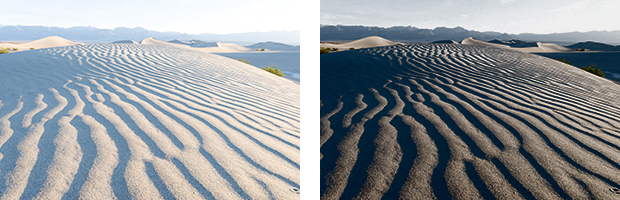
Local Luminosity Adjustment Tools (Dodge & Burn). Dodging and burning are techniques every photographer should learn. As opposed to global changes in contrast and exposure, these local adjustments are where you really learn to producer richer images with more depth and detail. They’re also the basis for the most advanced technique we’ll cover in Part 2, luminosity painting.

There are a variety of ways to selectively dodge (lighten) and burn (darken) specific areas of an image. The simplest are the Dodge and Burn tools that have been a part of Photoshop for many years.

The Dodge and Burn tools are destructive, so before using them make a copy of the layer you want to adjust. The only way to reliably reverse the effect of these tools in their normal use mode is to use the Undo command. An advantage of these tools, however, is that you can elect to alter only the highlights, midtones or shadows of an image using a pull-down in the tool’s property area.
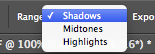
For example, if you dodge an area of high contrast that has both light and dark areas, the light areas will be lightened while the dark areas will be far less affected. Hence the contrast will be increased.

As we look at increasingly more powerful techniques, we’ll see better and better ways of dodging and burning your images.

Consider Working in Lab Color Mode. When working in the RGB colorspace, particularly when making substantial adjustments, increasing contrast using the above tools has the unwanted side effect of also increasing color saturation.

There are two solutions to this problem. The first (and my preference) is to use these tools in Lab color mode in which you can adjust the L channel (Luminance) independent of the a & b (color) channels.

Rather than convert your entire image to Lab (and possibly mess up some of the adjustments you’ve already made), use Image->Duplicate… and select Duplicate Merged Layers Only. Then convert the copy to Lab mode (Image->Mode), make your adjustments, merge the layers, and finally copy the Lab image onto the RGB version. The Lab image will appear as a new layer, which you can then temper with the Opacity adjustment.


Sidebar: Copying Images as Layers. A few students have told me they didn’t know how to copy one image onto another as a new layer. I couldn’t locate a short video on this topic, so here are the steps in longhand.

  • To start, your images must be exactly the same size (in pixels).
  • Enable the Move tool (keyboard shortcut: v).
  • Hold down the shift key, which tells Photoshop you want the source image to be aligned with the target image.
  • If you’re in tab-view mode, drag the source image to the destination image’s tab, but don’t release either the mouse button or the shift key. Wait for a moment for the destination image to appear, then continue dragging into the destination image itself. Release the mouse button and the shift key. 
  • If you’re in a tiled-view mode, drag and drop the source image to the destination image, then release the shift key.

For example, the left image below is the original. The center and right images show the results of Levels adjustments of gamma=0.35. The center one was done in RGB mode and illustrates the increased saturation. The right image was done in Lab mode and demonstrates that only the contrast has changed.

The Lab color mode is an extraordinarily powerful tool but beyond the scope of this discussion on luminosity. For more information on using Lab color, start with my post on Lab Color and My Workflow du Jour.

Get to Know Blend Modes and Blend-If. From here on, you should be comfortable with both blend modes and the blend-if options in Photoshop’s Layer Style dialog box. I’ve previously written an article on Blend Modes in Photoshop that should get you started.

Dodging and Burning with Blend Modes. Once you understand blend modes there are better ways to do almost anything when it comes to luminosity in Photoshop. Blend modes give us two better ways to do dodging and burning.

The first variation is to make your adjustments on a new layer in Overlay (strong) or Soft Light (weaker) blend mode filled with 50% gray. The advantage is that you can undo your dodging and burning either by using the Eraser tool or by painting with a 50% gray brush. The disadvantage is that you’ll no longer have the option of selectively altering the highlights, midtones or shadows.

The second technique is to paint with a black or white brush on a 50% gray layer set to Overlay or Soft Light blend mode. This has the same strengths and weaknesses as using the Dodge and Burn tools. I recommend two videos on this technique, both of which will also lead you to a slew of other great videos: Aaron Nace’s Dodge & Burn, and Sean Bagshow’s Dodge & Burn. If you’re new to or uncertain about blend modes, these videos will help.

Highlight/Shadow Recovery (Blend Modes). Another simple technique using blend modes is to enhance the brightest and darkest areas of your image.

You can’t truly recover blown-out highlights (or plugged-up shadows) with Photoshop, but you can to some extent darken (lighten) and increase the contrast in those areas to show more detail. (If your original image is in RAW format, you can recover at least some of the highlight and shadow information, but you need to do that in your RAW processing software — Lightroom, ACR, etc. — before bringing your image into Photoshop.)

To darken highlights, duplicate the background layer, then change the blend mode of the top layer to Multiply. This will darken everything, so go into Layer Styles and use the This Layer blend-if sliders (aggressively!) to restrict the darkening to only the highlight areas.

To lighten the shadows, do the same as above, but use Screen mode instead of Multiply and use blend-if to keep the effect out of midtones and highlights.

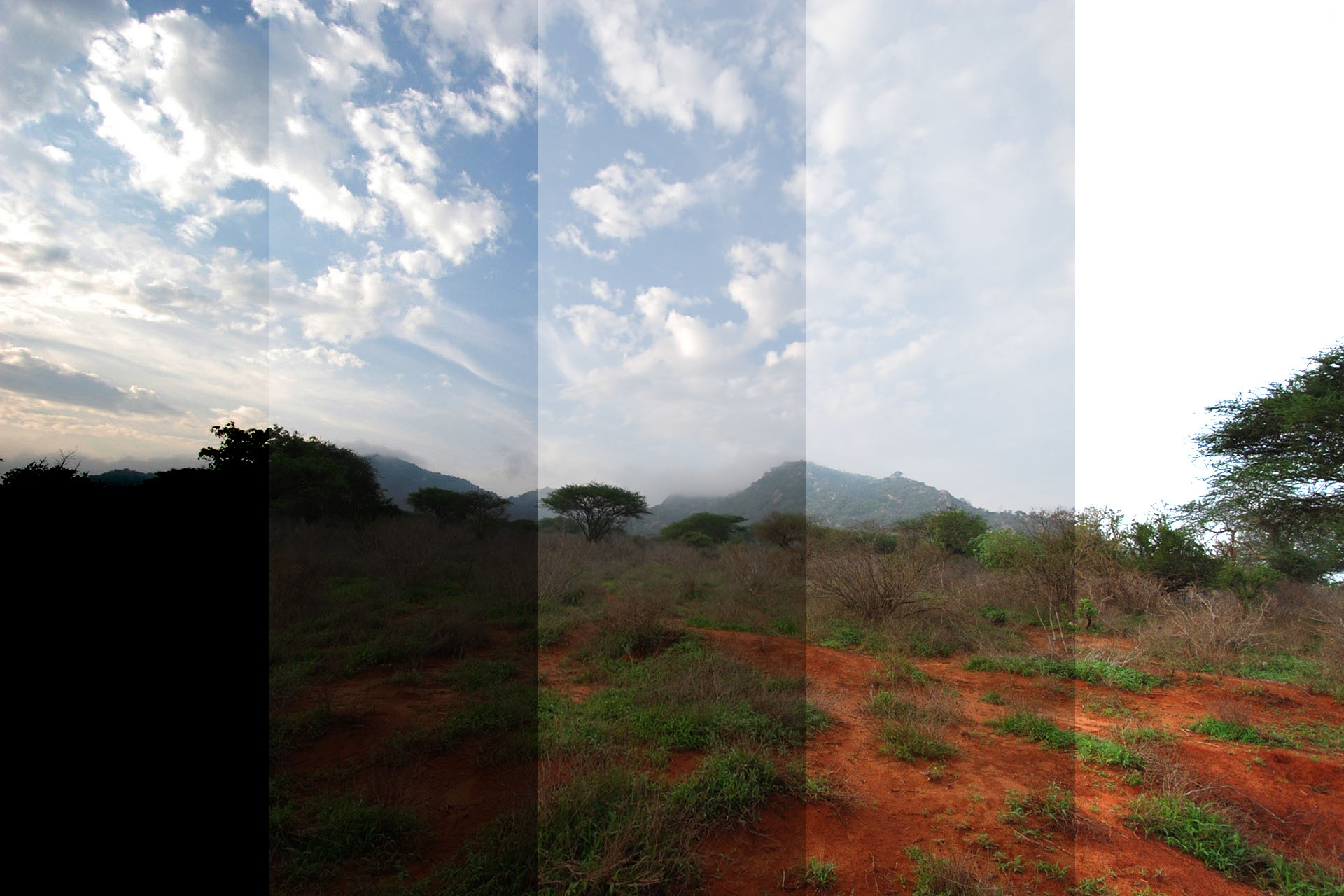
The four images below illustrate how these techniques can be used separately and together.

Masks and Selections. The above examples of highlight and shadow recovery were created using only blend modes and the blend-if feature. But to combine the recovered images into the final “Both” version I had to use a layer mask filled with a gradient. That’s because I couldn’t create a smooth transition of the midtones in the image (the background mountains and some of the red soil in the foreground) using blend-if.

You’ll frequently find that using continuous-tone masks such as gradients and masks created from the color channels (e.g., the red, green and blue channels) are very helpful in isolating the effect of your adjustments to specific areas or tones within an image. We’ll see much more about this in Part 2.

Because so much detail is contained in the luminosity of an image, you’ll likely find the traditional means of creating a selection or mask (e.g., the lasso tools, the quick selection tool and the magic wand) are far less helpful than you might expect. These tools create all-or-nothing rather than continuous-tone selections, and even if you try to adjust or soften their edges (e.g., using Refine Edge), you often don’t get what you want.

In Part 2 we’ll explore many opportunities to use color channels as masks. Not only are channels continuous-tone, they’re also self-feathering, guaranteeing smooth transitions between selected and non-selected portions of your image.

Furthermore, hard-edge selections create masks that contain no detail except at their edges, whereas masks made from channels retain all the detail from that channel.

Get to Know Channels and Apply Image. The techniques described in the remainder of this article require that you copy images or channels to layers or masks. There are a number of keyboard shortcuts, but they’re hard to remember and not very flexible. The fundamental tool for copying images or channels to other places is the Image->Apply Image… dialog box.

I suggest you read Harold Davis’ Using Image Apply Image on photo.net. Don’t be scared off by the length of the article. Alternatively you can search the Internet for Photoshop Apply Image Video to find many video tutorials on the topic.

Luminosity Enhancement Using Channels. The objective of luminosity enhancement is to bring out detail in desired areas of an image. Bringing out detail generally means increasing contrast within those areas, for it’s contrast that allows us to see detail.

Unless an image is strictly black-and-white, there is always more contrast in one of the color channels (R, G or B) than in the image overall. The most basic of the luminosity enhancements techniques is to replace the overall luminosity of the image with the luminosity of the color channel that has the most desirable contrast and therefore detail (using the Image->Apply Image… dialog as shown above).

The following channel-replacement technique is recommended by many of my personal Photoshop gurus: Mark Lindsay, Lee Varis and Dan Margulis. A good way to learn more is to start with Lee Varis’ free 10-Channel Workflow videos (Part 1Part 2Part 3Part 4). Part 2 deals specifically with the steps to perform this enhancement:

  • Open the Channels palette and select the best channel. That’s best in terms of contrast in the area you want to enhance. If you have the previously mentioned CPT plug-in, you can use it to generate a preview of not just the RGB channels, but also the CMYK and Lab channels.
  • Add a new empty layer and change its blend mode to Luminosity.
  • Use Image->Apply Image…  (or the CPT plug-in) to load the new layer with the selected color channel.
  • For even more detail, use a Curves or Brightness/Contrast adjustment to increase the contrast in the desired area.
  • Optionally, if you want to restrict the enhancement by color and/or luminosity, use the blend-if sliders in the new layer’s Layer Styles dialog box.
  • As a last resort, if you want to restrict the enhancement to a specific area, you can generate a layer mask. Using the bend-if method is preferred because it can be feathered, whereas creating a mask using selections often causes undesirable hard edges.
  • Note that if you’re working in the Lab colorspace, you can simply replace the L (luminance) channel rather than generate a separate layer in Luminosity mode.

The before/after images below illustrate the effect of using the red channel as the source for the luminosity layer in Lab color mode. Note that the “1” on the hull is much more clearly defined. The blend-if sliders were used to reduce the contrast increase in the blues, and this could be carried further using more of the techniques described in Lee Varis’ videos.
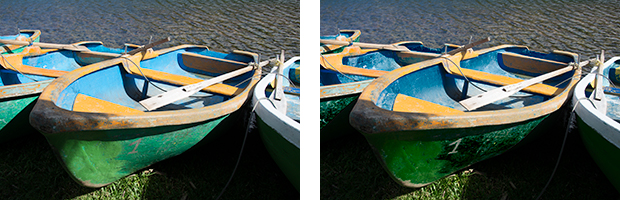
Doug’s Luminosity Shortcut. Although I cut my luminosity teeth on the channel-replacement techniques recommended by Varis, Lindsay, Margulis and others, I’ve pretty much switched to a simpler, quicker and in some ways more-powerful technique. I arrived at this technique by asking myself, “If the best luminosity for a color image is a good black-and-white image, why not just use the best tool for making b&w images?”

My personal favorite b&w tool is Nik’s Silver Efex Pro 2, and I’ve described the method of using that plugin for managing the luminosity of color images in Silver Efex Pro for Color Images.

Luminosity Masks and Painting. It was less than four months ago that I published Lab Color and My Workflow du Jour, an article whose title suggests that I’m quite frequently changing how I process images. While I’m still using some of the du Jour techniques and the Silver Efex Pro shortcut as appropriate, I now find I’m more often using another workflow based on luminosity masks. I find them to be extremely powerful, and once mastered, there quite easy to use.

To Be Continued. In Part 2 of this article I’ll explain the next level of luminosity adjustment techniques: luminosity masks and luminosity-mask painting, both of which I first learned from Tony Kuyper. If you can’t wait, see Tony’s articles on Luminosity Masks and Luminosity Painting.

Review: Olympus OM-D E-M5

Nine months ago I reviewed the Sony NEX-7 mirrorless camera (parts one, two and three) and eventually bought one as the small camera alternative to my larger Nikon lenses and bodies (D3s, D800E, D600). It’s been a love/hate relationship ever since. The sensor in the NEX-7 produces great images, but its high-ISO performance isn’t anything to write home about. The lens selection is remarkably weak because Sony’s E-mount is both proprietary and relatively new. A few good third-party lenses are starting to appear but the pickin’s are thin.

My biggest complaint about the NEX-7 is the awful menu system and the so-so controls. It was too easy to hit the video record button by accident, so Sony developed a firmware update that added a menu option to disable the button. But the fact is that many of my best images made over these past nine months were taken with the Sony NEX-7. So how much can I complain?

Buyers Remorse? After spending $2,000 on an NEX-7 body and two lenses, I kept having this nagging feeling that I should have instead gone with a micro four-thirds (M4/3) camera and therefore been able to choose from a much wider variety of lenses. Many friends love their M4/3 cameras so I just had to check one out. After reading a few reviews and asking some of those friends, I decided to rent an Olympus OM-D E-M5 along with two Olympic lenses: a 14-150mm f/4-5.6 superzoom and a 9-18mm f/4-5.6, for a long weekend.

[All images in this post were taken with the Olympus OM-D E-M5, but with a substantial amount of Photoshop and Silver Efex Pro post-processing.]

9-18mm f/4-5.6 at 9mm f/11 ISO 1600 (3-exposure HDR)

Ergonomics. I loved shooting with this camera. It feels good in the hand. The shutter release is responsive. The built-in electronic viewfinder is bright and clear. I actually like it more than the NEX-7’s EVF, which is also very good. One thing I missed, however, was the NEX-7’s focus-peaking feature for manual focusing.

The touch-sensitive rear LCD is terrific. It took a few minutes to figure out how to activate the on-screen touch menu from all modes, but once I mastered that, the menu “buttons” worked great for me. The LCD also tilts both up and down unlike the Sony’s, which only tilts up. I found myself taking many shots with the screen tilted up, holding the camera at knee level. And for someone with old creaky knees like mine, this is a great way to get low angles. I find I can’t do this as easily using the Sony’s LCD because it’s not as bright and is hard to see in daylight. The OM-D’s screen is much brighter.

Another advantage of the OM-D’s LCD is when you want to shoot an image (or video!) holding camera above your head. Because the LCD tilts down, this is easy. On the Sony, you have to hold the camera upside-down. And have you ever tried to rotate video 180 degrees in post-production? It’s not as easy as I thought it would be. Some of the Panasonic M4/3 cameras have LCDs that fully articulate, which I imagine would be even more useful.

The Olympus LCD has two modes that I found surprisingly useful. One is a touch-to-focus feature like you find on many smartphone cameras. But the other mode goes the extra step to focus-and-shoot. It’s fast and responsive and for some situations it’s really handy.

Other Features. The bracketing options are fairly good although the maximum exposure step is only +/-1EV. For the image at the top f this article, I had to shoot five images and delete two of them.

Normally I shoot everything in aperture-priority mode, but I’ve recently been using program (P) mode and auto-ISO for street photography. The OM-D E-M5 makes very good choices in these modes (better than my Nikon D600) and is easy to override for specific situations.

I shot everything in RAW mode, so I didn’t experiment with the scene/picture processing features.

9-18mm f/4-5.6 at 15mm f/8 ISO 400

Lenses. As much as I liked shooting with the camera, I was very disappointed with the resulting images when I offloaded them to Lightroom. All of the images were softer than I expected. They were also fairly flat and low contrast and many exhibited a lot of chromatic aberration (CA). After consulting with Gordon Laing at Cameralabs, I learned I had been testing with a set of lenses known not to be be particularly good.

Of the three lenses I borrowed or rented, the 9-18mm (18-36mm full-frame equivalent) was the best, although still not great. I’m not normally a wide-angle shooter, but I had a lot fun with this lens. It was great for those knee-level street shots.

The 14-150mm superzoom was generally horrible. Yes, I was able to get a usable image (last one in this post), but it took a lot of work in post. I love the equivalent 28-300mm zoom on my big Nikons, but I’d suggest staying away from this M4/3 lens.

I also borrowed an older 14-24mm f/3.5-5.6 — thanks, Janice — and while it was somewhat better than the superzoom, it’s still not a lens I would buy. Of the three, I would only consider the 9-18mm, and even then I’d be willing to pay more money for something a little sharper such as the Panasonic Lumix 7-14mm.

Okay, so much for dumping on these Olympus lenses. On the other hand, I found the in-body image stabilization to work very well. I also like that it’s easy to disable in either or both the horizontal and vertical axes.

14-150mm f/4-5.6 at 58mm f/6.3 ISO 200

Overall. I learned a lot about M4/3 cameras from using the OM-D E-M5, reading other reviews and in particular from Gordon Laing. Some random points:

  • One property of “micro four-thirds” cameras is the use of a 4:3 aspect ratio. I never knew that! I’m so used to a 3:2 ratio from full-frame and APS-C cameras, I found it hard to adjust over the course of just a few days. I usually shoot with printing in mind and I just couldn’t quite get my head around this more-square format. Of course I can crop to any aspect ratio, but I guess I’m just easily confused.
  • There are no Lightroom or Adobe Camera Raw profiles for Olympus M4/3 lenses. I couldn’t figure out why until I learned that the lenses all contain their own profiles and embed them directly into the RAW files. When you open a file in LR or ACR, the application applies the profile to correct the distortion without your even asking. (I wonder if there’s even a way to see a truly “raw” image from these cameras.)
  • Gordon pointed out that Panasonic corrects for CA within their M4/3 bodies, which Olympus does not. Using LR or ACR to correct for CA is a must, at least for the three lenses I used. Even then, you can’t fix it all.
  • As far as good lenses, Gordon says “the action is with the primes”. He likes the Leica 25mm f1.4, the Olympus 45mm f1.8 and although it’s a zoom, the Lumix 7-14mm.
  • Gordon also explained that these small lenses all suffer from diffraction at f-stops tighter than f/4 or f/5.6. Of course, I learned this after I returned my rental gear, but perhaps that explains at least some of my disappointment in the lenses. And as Gordon also reminded me, due to the difference in sensor size, f/5.6 on a M4/3 camera delivers the same depth-of-field as f/11 on a full-frame body. I probably would have done better to shoot wide open or close to it.
  • Finally there’s one feature of the OM-D E-5M that I wanted to play with but never had time: Live Bulb: You shoot in Bulb mode and the LCD shows the accumulated image, updated over time. I can think of all sorts of ways to take advantage of that for long-exposure work.

In summary, what do I think of micro four-thirds in general and the Olympus OM-D E-5M in particular? I think I need to try it again. Next time I’ll get some better lenses and I’ll shoot at wider apertures. And rather than the OM-D E-5M, I may try the Panasonic Lumix DMC-GH3. I’m hearing great things about that body. And of course, by the time I get around to it, both Panasonic and Olympus will probably have announced even better bodies. Once again, it’s all about the glass. The bodies change too quickly.

Silver Efex Pro for Color Images

Over on Google Plus (Facebook, too) I usually list the gear and post-processing apps I use for each image. The other day someone asked my, “Why are you using [Nik’s] Silver Efex Pro for a color image?” A reasonable question I’ll answer here.

For the past few months, Scott Loftesness and I have been researching and experimenting with a variety of post-processing techniques based on replacing RGB channels and using the Lab color mode. Our mentors (actively or passively) are Dan Margulis, Lee Varis and Mark Lindsay. One fundamental concept to all of our work is the separate processing of luminance (brightness) information and color. There are two principal methods for doing this: In Lab color mode the L (luminance) channel controls brightness and has no effect on color, which is managed in the a and b channels. Similarly, if you’re working in RGB color, Photoshop allows you to control luminosity and color separately by using blend modes. Setting a layer’s blend mode to Luminosity means only its brightness information will be used to modify layers below. Likewise, setting a layer’s blend mode to Color will cause its brightness data to be ignore and only its color (hue and saturation) to override what’s below.

Virtually all of the techniques we’ve learned from Dan, Lee and Mark involve steps such as finding and using one or more of an image’s ten color channels (RGB,Lab,CMYK) as a replacement for the overall luminance control of the image. These luminance layers may then be tweaked for contrast, sharpening, etc. Sometimes we also paint (dodge and burn) specific areas in the luminance-only layers. Scott and I have developed pages and pages of notes documenting the various techniques for managing luminance separate from color.

But recently I had a breakthrough. I realized I use Nik’s Silver Efex Pro 2 for virtually all of my monochrome images. It’s an amazing tool for this purpose. Not only can I control the mix of how the RGB and CMY channels contribute to the results, but it gives me terrific control over contrast, brightness and structure. Oh, and it has unique control points that allow one to make most of the same adjustments on isolated portions of an image.

My ah-ha! moment came when I realized that instead of all the more-exotic techniques I’ve been using, I could just use Silver Efex Pro to create the luminance channel for my color images. It’s far simpler than most of the other methods and I already have a lot experience with it. So if you’re using Silver Efex Pro for your monochrome images as well as Photoshop, give this a try.

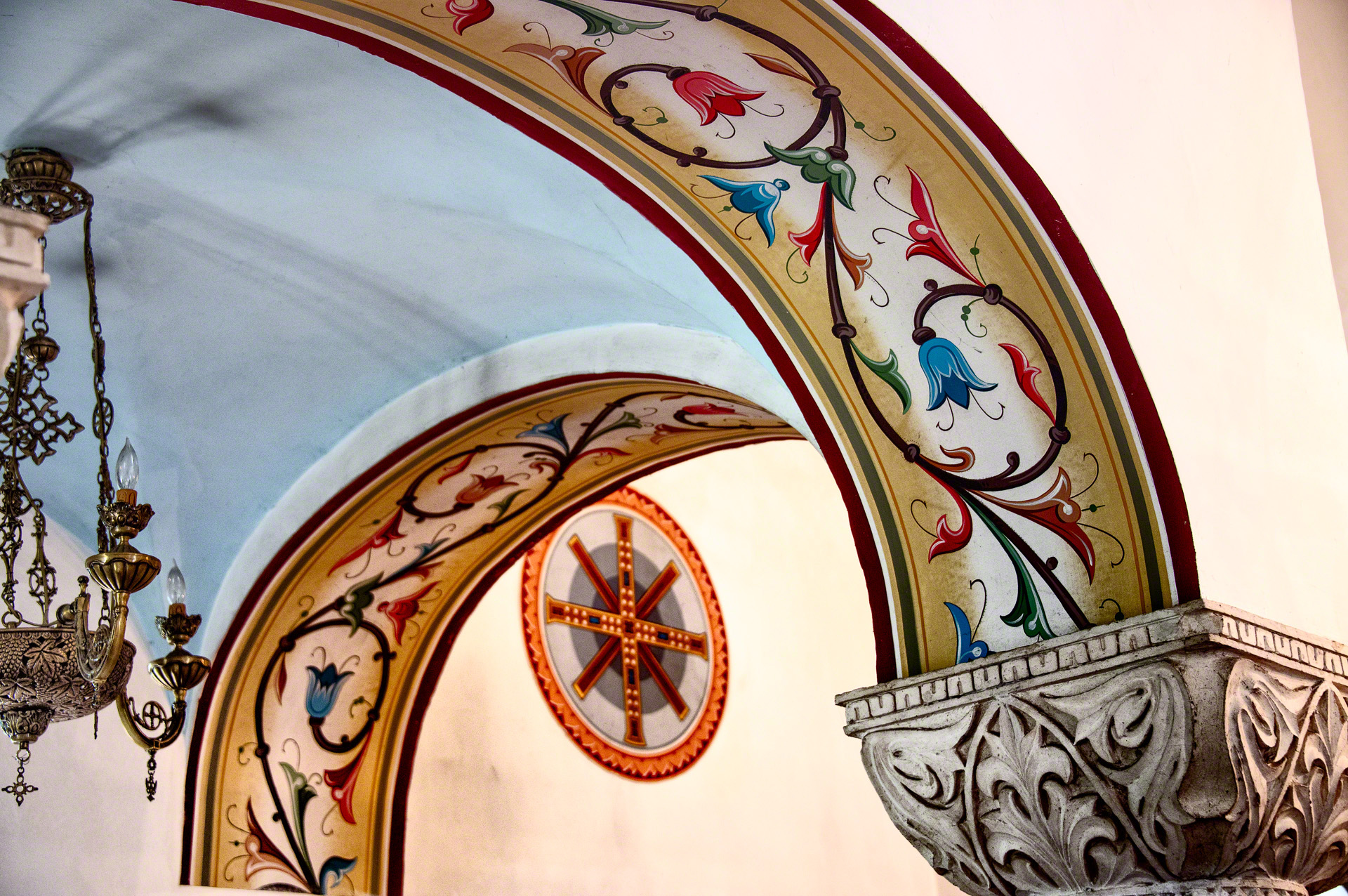
Below is an original image, pretty much straight out of the camera. (Click on any image to view larger.)

I open this image in Photoshop then duplicate the background layer. I optionally convert the copy into a Smart Object so that I have the ability to go back and change it later. Then I select Filter->Nik Software->Silver Efex Pro 2. After adjusting the b&w image it looks something like the following.

Note some of the luminosity changes I’ve made in Silver Efex Pro:

  • increased overall contrast
  • increased the contrast of the top of the column in the lower-right corner
  • lightened and increase the structure of the bottom of the chandelier on the left
  • darkened the red channel

Back in Photoshop, the b&w image is in the layer above the color image. I change the blend mode of this top layer to Luminosity:

The results are the image below:

If I’ve picked up too much noise from Silver Efex Pro — it typically comes from increasing the Fine Structure — I add a low-radius Gaussian Blur to the luminance layer in Photoshop and adjust the opacity of the blurred layer.

You may or may not like the results. That’s okay — I’ve exaggerated everything for the sake of the demonstration. If the effect is too strong, you can simply reduce the Opacity of the top layer. And if you did convert the top layer into a Smart Object you can go back to adjust the results. But I think you’ll get the idea: I’ve used Silver Efex Pro to create an image with the luminosity values I want, then applied that to the full-color image.

Separate from this discussion, but in case you’re curious, here’s what happened to to colors after I enhanced them using the Lab color mode techniques I’ve discussed previously. The difference between the image above and the one below are in color only. They have identical luminosity values.

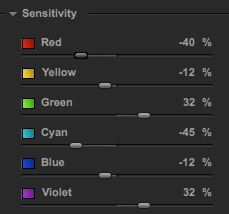
I’ve also developed a consistent workflow within Silver Efex Pro. Specifically, I always start with the color Sensitivity sliders in the Film Types panel:

Adjusting these sliders is similar to Photoshop’s Black & White adjustment layer. You’re modifying the brightness of the areas that are originally brightest in each of the RGB and CMY channels. If, for example, you slide the Red slider all the way to the right and all the others full left, you’re essentially working with just the R channel. But it’s a lot simpler and easier to change than if you have to manipulate the channels in Photoshop. (Sometimes, if the color sliders in Silver Efex Pro don’t seem to have enough range, I boost the color using Lab color mode before going to the Silver Efex Pro filter.)

After settling on the balance of the six color channels, I pretty much work my way top-down in the Silver Efex Pro panel: Brightness, Contrast and Structure. Then I go through the image and add Control Points and adjust them as necessary.

Give it a try and let me know what you think.

Blend Modes in Photoshop

Last week we started an Advanced Photoshop SIG (special-interest group) at our local photo club. Based on a survey of our members, I chose Blend Modes as the topic for our first meeting. Here’s a cleaned-up version of the notes I used in preparation.

Here’s an image of 0%/25%/50%/75%/100% that you can use in a layer to see the monochromatic effects of blend modes. (Public domain. Click to enlarge.)

For example, here’s the above image in Overlay mode over another image. Note that in this mode, black darkens the image, white lightens the underlying image and 50% gray causes no change.

Here are some tutorials and tools:

(Thanks to Scott Loftesnsess for his recommendations to the above list.)

These are some of the techniques I demonstrated:

  • Scrolling Through the Blend Modes: Select the layer you want to change in the Layers palette. Select the Move tool. Use Shift- and Shift+ to scroll through all the blend modes and see their effects.
  • Difference Mode: Just as a demonstration of the more obscure and creative blend modes, set your brush to white in Difference mode at 20% opacity and paint directly on your image or a copy. Now change the brush to 100% and see what happens. (Don’t forget to return your brush’s blend mode to Normal, otherwise you’ll wonder why it doesn’t work correctly later on.)
  • Dodging: Duplicate the image, set to Screen mode, add a black mask and paint on the mask with 20% opacity white.
  • Better Dodging (Levels Adjustment Layer Trick): Duplicating your image in a new layer substantially increases the size of your .psd file, so instead of the above, try dodging this way: Add a Levels adjustment layer set to Screen mode. Paint 20% white on a black mask. Just as easy as above, but your layered files will be smaller.
  • Burning: Add a Levels adjustment layer set to Multiply mode, paint on a black mask with 20% white.
  • Even Simpler Dodge & Burn: All of the above are just experiments to show various options, but perhaps the best way to dodge and burn is to create a new blank layer set to Overlay mode, but don’t change the levels. (It’s just a dummy adjustment layer.) Paint with 20% white to dodge and 20% black to burn. Your file size will be small and the technique is totally non-destructive and reversible. You can erase your adjustments using the Eraser tool or a brush set to 50% gray color.
  • Exposure Control w/Gradient: In a new layer, draw a black-to-white gradient from top to bottom. Set to Overlay mode and adjust the opacity. While this works, you can’t move or change the gradient. So instead…
  • Gradient in a Layer Style: Don’t create a new layer. In the image layer, open the Layer Styles dialog (fx icon at the bottom of the Layers palette or just double-click in the blank space to the right of the layer’s title). Select the Gradient Overlay and (!) check the box. Select a black-to-white gradient (click the Reverse checkbox if necessary), set the gradient style to Linear. Play with Scale and Angle. Then switch the blend mode (of the gradient, not the layer) to Overlay and adjust opacity. Note that you can drag the gradient in your image area to reposition it! Now you have a non-destructive, changeable gradient tool.
  • Vignette in a Layer Style: Like above, but use a black-to-transparent gradient instead of black-to-white and the Radial gradient style. Experiment with the Overlay vs. Soft Light blend modes and the opacity. Unlike Lightroom you can’t change the squareness/roundness of the vignette, but that’s outweighed in some cases by that fact that you can reposition it.
  • Increase Luminosity Contrast: Duplicate the layer, set to Overlay blend mode and adjust the opacity. Works, but it pushes the lights and darks to extremes.
  • Better Way to Increase Luminosity Contrast: Duplicate the layer, from the menus select Image->Adjustments->Desaturate. Change the blend mode to Luminosity and adjust the opacity. You can also use a curves adjustment (to this layer only) to increase the contrast of the desaturated image and even use a mask to selectively add contrast in only certain areas of your image.
  • Even Better Way to Increase Luminosity Contrast: Use the Channel Power Tools plugin (see above) to preview all ten channels (RGB/Lab/CMYK). Select the channel that shows the most contrast in the desired portion of your image. Create a new layer and use CPT to apply the selected channel to that layer. (Or use Image->Apply Image… from the menu.) Select Image->Auto Contrast if necessary to quickly get a contrasty version, particularly if you selected either the Lab “a” or “b” low-contrast channel. Set the blend mode to Luminosity and adjust the opacity. Again, you can apply a Curves or Brightness/Contrast adjustment and a mask as above.
  • High-Pass Sharpening: Duplicate the layer. Select Filter->Other->High Pass… from the menu. Adjust the radius to define edges. Use a curves layer or Image->Auto Contrast or a Brightness/Contrast adjustment layer to increase the contrast, then set the blend mode to Overlay, then adjust the opacity.

I hope you find some of these techniques useful and that they help you understand the power of blend modes in Photoshop. Feel free to leave your feedback here.

Discovering Hidden Color

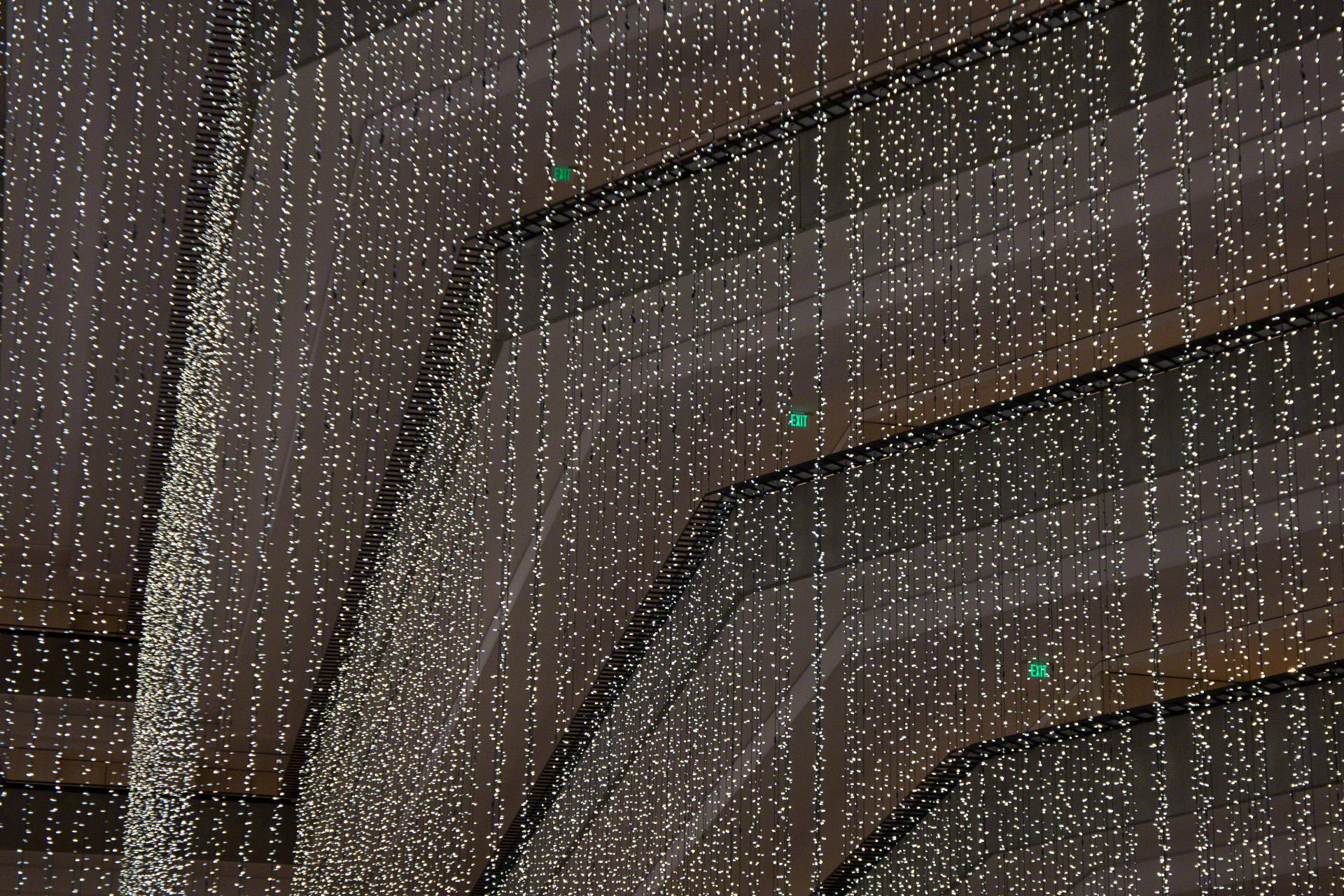
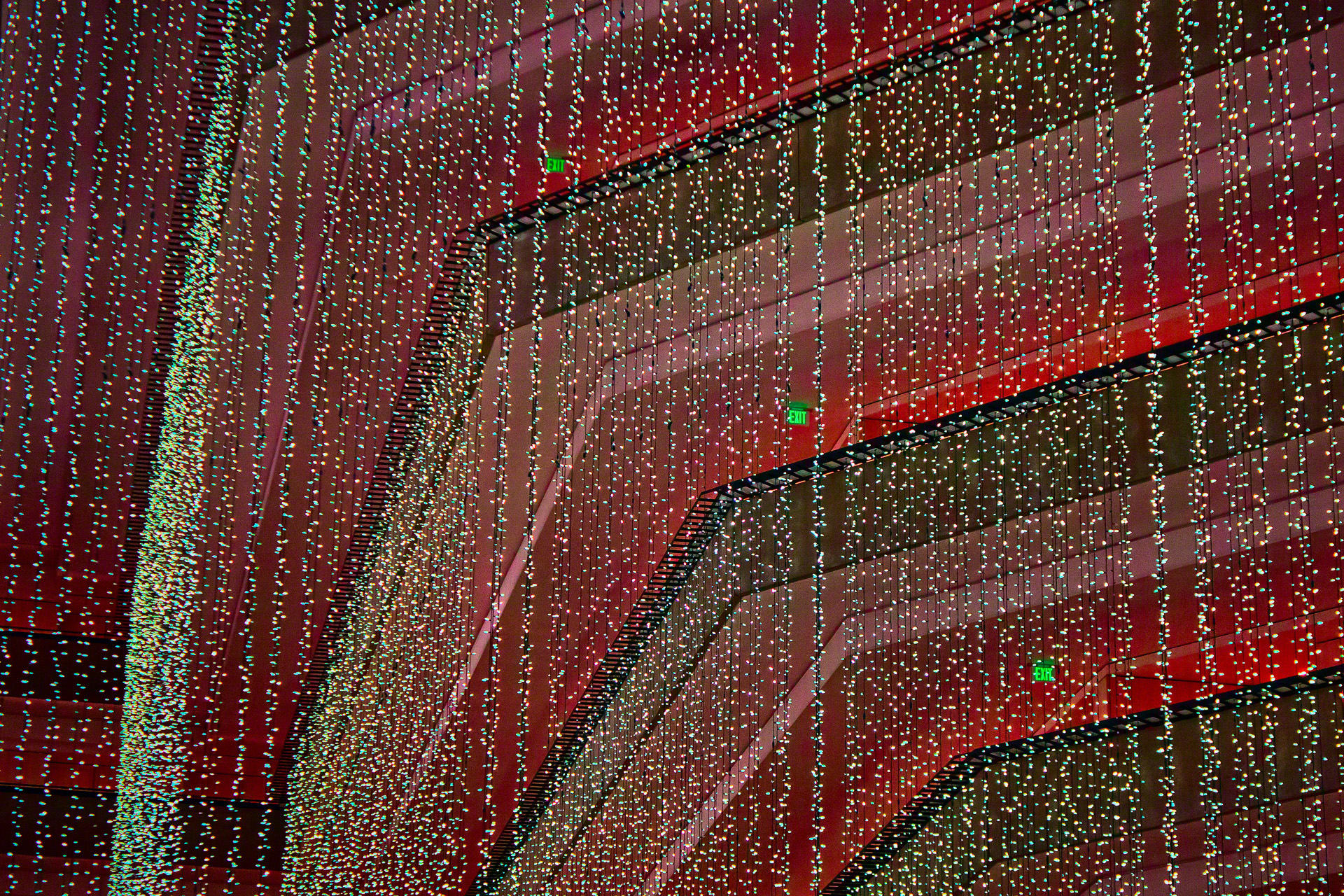
One of the primary benefits of working in the Lab colorspace is the ability to make very dramatic adjustments to color without affecting luminance. Take a look at the image below, which is pretty much straight out of the camera, a Sony NEX-7. (Click on the images to see them larger. It helps with this discussion.) While it appears dark and drab, you can see there’s some reddish-brown in the structure. When I saw them live, the hanging lights appeared pure white. But as you can see, they not only have a bit of color, but the color appears to vary from light to light.


My goal was to enhance the colors and to create a holiday red-and-green look to the scene. At the same time, I wanted to maintain the green in the small Exit signs. (Yes, you need to click and look at the larger version!)

Lab colorspace to the rescue!

The image below shows what I was able to do with not much more than a Curves Adjustment Layer in Photoshop in the Lab colorspace. I anchored the a & b channels at the zero-zero crossover point. I then steepened both a & b quite a bit to enhance the existing color. From there, I played with the a channel (green-magenta) until I got close to the red and green I was looking for, then added a bit of yellow in the b channel (blue-yellow).

By enhancing the color contrast I was able to bring out the shape and depth of the architecture. I was also able to turn what appeared to be white lights into an array of multi-colored ones. What you’re seeing in the lights is a substantial amplification of the color variations, thanks to very steep a & b channel curves in Lab color.

Note: I also used the ALCE v2 plugin (radius=180) to enhance the local contrast and emphasize the structure of the building.

Nikon D800E: Now That’s Resolution!

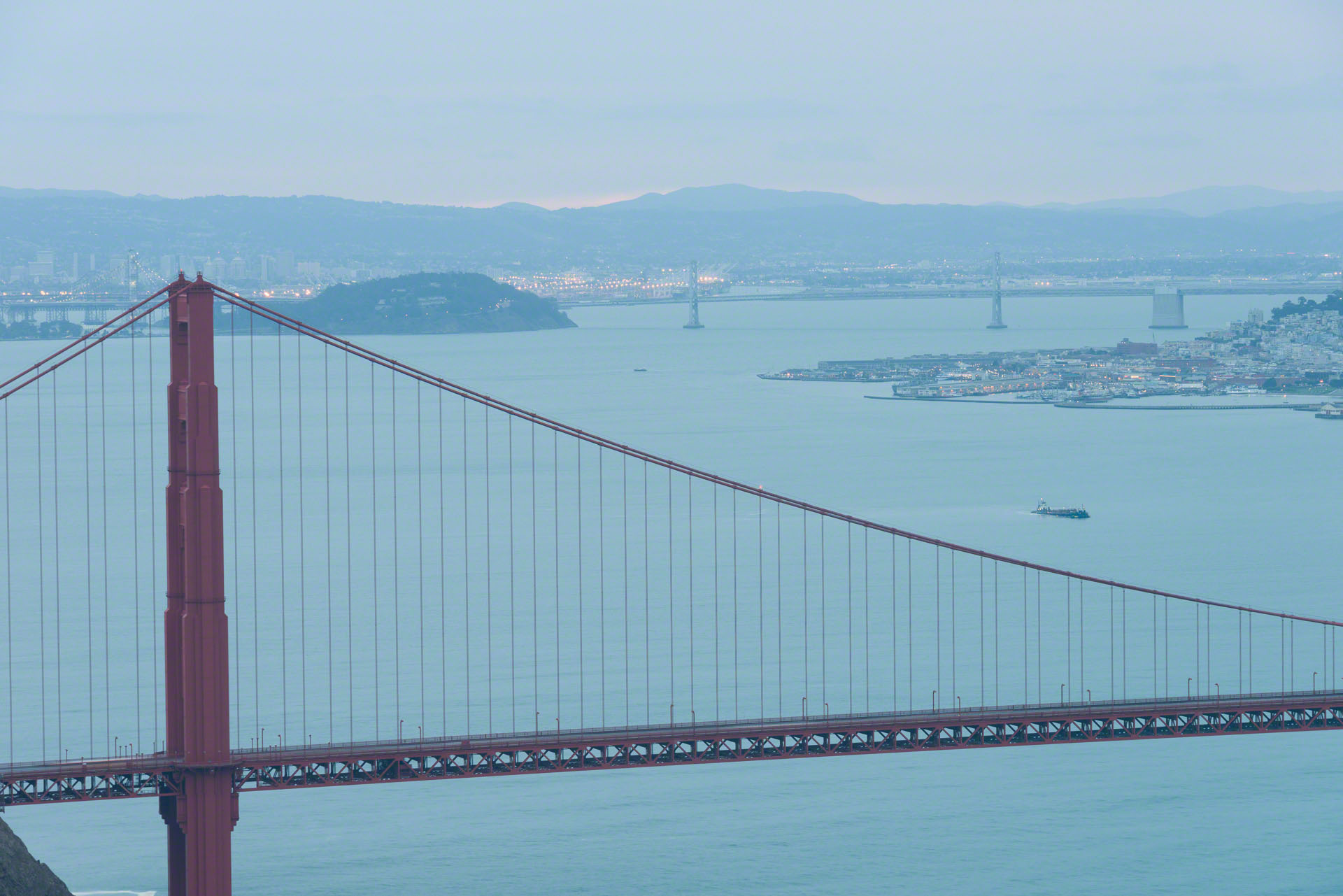
Not every outing results in a usable image, and today’s pre-dawn trip to the Golden Gate bridge proves that point. Before deleting everything on my CF card, I opened the files in Lightroom to see what I had come home with. The ugly image below is actually one of the best of today’s shots. It’s shown here straight-out-of-camera with no adjustments other than scaling for the blog. [The original is a 36.3 megapixel (7360×4912) RAW file from my Nikon D800E, shot with a 28-300mm zoom, ISO 100, 1.3 seconds, f/11 145mm.]

Aside from all the other problems with this image, I thought I saw an artifact as shown below. See that thin line above the diagonal bridge cables? It looked to me like I had some vertical camera shake or something else that caused a slight double exposure. I haven’t been able to reproduce it convincingly here, but trust me — that’s what it looked like. It was a little windy this morning, but I thought I’d used my best techniques: solid tripod, mirror-up mode, remote release, etc.

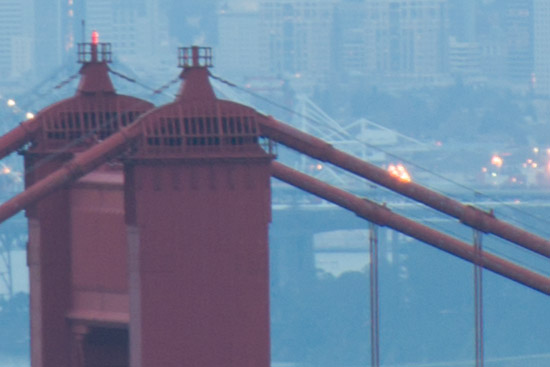
Next I zoomed in to 100% and look what I discovered: There’s a whole additional set of cables or wires draped from the tops of bridge towers that parallel the suspension cables. In all the years of shooting the Golden Gate bridge, I’d never noticed them.

Below is another version at 100% after some color adjustment and sharpening in Photoshop.

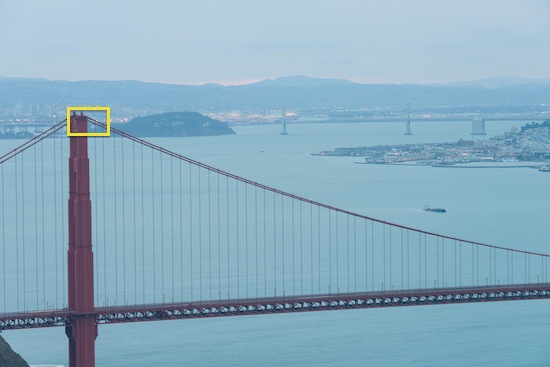
The above may not give the impression that I’ve captured much detail until you check the image below. The yellow rectangle shows the area from which the above 100% crop was made. It represents only 0.5% of the full-image pixels. This is the advantage of a 36.3 megapixel sensor. And it would have been even more dramatic if I’d used the sharper 70-200mm f/2.8 lens.

Now I just need to go back on a better morning!

Lab Color and My Workflow du Jour

I’ve lately been talking about photo post-processing workflows on various podcasts, Google+ hangouts, classes and workshops, which has generated a lot of questions and requests for more info. It’s my workflow du jour because I’ve never had a single workflow that’s lasted for more than a few weeks. By the time you read this, it will already be out of date. For that matter, I don’t really have a formal workflow since every image is different. But I’ve developed a default sequence as the starting point for most of the images I shoot. At least for this week.

I spent some time debating whether I would publish this blog post or not. I’m actually a bit nervous about telling everyone about some parts of the workflow — not because I want to keep them secret, but because I fear you will go directly to the shortcuts I recommend without taking the time to understand the concepts behind them. You can get pretty good results without studying the underlying theories, but you’ll be shortchanging yourself. Obviously, I’ve decided to go ahead with this post in the hope the tools not only simplify your post processing but also encourage you to dig deeper into how they work and how they can be further manipulated.

I should also point out that there’s nothing of my own creation in this workflow. Everything I’m using I’ve learned from others who know a lot more about post processing than I do. Towards the end of this article I’ve linked to the original work of my personal workflow gurus so you can learn directly from the sources.

What Are the Prerequisites?

Although much of my workflow uses automated Photoshop actions, some of the steps must be done manually. This is not for Photoshop newbies. Before utilizing any of the tips and tools in this article, you should first learn the following aspects of Photoshop:

  • selections
  • layers and layer masks
  • channels
  • curves
  • the Image->Apply Image… menu feature

What Are the Shortcuts?

My workflow du jour uses two Photoshop plugins. The first is Dan Margulis’ free Picture Postcard Workflow Panel shown below on the left. (The name is cute but misleading. It’s not just for a picture-postcard look.) The panel automates many of the steps in Dan’s Picture Postcard Workflow, which if done by hand not only make for a complex process but can’t be performed by mere mortals without pages of notes. You can really get yourself into trouble with this tool, but you can also achieve amazing results in no time at all once you get the hang of it.

The second Photoshop plugin, shown on the right, is the Channels Power Tool (€20). This is a tremendous timesaver for identifying and swapping channels and applying them as layers and masks such as in Lee Varis’ 10-Channel Workflow.

What About Lab Color?

Much of my current workflow is based on the Lab colorspace, which I’ve been using on and off for about 2.5 years. I first wrote about Lab color in 2010, specifically in conjunction with HDR. I stopped using Lab color for a while because I didn’t fully understand it. Although I’m still learning and experimenting, I now believe I’ve achieved a deeper comprehension of the true potential of working in this colorspace.

You’re probably familiar with the RGB colorspaces in which there are three channels: red, green and blue. Your digital camera records images in RGB and your browser displays images using RGB. When an image is printed using offset press inks, it’s converted to the CMYK colorspace with cyan, magenta, yellow and black channels.

Consider how you change the brightness or luminosity of an image in RGB or CMYK. In RGB you increase the levels of all three channels. 100% red, green and blue gives you white. 0% results in black. In CMYK, you reduce the amount of ink in all channels in order to get to white, the color of the underlying paper. But the problem with both RGB and CMYK is that there’s no way to change the luminosity of an image without also changing the hue and/or saturation of the colors.

When is Lab Better Than RGB or CMYK?

Lab is just another colorspace like RGB and CMYK, but it separates luminosity from color. There are three channels: The “L” channel controls luminosity but has nothing to do with color. Conversely, the “a” and “b” channels control only color and don’t affect brightness. The range or gamut of the Lab colorspace is huge. Not only can it represent every color of RGB and CMYK, it can also represent colors that are beyond reality. (Try to imagine a yellow that is simultaneously very saturated and as dark as pure black.) Lab is also an extremely accurate and standardized colorspace. Whereas we all need to calibrate our RGB monitors and adjust for our printers, papers and inks, the colors in Lab are precise. For example, when an automobile body shop wants to exactly match the color of your car’s paint, it uses the Lab color specified by the car’s manufacturer.

Unlike RGB and CMYK, the Lab colorspace is designed to approximate human vision, which has a powerful ability to segregate colors. For instance, we can perceive variations in green leaves where there may be very little luminosity difference. The channel structure of Lab allows us to manage both luminosity contrast, with which we’re all familiar, and (separately!) color contrast. The latter concept may be new to you. In RGB we have little opportunity to adjust the contrast of various colors, but in Lab color mode we can do just that. Photographs can often be improved by increasing the color contrast in order to enhance those differences.

Lab’s a and b channels specify opposing-color axes that you can visualize as a color wheel. The a channel specifies the green/magenta axis while the b channel represents the blue/yellow axis. (The image below is a bit misleading because it doesn’t show the variations from the center to the edges. Unlike RGB and CMYK, these are variations of pure saturation, not combined with luminosity.)

[CC-BY-SA-3.0] via Wikimedia Commons
When you add a curves adjustment layer in Lab color you can do things you’d never be able to accomplish in RGB. For example, you can warm up the saturated blue portions of your image without affecting the other less-intense blue areas, and do so without ever creating a layer mask. You can increase the contrast in the greens without shifting the overall cast of the image. It takes a while, but once you get the hang of it, working in the Lab colorspace is extraordinarily powerful.

Why Should I Use Lab Color in My Workflow?

Let’s start with an example. Below are three versions of a single image.

The above image is pretty much straight out of the camera. Note a few problems:

  • There’s a blue cast in the shadows.
  • There’s relatively little contrast either in luminosity or color.
  • The lack of contrast makes the image look flat and lacking in depth and detail.

The second version above is typical of what you can achieve with basic Photoshop skills. The color and contrast are somewhat better, but there’s still a blue cast to the shadows.

The final image above is the result of spending no more than five minutes tweaking in the Lab color space. I was able to remove the blue cast from the shadows as well as increase both the luminance and color contrasts.

Did I correct this image using only plugins and clicking on buttons? No. In this case I had to resort to creating curves in Lab color mode and to changing the opacity of various layers. Although I made all the changes to this image in less than five minutes, I did rely on some of these more fundamental and manual operations. I mention this as an example of why the shortcuts alone are often insufficient and why you need to learn the underlying concepts.

So What’s Your Workflow du Jour?

As of today, here are the steps I follow for many of my images, particularly landscapes, cityscapes and abstracts. Product shots (in which colors need to be accurate), portraits or other photographs that feature faces require a rather different approach and aren’t addressed here.

  • I process the RAW file in Lightroom.
    • Camera Calibration (I’ve created dual-illuminant profiles for each of my cameras.)
    • Lens Correction
    • Default Sharpening (minimal; just the equivalent of what the in-camera JPEG processor might do)
    • Noise Reduction
    • Chromatic Aberration removal
    • White Balance (overall correction)
    • HDR Merge: If it’s a multi-exposure HDR image, this is the point at which I use Photoshop’s Merge to HDR Pro and bring a 32-bit merged HDR image back into Lightroom. I make no adjustments while in Photoshop at this stage. [video]
    • Tonality: The goal here (still in Lightroom) is just to squeeze everything into a narrow dynamic range. RAW files and 32-bit HDR images typically have too wide a dynamic range and will need to be tonally compressed or tonemapped down to 16-bit RGB. I adjust the exposure, contrast, highlights, shadows, whites and blacks to create a low-contrast image in which everything (including highlights and shadows) is away from the edges of the histogram. My objective is a technical one, not to make the image look good yet.
    • Stop There: I do not use clarity, vibrance, saturation or anything else in Lightroom if I’m going to use the rest of this workflow.
  • In Photoshop, I start with a 16-bit RGB image from the above steps.
    • I perform any retouching other than color corrections.
    • Save this version as a .psd file with all layers in case I need to revert to this stage.
  • Dan Margulis’ Picture Postcard Workflow (PPW)
    • Using the Photoshop PPW Panel, I start at the top and work my way down, typically (but not always) using the actions listed below. For each action, I experiment with the visibility and opacity of the layers until I get the look I want. Occasionally I add a layer mask if the effects need to be localized. This is where it’s really helpful to understand what the PPW actions are doing behind the curtain.
    • Bigger Hammer for tonal contrast.
    • Switch from RGB to Lab color mode.
    • Color Boost and/or the Modern Man from Mars for color enhancement and contrast.
    • 2012 Sharpen
  • Lee Varis’ 10-Channel Workflow
    • If I can’t get the results I want using Dan’s PPW, I return to the pre-PPW saved .psd. I haven’t spent a lot of time in PPW so far, so I don’t worry about throwing away my work.
    • I use the Generate Preview button on the Channels Power Tool panel to look at all ten channels available from the RGB, CMYK and Lab colorspaces.
    • I use one or more of the channels to replace others or as luminance mask to bring out detail or color.
    • Once I’ve done the best I can using individual channels, I take the image through Dan’s PPW.
  • Final Touch-Ups
    • After all of the above (particularly sharpening) all my sensor’s dust spots magically appear, so I often make another cleanup pass at the end.

Where Can I Learn How to Do This?

You can download Dan’s PPW Panel and start using it immediately, but as I wrote at the beginning of this article, you’ll be far more effective if you invest the time to understand how the various actions work and Lab color in particular. The PPW Panel includes extensive Help files, but they’re not the best place to start. The Help file for Dan’s 2012 Sharpen action alone is 23 pages long.

Unfortunately, there’s a huge gap and a steep learning curve separating the use of the shortcuts and truly understanding how they work. Here are my recommendations (in order) of the resources you might use to learn about channels, Lab color and the rest of these workflow concepts:

  • Mark Lindsay teaches and writes about Lab color and related techniques. Mark has posted some of the best introductory articles, but he hasn’t yet gone very deep into his workflow. His articles include:
  • Check out Lee Varis’  Professional Photshop Toolkit. In addition to Dan’s PPW Panel, Lee’s toolkit includes:
    • Free videos covering Lee’s 10-Channel Workflow and many other topics. At this point you’ll be into swapping channels, using channels for masks and blending modes. You may never make another selection by hand again.
    • You’ll want to get the Channels Power Tool (€20). This is almost mandatory for Lee’s 10-Channel Workflow.
    • The False Profile Panel (free) is another plugin you’ll occasionally find useful once you get this far.
  • Download, install and use the latest Picture Postcard Workflow Panel for Photoshop. This automates most of what you’ve learned so far. Click on the Help button and read all of the associated PDF files. You’ll be busy.
  • Take a break from Dan’s extensive Help files, sit back and watch his videos on Kelby Training. If you’re not already a member, I suggest you sign up for one month (US$24.95) during which you can watch all these courses. It will be some of the best $$ you spend on photography.
    • Start with Introduction to Photoshop Lab Color.
    • Next, watch The Lab Frontier.
    • Work with what you’ve learned from Dan and try the techniques as explained by Mark Lindsay above.
    • Come back to Kelby and watch the courses on the Picture Postcard Workflow Part 1Part 2, and Part 3. These explain the manual processes of the PPW but pre-date the release of the PPW Panel.
  • You now qualify as an Lab color geek. Go directly to Dan Margulis’ Lab color bible, Photoshop LAB Color: The Canyon Conundrum and Other Adventures in the Most Powerful Colorspace. This will keep you really busy for a very long time!
  • For extra credit, now that you know all about channels, take your knowledge back to RGB and explore Tony Kuyper’s treatise on Luminosity Masks. (Note that the first steps in Margulis’ PPW are done in RGB, so Tony’s concepts work well here.)
What’s Next?

You’ve got to be kidding! It will take you months to get through the resources I’ve outlined above. And then you’ll want to go over them again to truly nail down the concepts. In any case, this is the point to which my knowledge of Lab color has progressed as of late November 2012. I’m in the process of my second pass through everything. It’s geeky, but it works for me. I hope it works for you as well.

As you have questions or learn of additional resources, please leave a comment and I’ll use it to update this page.

Updates

  • 11/25/12: Scott Loftesness and I have been collaborating together on this Lab-based workflow stuff for the past few weeks. Each of us has tried one technique or another, then to have the other adopt and improve on it. It’s been a valuable, mostly remote collaboration. Because these techniques can be so confusing at first and the learning curve so steep, I recommend you also find someone with whom you can study/learn with. More than once, Scott and I have needed the other to either explain a technique or at least remind the other what it was we’ve already learned. Scott has just posted an example of his own workflow du jour and it contains some very specific steps. I’m still digesting them myself and will see if I can (a) understand them, and (b) merge them into my own processes.
  • 11/25/12: Since posting the original article only two days ago, I’ve added the free Advanced Local Contrast Enhancer (ALCE) Photoshop plugin by Davide Barranca to my workflow. It’s like Lightroom’s Clarity feature, but on steroids. Make sure to check out the excellent video tutorials by Marco Olivotto.

Fine-Tuning Your Autofocus

Okay, I admit it. I’m a geek. There’s an abundance of evidence for this, not the least of which is that I fine-tune the autofocus for nearly all of my body/lens combinations.

What is autofocus fine-tuning (a.k.a. focus micro adjust)? Pretty much what it sounds like. It’s a feature built into most high-end DSLRs and other interchangeable-lens cameras that allows you to correct for small inaccuracies in autofocusing on a lens-by-lens basis.

Before diving into this, let’s consider the obvious question: Do you need to do this for your camera and lenses? Generally not unless you typically shoot with your lenses at wide-open apertures. Once you stop your lenses down by two stops or more, the depth of field usually increases to the point at which the default autofocus adjustment is fine. But if you do shoot wide open and you find things aren’t as sharp as you expect, then perhaps it’s worth going through this exercise. For me, it began with portraits I shot at f/2 using a 135mm prime lens. Even after carefully aiming my center focus point on the subject’s nearest eye, I could see the sharpest point was actually at least an inch or so behind the front of the eye and the eye itself was slightly soft. An autofocus fine-tuning adjustment was part of the solution. (I say “part” because that Nikon 135mm f/2 DC lens continues to be an untamed animal in my zoo of lenses. The DC “Defocus Control” feature is both a blessing and a curse.)

I first mentioned autofocus adjustments and the LensAlign (shown above) from Michael Tapes Design back in January. This is the tool I’ve used for measuring front- and back-focusing for the past two years. The concept is simple: You focus on a vertical pattern that’s aligned with a sloping scale, make an exposure, then examine the image to see what area on the sloping scale is actually in focus. You don’t really need to spend US$80 for this. You can use almost any high-contrast pattern and just shoot it at an angle. There are even patterns in PDF format that you can download for free. (Bernard Knaepen has posted an interesting and free technique.)

But I find using the LensAlign and other similar systems to be an inaccurate process. It’s usually a challenge to interpret the results — a fairly subjective process. For the past two months I’ve been working with Nikon to try and understand the autofocus problems of my Nikon D800E and I’ve been using flat test patterns on the wall. I haven’t been concerned about fine tuning since the issue is about a variation from one autofocus point to another rather than an overall adjustment.

While I was in the middle of this D800E issue, Michael Tapes released a new tool: a desktop application (Mac and Windows) called Focus Tune. Through December 31, 2012 it costs US$29.95 or just US$19.95 if you already own a LensAlign and it’s well worth the price. In fact, it’s so useful I suggest you get Focus Tune instead of (not in addition to) a LensAlign.

Compared to LensAlign, Focus Tune works in reverse, sort of like the game of Jeopardy. Rather than a tool that suggests what the autofocus fine-tuning value should be, you start by shooting tests at a range of values and the software tells you which is best. Take a look at the chart below, which was generated by Focus Tune for tests using a Nikon 28-300mm f/3.5-5.6 lens at 100mm f/5.3 (wide open) on my Nikon D600.

The data were collected in two steps. First I shot four high-res JPEGs using each of nine autofocus fine tune settings in steps of 5: -20, -15, -10, etc., through +20. I then ran the images through Focus Tune, looked at the results and saw that the peak was somewhere between -10 and 0. So I went back and shot four images for each of the remaining eight settings in that range. From this and the associated tabular data, I determined that the optimal setting for this lens on this body is -4.

How does Focus Tune do this? You tell the application what area of your test images to analyze and it then comes up with a “sharpness value” for each image. By taking multiple exposures at each setting, Focus Tune can deliver a very consistent result and ignore the “outliers” which appear as red dots on the chart. (Note  this lens/body combination was already working well. Although I did set the autofocus fine-tune value to -4, I could have shot forever and never noticed this small offset.)

Here’s an example showing a combination that requires a larger adjustment: a Nikon 14-24mm f/2.8 wide open at 18mm on my D800E. When I added tests in the 15-20 range, Focus Tune reported that +18 was the setting that yielded the sharpest results.

Focus Tune is able to extract a great deal of information from the EXIF data in your JPEGs. For example, it knows which autofocus point you used to capture the image. This means Focus Tune can generate other reports including one that compares the accuracy of different autofocus points. It’s been a great help in diagnosing the D800E autofocus problem. Here’s a chart from test images using the 28-300mm f/3.5-5.6 at 100mm and f/5.3. C-C is the center point, while C-L5 is the far-left one.

From the above chart you can see that the accuracy of the farther left focus points are decreasingly accurate and that the far-left one is significantly worse than the others. Note that the centermost C-C and CL1 are phase-detect or “cross-type” sensors whereas the other four are the less accurate contrast type. Also note  this is not a test of lens sharpness. In all cases Focus Tune is evaluating the sharpness at the center of the image regardless of which autofocus point was used to set the focus.

Focus Tune is in its first release and it’s still a bit rough around the edges. There are a few user-interface peculiarities, but it doesn’t take long to understand how to use it. If you’re curious, start by taking a look at the introductory video on Michael Tapes’ website. Although Michael demonstrates Focus Tune in combination with a LensAlign, I think you can get just as good results by using a good flat autofocus chart so long as you make sure the sensor plane of your camera is parallel to the target.

I’ll be using Focus Tune as part of my toolkit as I continue to track down the D800/D800E autofocus problems.

Nikon D800/D800E Autofocus Problems, Part 2

Five weeks ago I posted my analysis of the autofocus problems with my new Nikon D800E. I sent the camera to the local Nikon Service Center for repairs. 11 days later the camera was back and I’ve now had a chance to evaluate the results.

In one word: Unchanged.

Here are the latest tests, performed after the Autofocus Adjustment performed by Nikon. The superimposed images below are crops of the a test pattern centered on the left-most autofocus point. For the “before” image, I focused manually using LiveView. For the “after” image I used regular (non-LiveView) autofocus selecting the left-most focus point. (It may be hard to see, but there’s a vertical line in the center of the image with a draggable handle near the middle of the chart. You can move the slider left and right to hide and reveal the images.) As you can see, the auto-focused (after) image is noticeably softer. And if you compare it to the before-adjustment tests, it’s virtually unchanged.

[beforeafter]

[/beforeafter]

Not shown here are the same tests performed with the center and right-most autofocus points. Those images appear as sharp as the manually focused images.

I’ve got an important landscape workshop coming up later this month, so I’m going to wait a few weeks. But after that I plan to call the Nikon Service Center and discuss this with them. Stay tuned for another episode in this saga.

Update 10/10/12: On 10/8/12 I called Nikon and asked to speak to a supervisor. I was told someone would call me back. On 10/9/12 I received email asking me to send in my test shots, which I did. Now waiting to hear their response.

Update 10/16/12: After another week, I called Nikon yet again on 10/15/12. I was told by Nelson that a supervisor (Stacy) would call me back. Nothing. On 10/16/12 I called again. Josh said they had sent me an email — nothing received, even in spam folder — and asked me to send RAW files instead of JPEGs. Give me a break. I’ll do that later today. In the meantime, Nikon sent me an online customer-satisfaction survey. I told them exactly how I feel. I can’t believe they’re dealing with me in this way particularly since this is an acknowledged problem on many of these D800/D800E bodies.

Update 10/22/12: Yes, yet another week has passed without a response from Nikon. I called today ans spoke to “Charles”. He said the problem had been escalated to “Level Three” (senior management). He had no explanation as to why no one had returned my call as promised, what might happen next or how long it might take. He would not give me a contact name, phone number or email address. He would not let me speak to his own supervisor since the incident has already been escalated. It has now been seven weeks since I first sent the camera to Nikon for repair.

Update 10/31/12: It has now been nearly eight weeks since I first sent my D800E to Nikon for repairs. On 10/24/12 I received my first response from them, email from “David” in New York. He asked me to send yet another set of JPEG images, which I did on 10/25/12. He also said he’d included a shipping label as an attachment, which he did not. He asked me to reply, but the email had a Do Not Reply message and indded my reply failed. So I posted my response to their service database.

Today I called again and spoke to “Crystal” a first-level contact. “I see this has already been escalated to Level 3 so there’s nothing else I can do. No, I have no way to contact him [David in New York].” I was also told that the New York facility was closed due to hurricane Sandy.

But ten minutes later Crystal called me back! The first time anyone from Nikon has ever called. She asked me for the serial # and to FAX my proof of purchase. Sill, of course, since I’d already sent the camera to them weeks ago along with a copy of the receipt. But hey…at least someone called! No idea where it might lead. Crystal didn’t say what to expect in response.

Update 11/5/12: Making progress. I’ve received a few emails from David, and I’ve sent him a few more test files as requested. Today David sent me a prepaid UPS return label, not to send the camera back to El Segundo, but to him in New York. The camera is on the way to him and I’m looking forward to getting his response.

Update 11/17/12: I got email from David that he couldn’t find any problem with the camera, so we agreed he would just send it back. The camera arrived on 11/13/12 and I ran some more tests using some new tools. Inconclusive. As you get away from the center focus points, all of my bodies have some degradation in autofocus accuracy. It’s just worse on the D800E. At this point, I’ve decided to sit tight and see what evolves over the next few months since so many people are reporting this problem. The fact is I rarely use autofocus with the D800E. I have a D3s that I use for handheld low-light and action photography. And I picked up a D600 for more general use. (Great camera, BTW.) The D800E is my tripod/hi-res body, and I almost always use manual/LiveView focusing with it. Every time I think about just selling the D800E I look at one of the images I’ve captured with it. The detail and dynamic range are remarkable. There’s really nothing like it without going to medium format. So although I still think there’s a problem with the camera, it’s a defect that doesn’t currently affect me.