[Update 1/15/12: Added tests for Unified Color’s HDR Expose 2]
This is the first in a series of articles abut passing images between Lightroom, Photoshop and various plugins. The other posts include:
The other night at the meeting of our local photo club’s HDR Special Interest Group, we began a discussion about the preservation of the full dynamic range of RAW images when you use plugins, exports and scripts in Lightroom and Photoshop. I made the statement that, for example, when you Export from Lightroom to Photomatix Pro, the default is to pass the source images as TIFF files, which inherently reduces the dynamic range and looses data. A few people challenged that assertion, so I’ve set out to research it in some detail. This post represents the first round of my test results.
Note that this discussion does not apply only to HDR. The principles apply equally to exporting any RAW images to Photoshop or any plugin. [Spoiler: I’m going to demonstrate why you should use Adobe’s Digital Negative (DNG) file format when exporting images to Photoshop or Photomatix Pro.]
Buzzword Backgrounder
Let’s make sure we understand the classes of image-file formats. Only the RAW file formats (.NEF, .DNG, .CR2, etc.) can preserve the full dynamic range of data captured from your camera’s sensor. Once you convert to any other format (.TIFF, .JPEG, etc.) you will lose dynamic range. It doesn’t matter what colorspace you use (sRGB, Adobe RGB, ProPhoto). It doesn’t matter whether you use 8- or 16-bit encoding. And it doesn’t matter whether you select compressed or uncompressed options. All file formats other than RAW (or true HDR, which is rarely used) are designed for viewing or printing and are therefore inherently low dynamic range (LDR) to match the LDR-only capabilities of our displays and printers. If you add bit depth (switching from 8-bit to 16-bit) you’re just increasing the number of colors that can be represented and therefore minimizing banding. You are not significantly increasing the dynamic range of what can be represented.
RAW, HDR and LDR
It’s also important to understand that we don’t have the tools (hardware or software) to view the full dynamic range of a RAW or HDR image. Even if you shoot in RAW format, the image you see on your camera’s display is an LDR derivative. If you open your RAW images in Lightroom or Adobe Camera RAW (ACR), you’re again looking at an LDR derivative. And when you merge images in Nik’s HDR Efex Pro, HDRSoft’s Photomatix Pro and Unified Color’s HDR Expose the output is an LDR image. (We often look at an image and say, “It’s an HDR” or “It looks like HDR.” In fact, these are LDR images created from one or more originals or HDR intermediates. The data are only truly HDR while you’re within the HDR apps.)
The RAW File Converters
There’s a class of applications called “RAW file converters” which includes Lightroom, ACR, Phase One’s Capture One Pro, Nikon’s Capture NX2, etc. These apps have one goal: to create an LDR image from a RAW file. In doing so, the dynamic rage of the image will necessarily be reduced and data will be lost. The adjustments (sliders, curves, etc.) within these apps allow you to decide which data are removed and which are preserved, but “preserve all” is not an option. You have to lose something in order to create an image that can be viewed or printed. (Note that Photoshop cannot directly process a RAW image. If you try, Photoshop will first launch ACR and require you to create an LDR image that is then passed into Photoshop.)
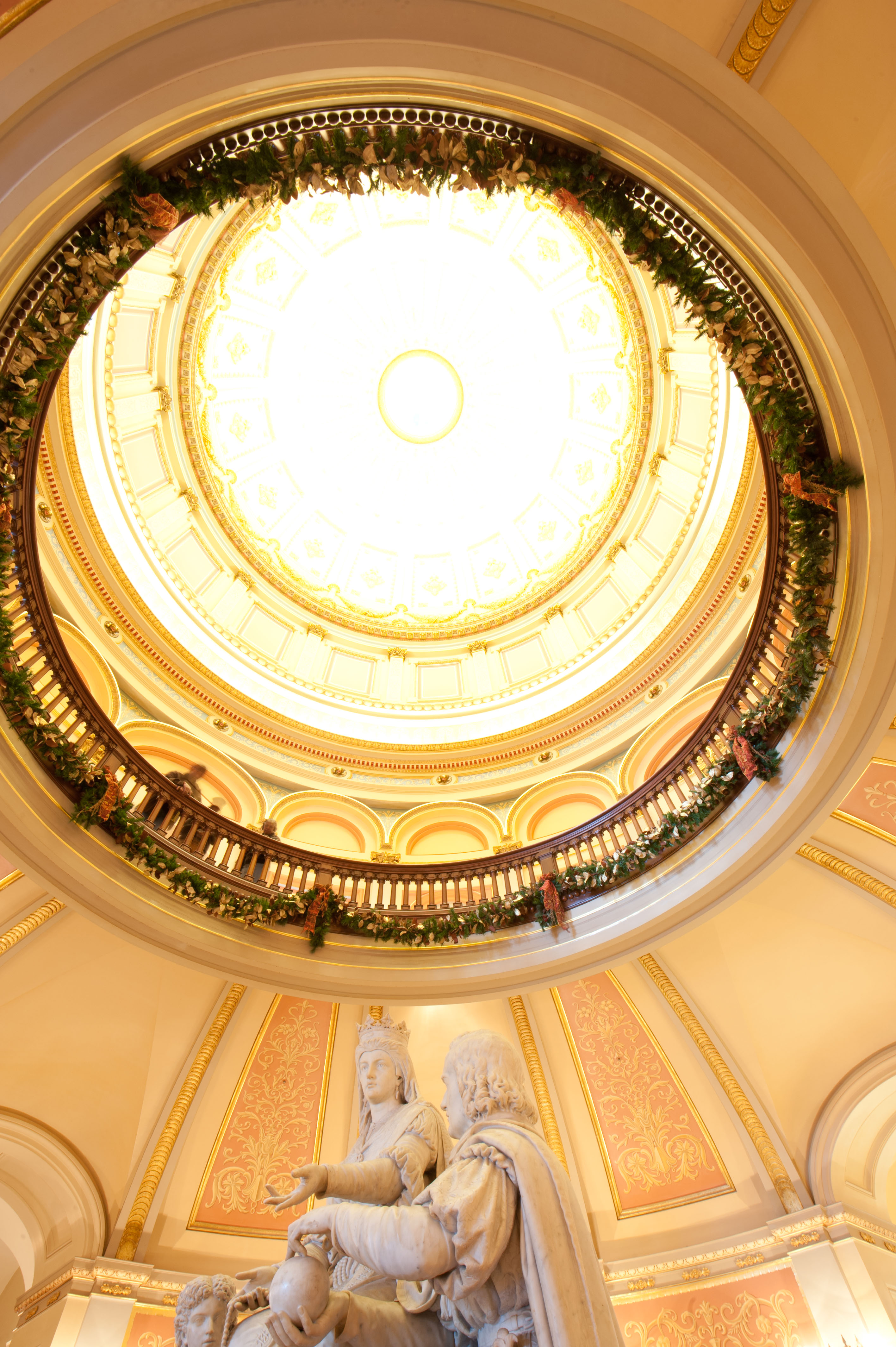
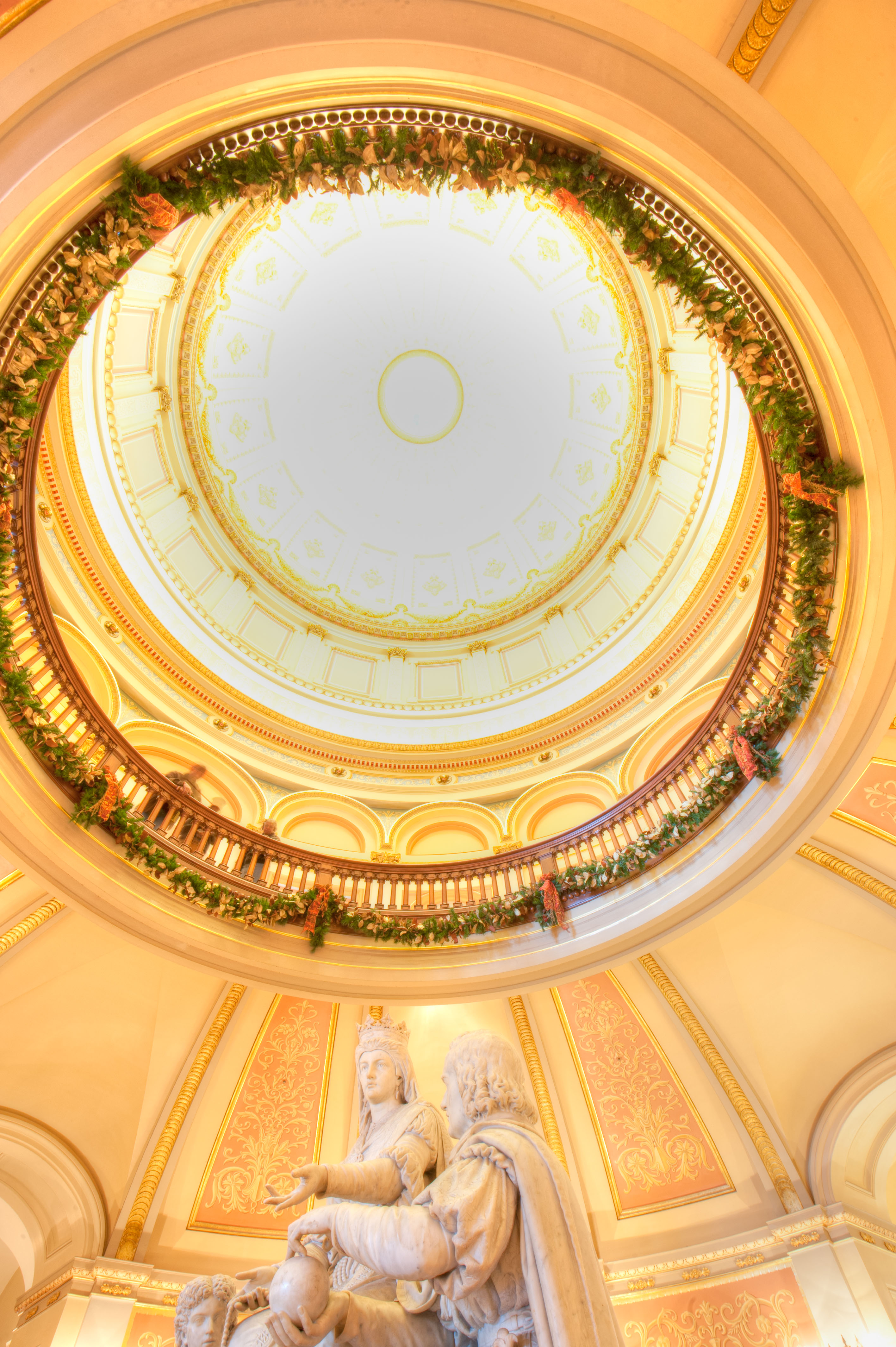
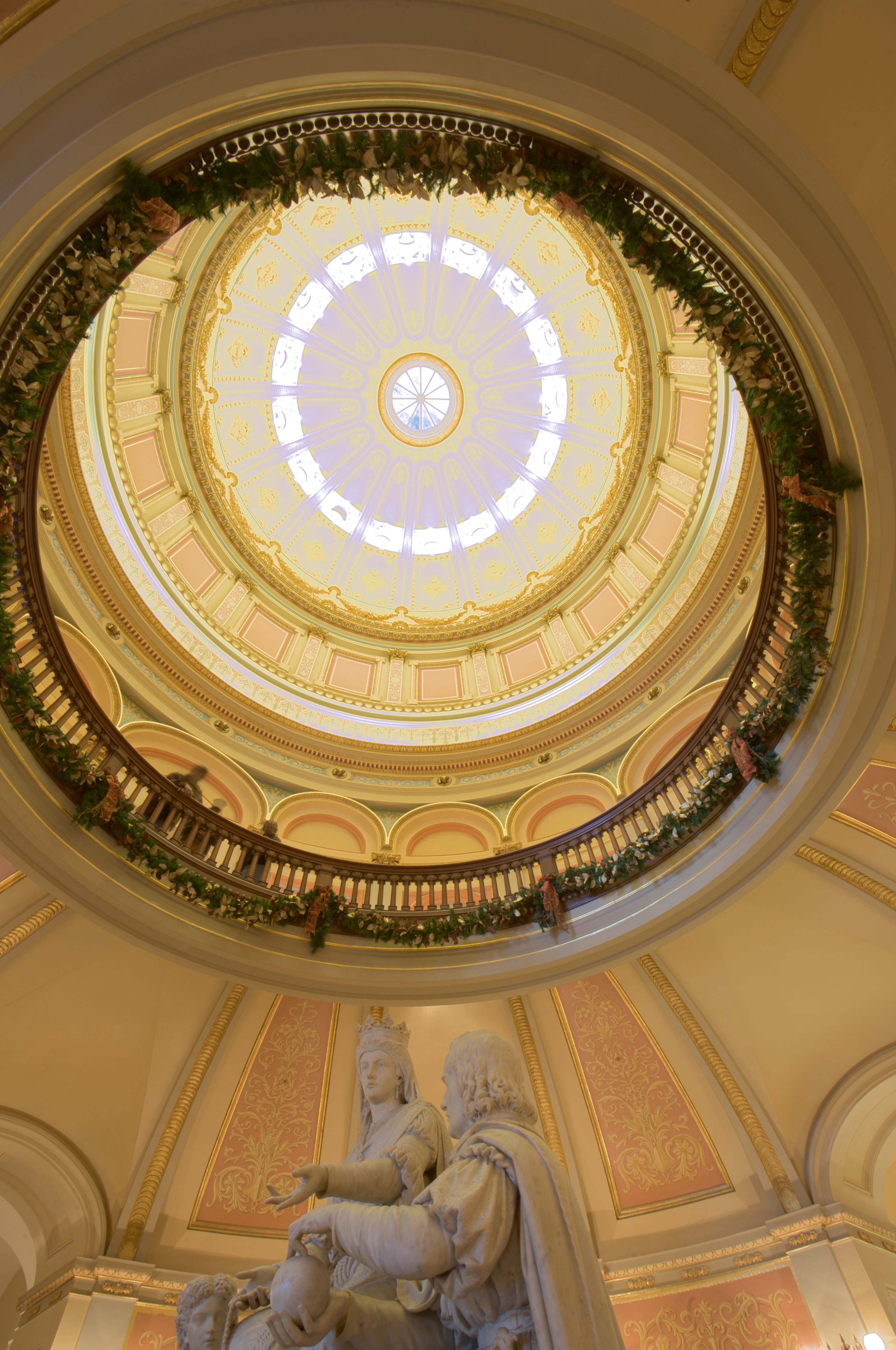
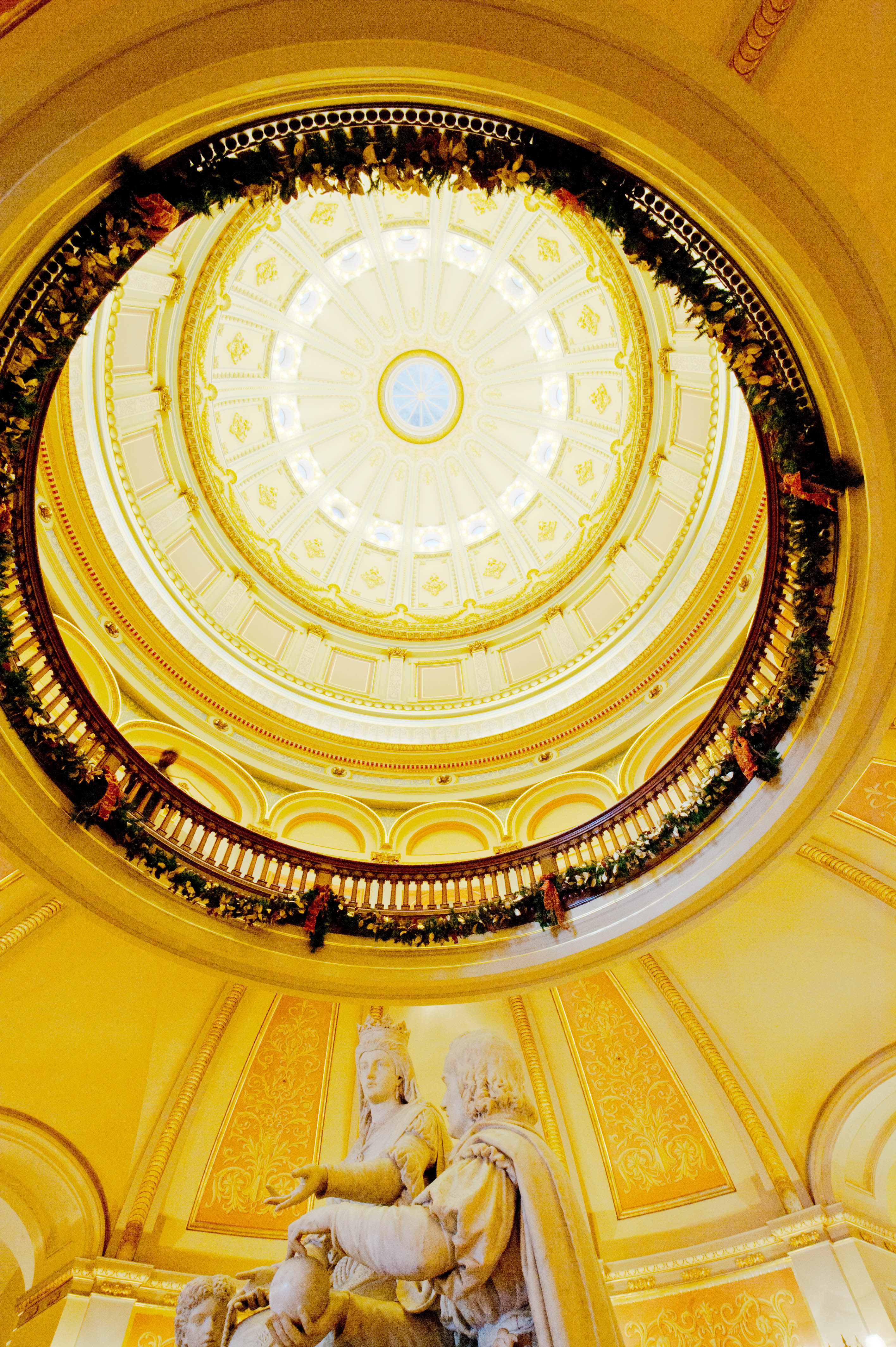
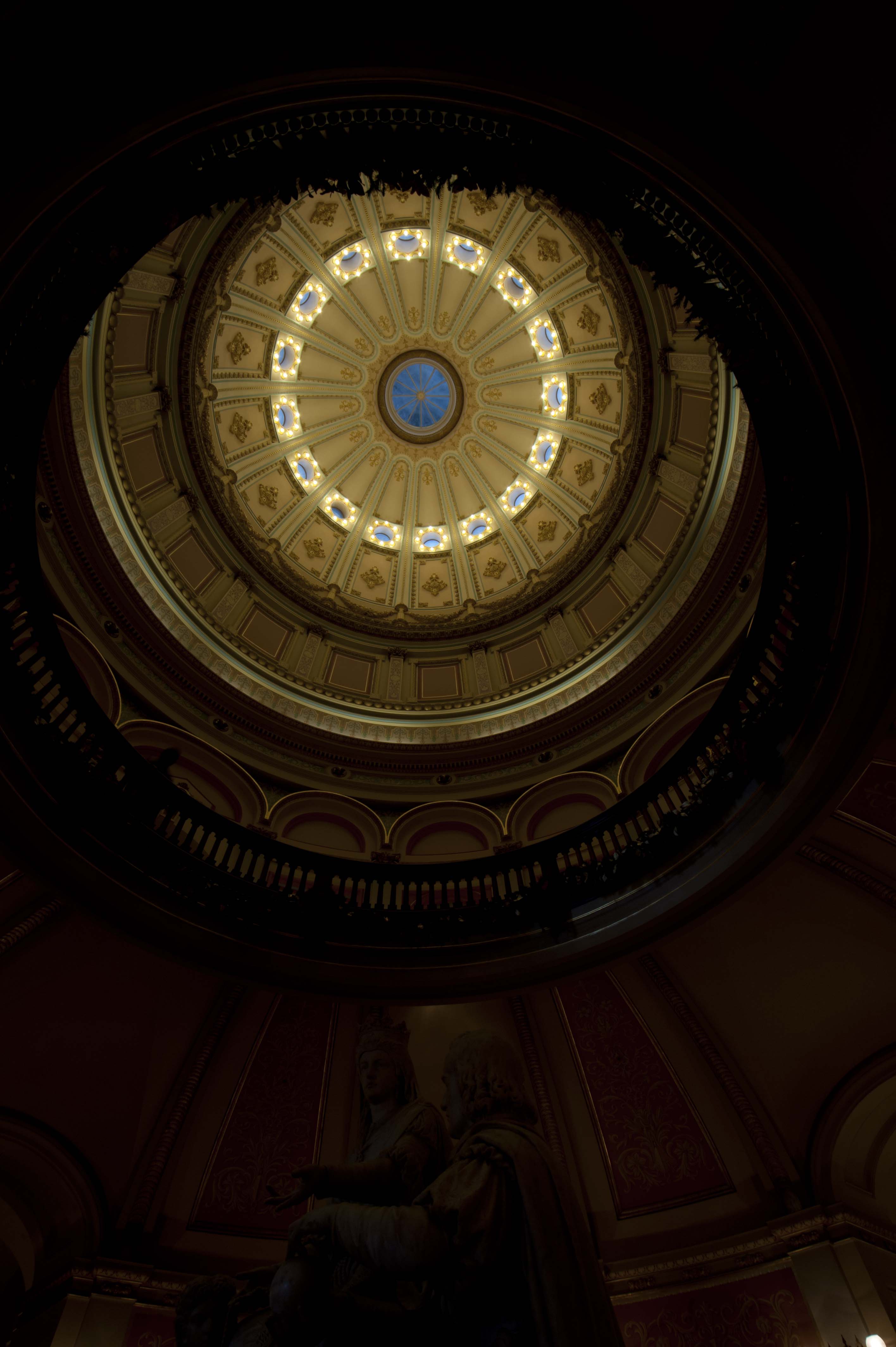
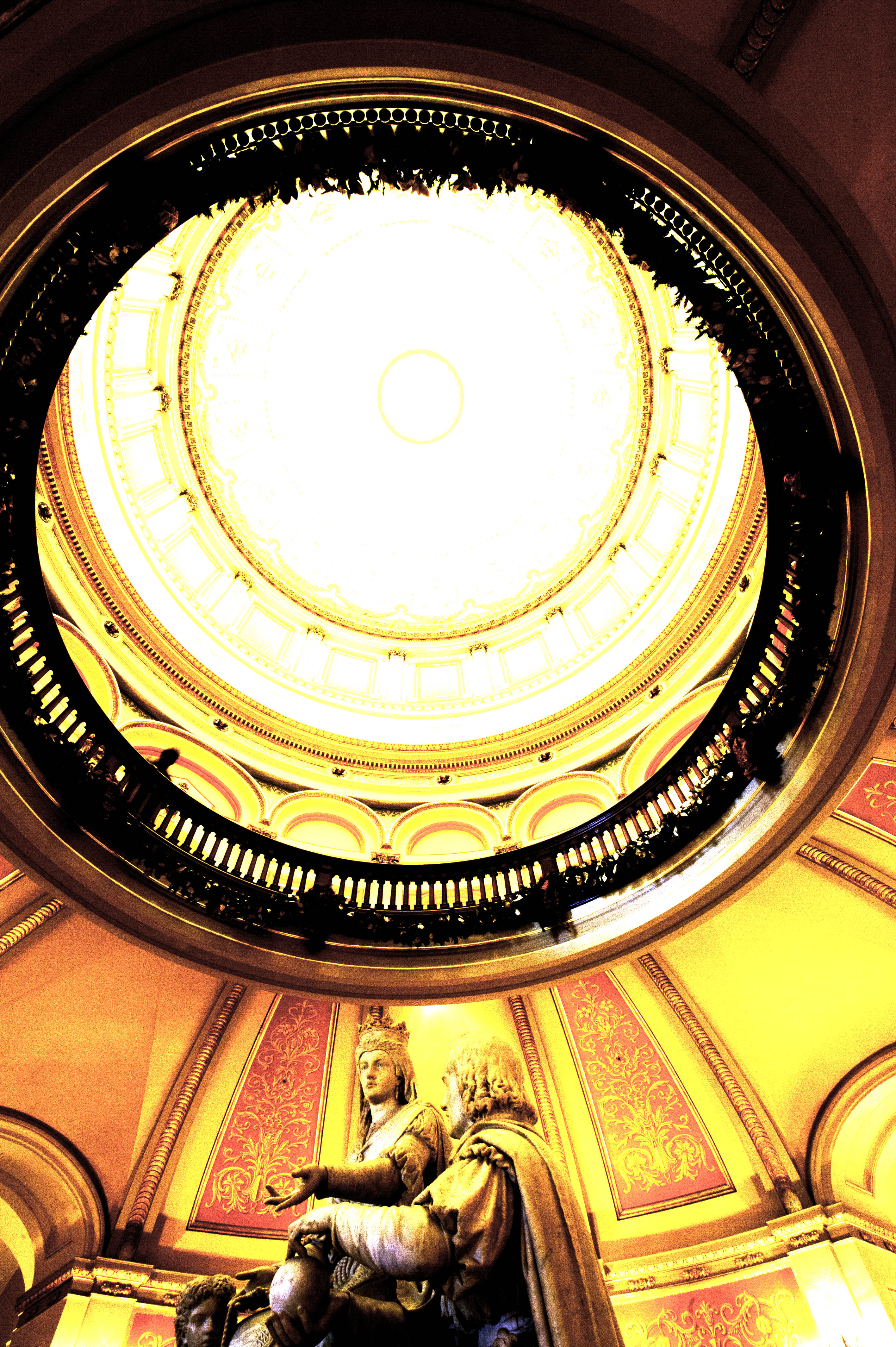
The images below help to explain this point. I started with a RAW file that’s just one of a bracketed set. This is the -4EV (ie, most underexposed) of the set of five. I loaded this RAW file into Lightroom and then created the two images shown below. [Click on any image in this post to see a higher-resolution version.]


Yes, both of the above JPEG (ie, LDR) images were created from the same RAW file original. The left one used the default settings in Lightroom’s Develop module. For the right, I used Exposure=+4.00, Fill=70, Recovery=100 and Brightness=0. I could have used Adobe Camera Raw (ACR) instead of Lightroom and achieved the same results because the RAW processing engine of both apps are identical. Note that in order to bring out the detail in the shadows, I had to compromise and let the highlights burn out.
Using LDR file formats it takes multiple images to represent the full dynamic range of even one RAW image. You can’t squeeze all this information into a single TIFF or JPEG even by just reducing the contrast. If you try, you’ll lose too much tonal distinction. That is, levels of brightness will clump together and you’ll end up with tonal banding.
As you can see, there’s a lot more information in the shadows of the original RAW image than you might think if you only saw the first image. The goal I want to explore is how to ensure that all of that information is available within Photoshop or the various plugins and HDR applications.
Some popular HDR tools such as HDRSoft’s Photomatix Pro also can accept and fully exploit RAW images, but if you pass those RAW images to these applications from Photoshop, Lightroom, etc., you may unknowingly be first converting your RAW files into an LDR format and throwing away substantial detail that you cannot ever recover. Lightroom’s export to Unified Color’s HDR Expose is unique in that the default is to pass the full RAW image to the plugin. Because NIK’s HDR Efex Pro apparently cannot process RAW files directly, this is exactly what will happen if you use that plugin.
Exporting from Lightroom
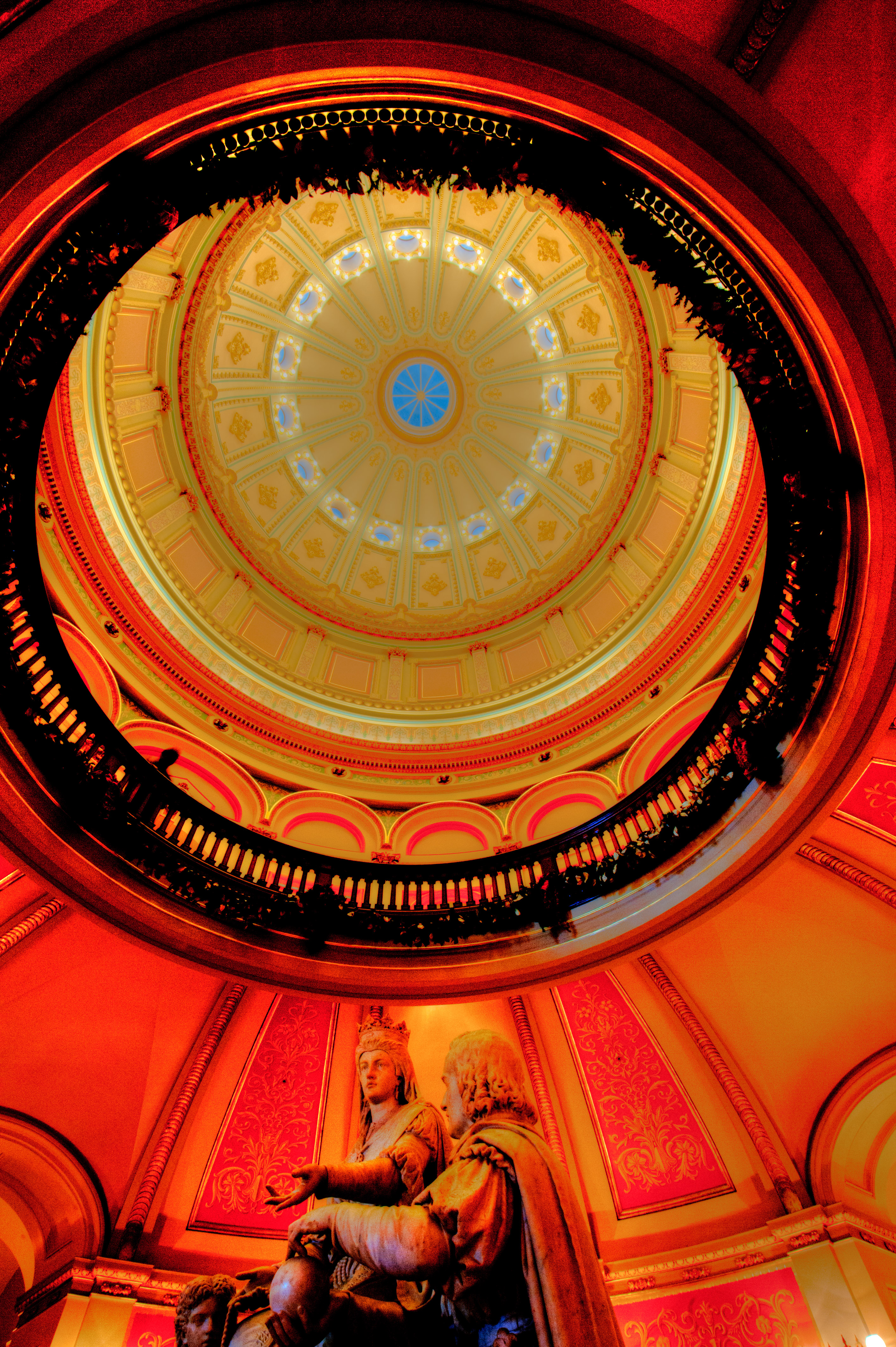
What happens instead if you export the RAW image from Lightroom to Photoshop using the default settings (16-bit Adobe RGB TIFF). This is what you’ll see. It looks pretty much like the default JPEG from Lightroom.
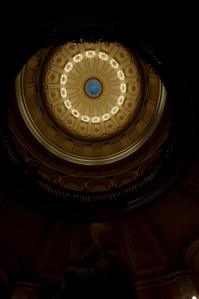
But suppose you then want to use Photoshop to recover that shadow detail? The image below shows what happens when you add an Exposure adjustment layer.

It’s clear that some detail in the dark areas can be recovered, but the image is very contrasty and saturated and the highlights are now even more blown out. Certainly a lot of information has been lost by using a 16-bit TIFF as an intermediate format.
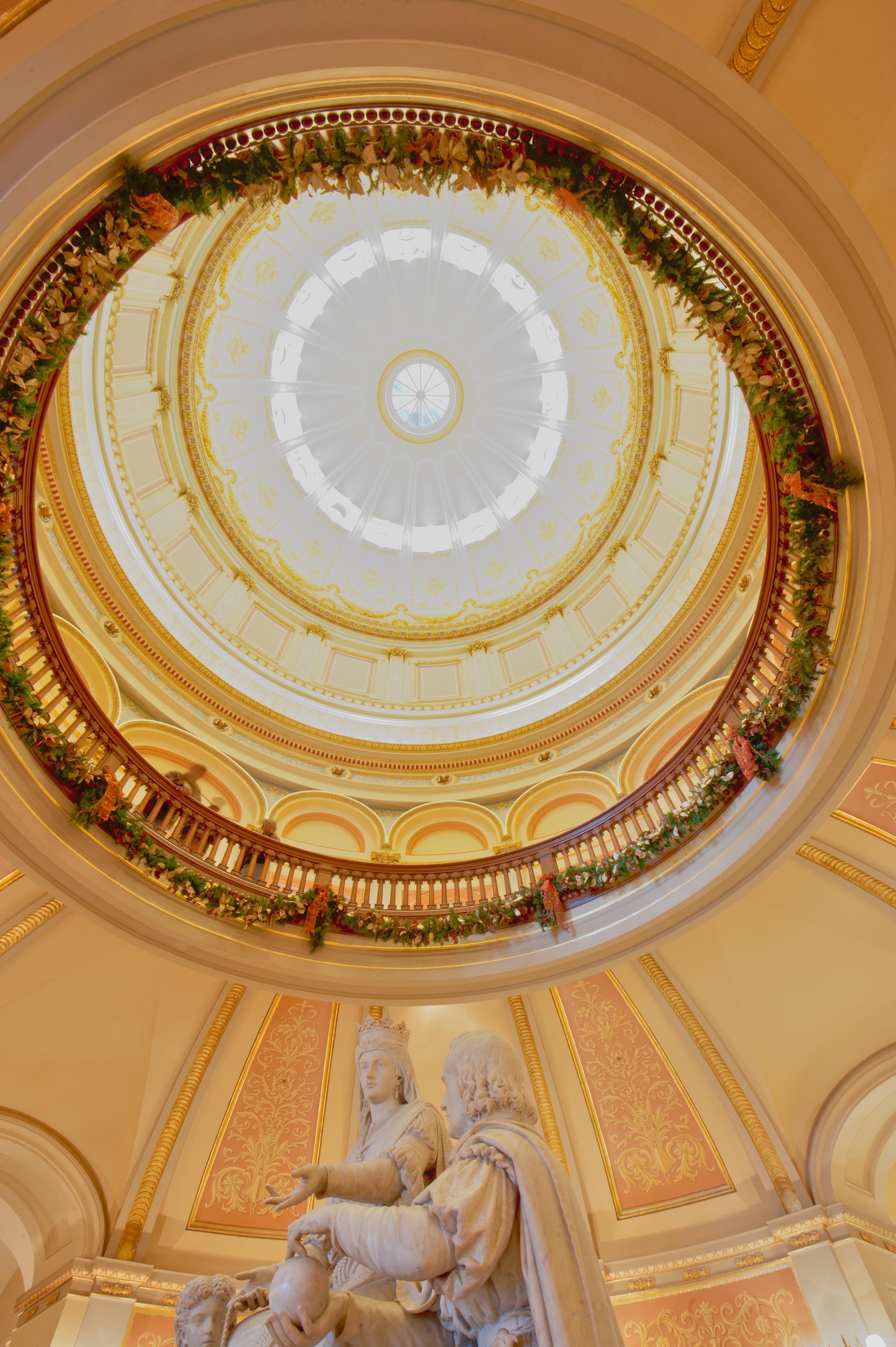
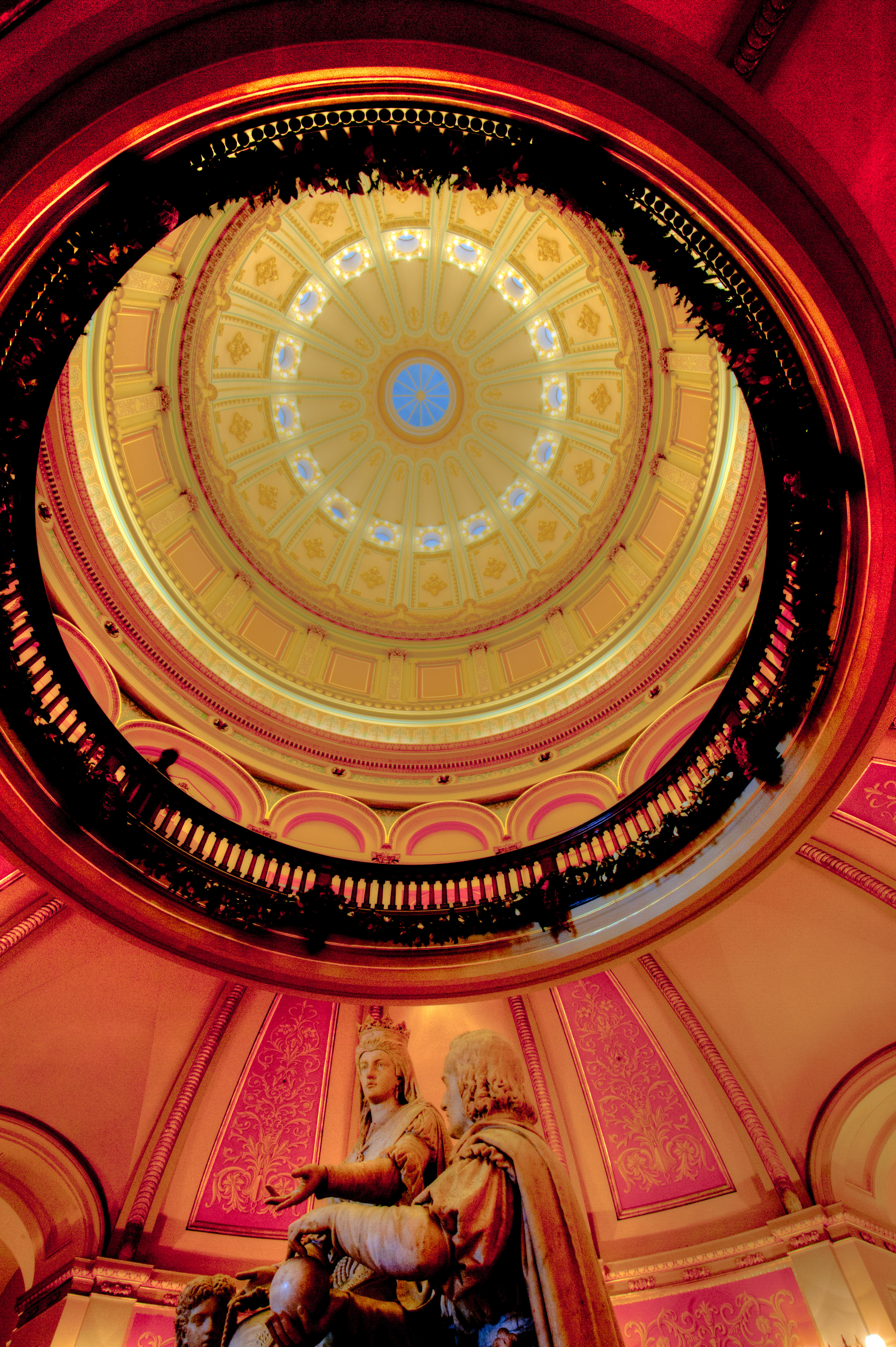
Could the problem be with the choice of the colorspace in the intermediate TIFF image? The images below were created in the same manner as the above image except that I used the sRGB (left) and ProPhoto (right) colorspaces.
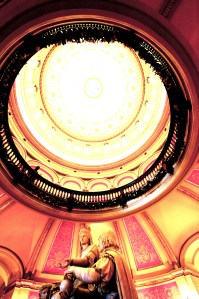
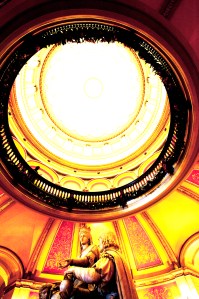
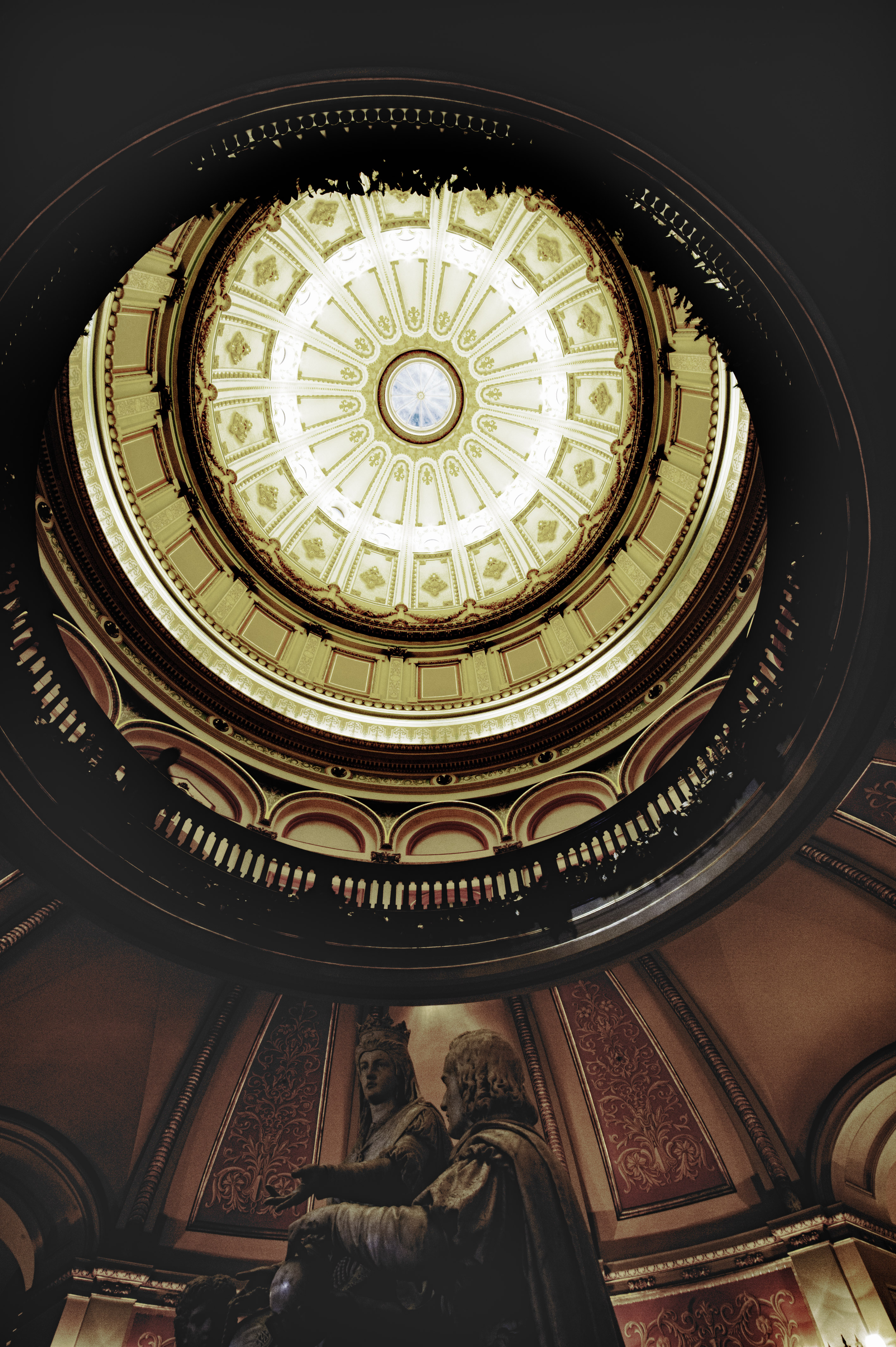
None of these images comes close to the JPEG I was able to create directly from Lightroom. Specifically, none of the images made using an intermediate TIFF and Photoshop were as good in recovering shadow details. (Check the area under the statues at the very center/bottom of the image.)
Using DNG as an Intermediate Format
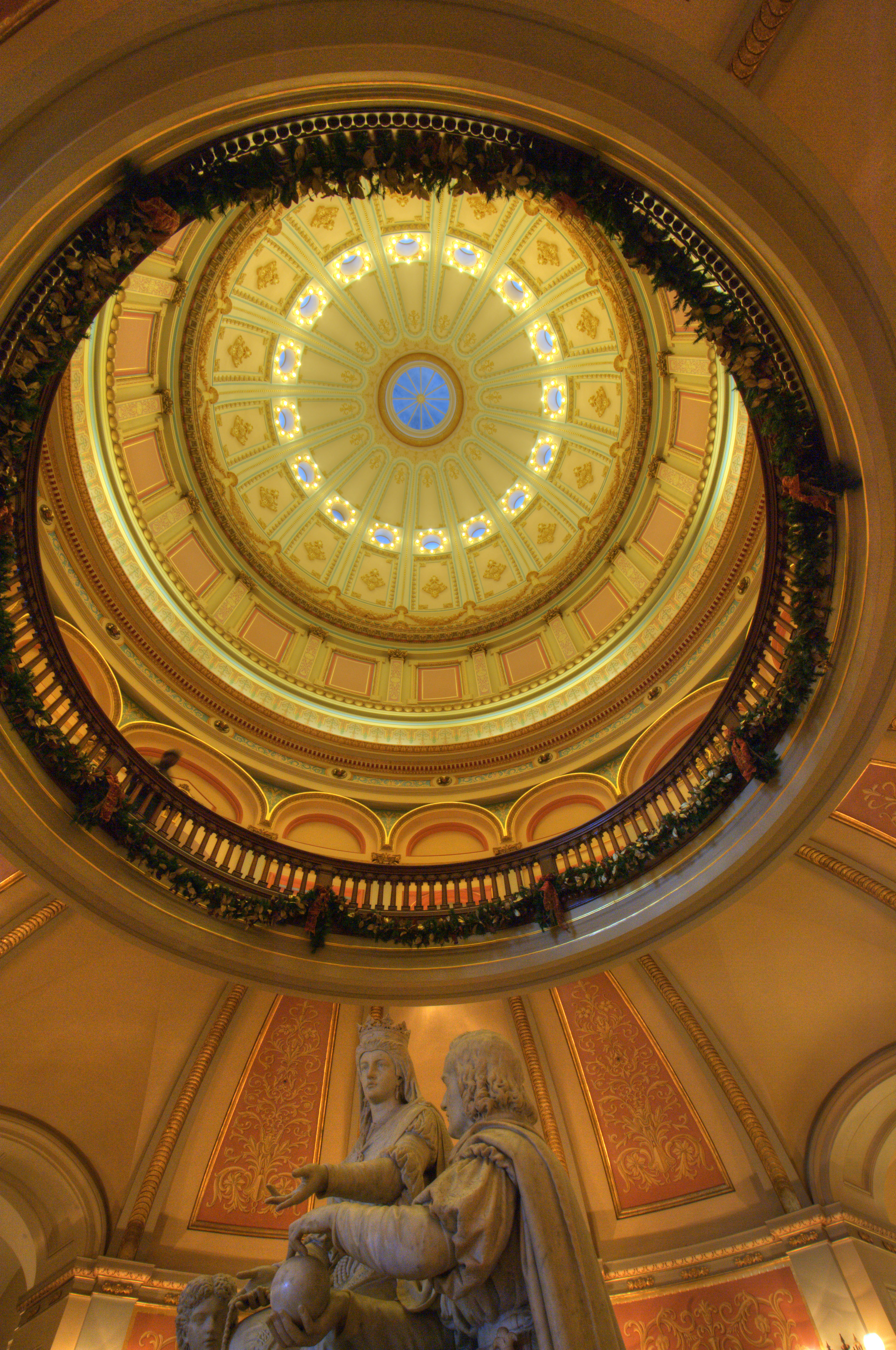
If you want to export images from Lightroom to Photoshop, how can you avoid this loss of data? The simplest solution I know of is to use Adobe’s DNG format for intermediate files. The image below shows that result. When Photoshop opens the DNG, it first launches Adobe Camera RAW (ACR). This gives you the opportunity to extract the extended-range data before creating the LDR image used in Photoshop.

As you can see, this is quite similar to the JPEG created directly in Lightroom. Again, that’s because Lightroom’s Develop module is based on ACR. Like Lightroom, ACR is also a RAW-file converter, which means it generates an LDR image from a RAW file. It’s that LDR image that is passed to Photoshop when you Open a RAW file from ACR. And as with Lightroom, that means there’s the potential for losing even more data.
Exporting for HDR Processing
If DNG is the best intermediate format between Lightroom and Photoshop, what about getting images into our HDR tools such as Photomatix Pro and HDR Efex Pro?
Starting with the same single unmodified RAW file in Lightroom, I ran an Export to Photomatix Pro. Here’s the result using Photomatix Pro’s default settings and three different intermediate options: (1) 16-bit Adobe RGB TIFF (Lightroom’s default); (2) 16-bit ProPhoto RGB TIFF; and (3) DNG.


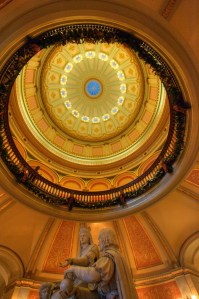
The DNG version is again quite superior to the TIFFs.
What about exports from Lightroom to HDR Efex Pro Pro? The images below were exported from Lightroom to HDR Efex Pro using: (1) 16-bit Adobe RGB TIFF; and (2) 16-bit ProPhoto RGB TIFF. I had to use some rather extreme settings in HDR Efex Pro to make the images look even this good: Exposure=+1.7EV, Contrast=+25%, Saturation=-45%, Blacks=+85%. As far as I can tell, there is no way to pass an image from Lightroom to HDR Efex Pro as a DNG or other type of RAW file.


And what about the newcomer, Unified Color’s HDR Expose 2? The default export to this plugin apparently passes the RAW file, and the RAW converter is quite good. The image below is the result of the default export from a single RAW image to HDR Expose 2.

Conclusions
I’m going to run a few more tests. In particular, I want to demonstrate how it is possible to use extended-EV TIFF files created from RAW files as intermediates. I first learned this technique from Klaus Herrmann in the section in his excellent online HDR Cookbook entitled Creating HDR Images the Right Way. (Look for the Five TIFFs method.) I also want to get some feedback from other photographers who have studied this. I expect I’ll have to make a few corrections to this post even as far as I’ve gotten so far.
It seems DNG is the best format for a simple export from Lightroom to Photoshop or Photomatix. Unfortunately, HDR Efex Pro doesn’t support this. For that application, you should use Klaus’ Five TIFF method, which is a lot more time consuming. If you’re using HDR Expose, you don’t have to worry — the default work well. More to come.
[See also the next post in this series: The “Edit in…” Problem in Lightroom.]

















 Blogarithms